Recurring Requests 4.4: Repeat this, for agents, and a new settings page
Until now, Recurring Requests let portal customers repeat their own requests. Version 4.4.0 adds the agents’ side: Repeat this, on an issue, with a schedule that belongs to the project.
In short
- Repeat this: open an issue, choose it from the actions menu and pick how often. Each new issue is created by the app.
- Off until a project admin switches it on, in any Jira project.
- In a service project, each new issue gets the request type, and can be raised for a customer and shared with the source issue’s organizations.
- Options: the assignee, a due date,
{month}or{year}in the summary, and skipping a run while the last issue is still open. - Recurring work, a new project page: Run now, Edit, Pause, Stop, recent runs, and the history as CSV. Jira admins see every schedule on the site.
- A new settings page. Customers can now skip a run while their last request is open; the rest works as before.
Repeat this, for agents
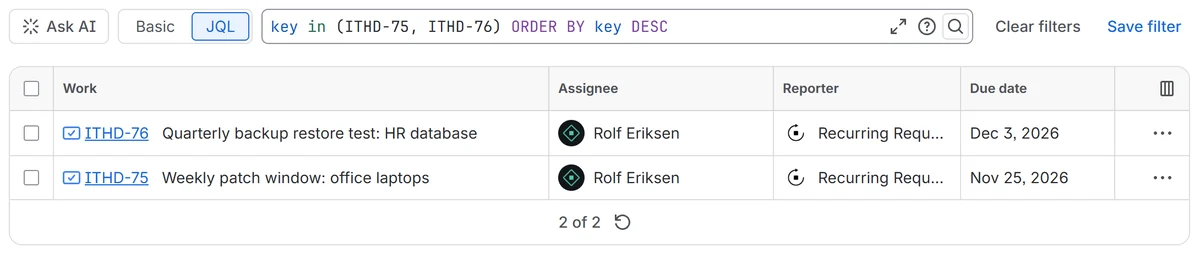
Some work comes back on its own calendar: the monthly access review, the weekly patch window, the quarterly backup restore test. An agent can now open the issue that describes it, choose Repeat this from the issue’s actions menu, and pick how often: every day, week or month, quarterly, yearly, or a pattern such as the first Monday or the second working day of the month.
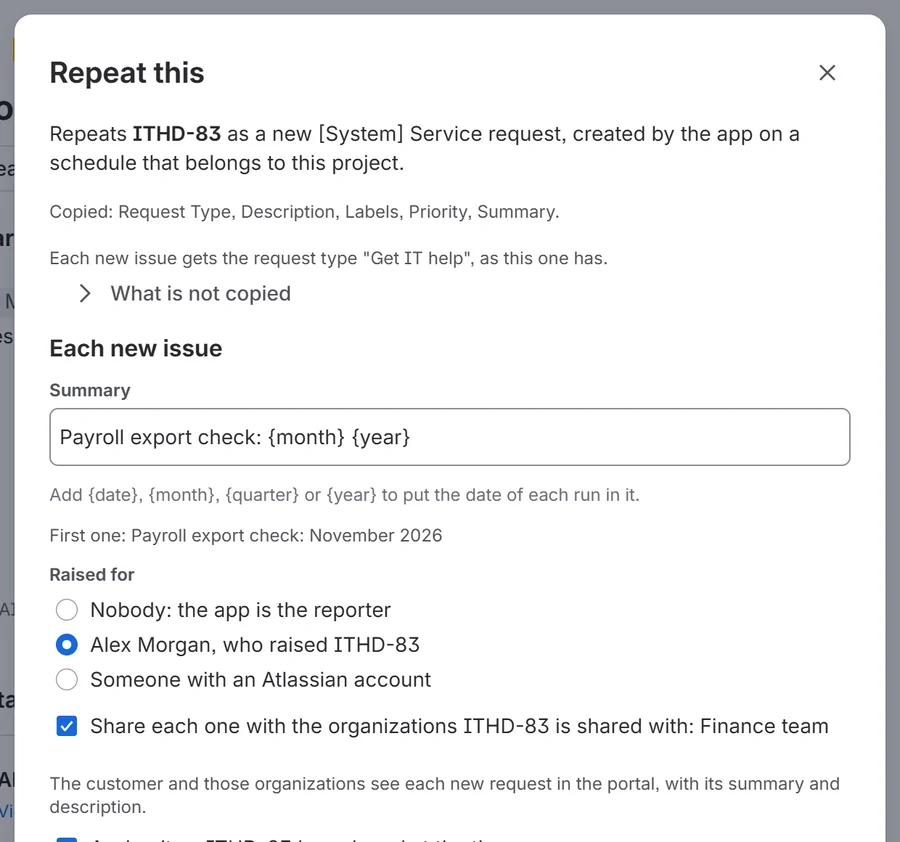
The schedule belongs to the project, not to the agent who set it up, so it does not stop when that agent changes jobs or leaves. One exception: if the account of the person who reported the source issue is deleted, the app removes its copy and pauses the schedule. At each run the app creates a new issue in the project, from a copy of the issue’s fields. The dialog lists what is copied, and under What is not copied what it leaves out, such as people and pictures. Before saving, it shows the next dates.
Who can set one up: people who can browse the project and create issues in it, and in a service project, its agents. Portal customers cannot.
Request type, summary, assignee and due date
- Request type. In a service project, each new issue gets the same request type as the source issue, so it lands in the right queue. The Request Type field must be on the issue type’s create screen, as it is in a default service project. The dialog says which request type the new issues get, or why they get none.
- Summary. It starts as the source issue’s summary. Add
{date},{month},{quarter}or{year}and each issue gets the date of its run, such as “Payroll export check: November 2026”. The dialog shows the first one before you save. - Assignee. Optional: “Assign it as the source issue is assigned at the time.” At each run the app reads who the source issue is assigned to then, so a schedule follows a change of owner. It stores no person.
- Due date. Optional: due a number of days after the issue is created, counting working days only if you choose.
Raised for a customer
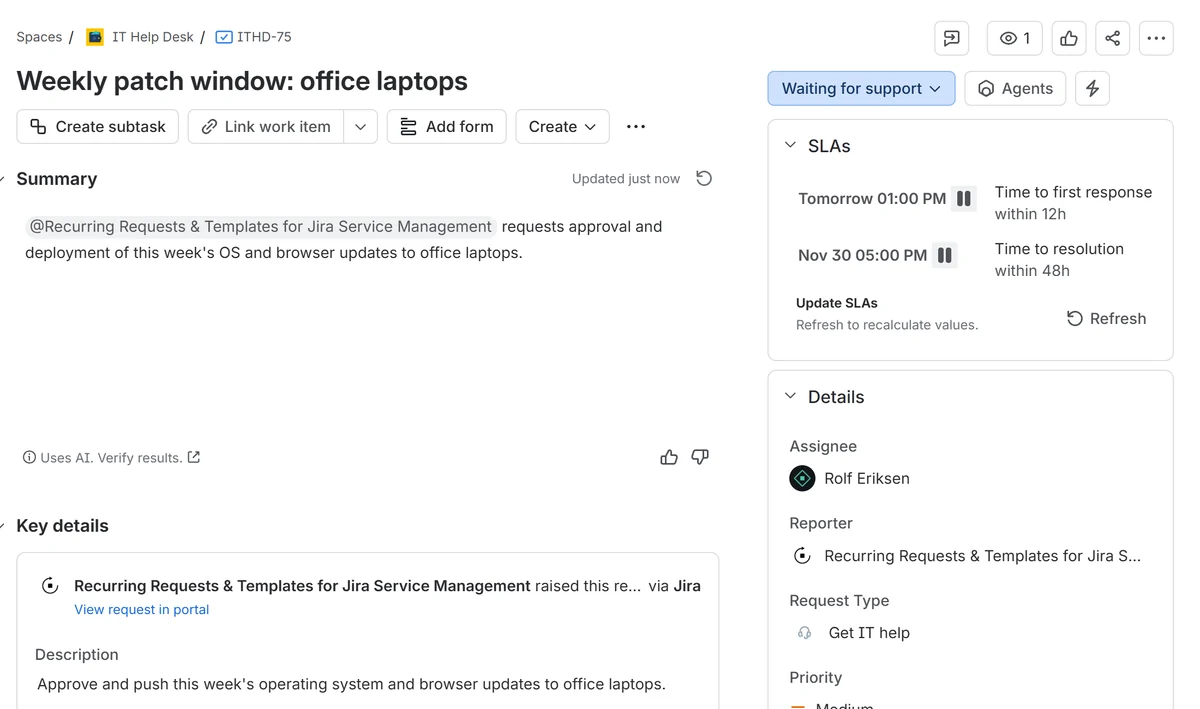
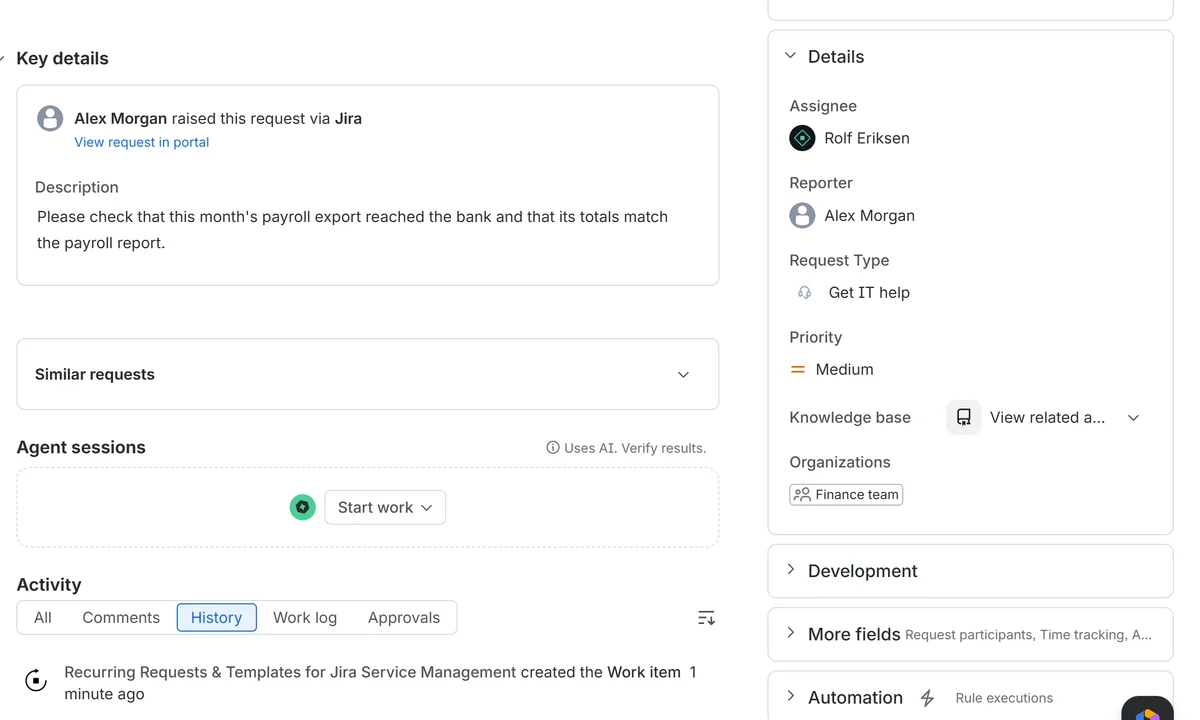
In a service project, each issue can be raised for a customer: the person who raised the source issue, one of its request participants, or someone with an Atlassian account. The app still creates the issue. The customer is its Reporter and sees it in the portal as their own request, with its summary and description, and Jira’s history shows that the app created it. A customer who uses only the portal can be chosen when they raised the source issue or take part in it; the person picker finds people with an Atlassian account.
Each issue can also be shared with the organizations the source issue is shared with. Before saving, and before each run, the app checks that the customer can still raise that request type; if not, nothing is created and the history says why. The app needs the Modify reporter permission in the project, and the dialog says when it is missing.
Skip a run while the last is still open
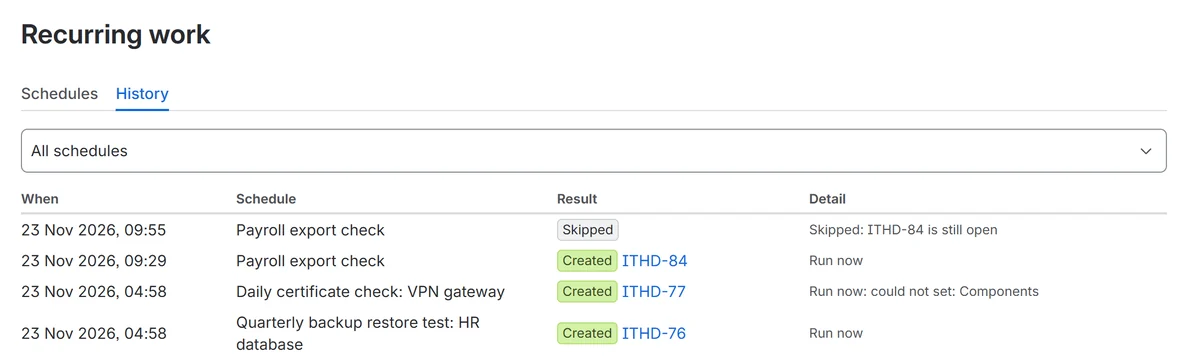
Any schedule, an agent’s or a customer’s, can skip a run while the issue it created last is still open, so a weekly check does not pile up behind one that is not finished. A skipped run does not count toward “Stop after”, and the history says which issue was still open.
Recurring work: one list per project
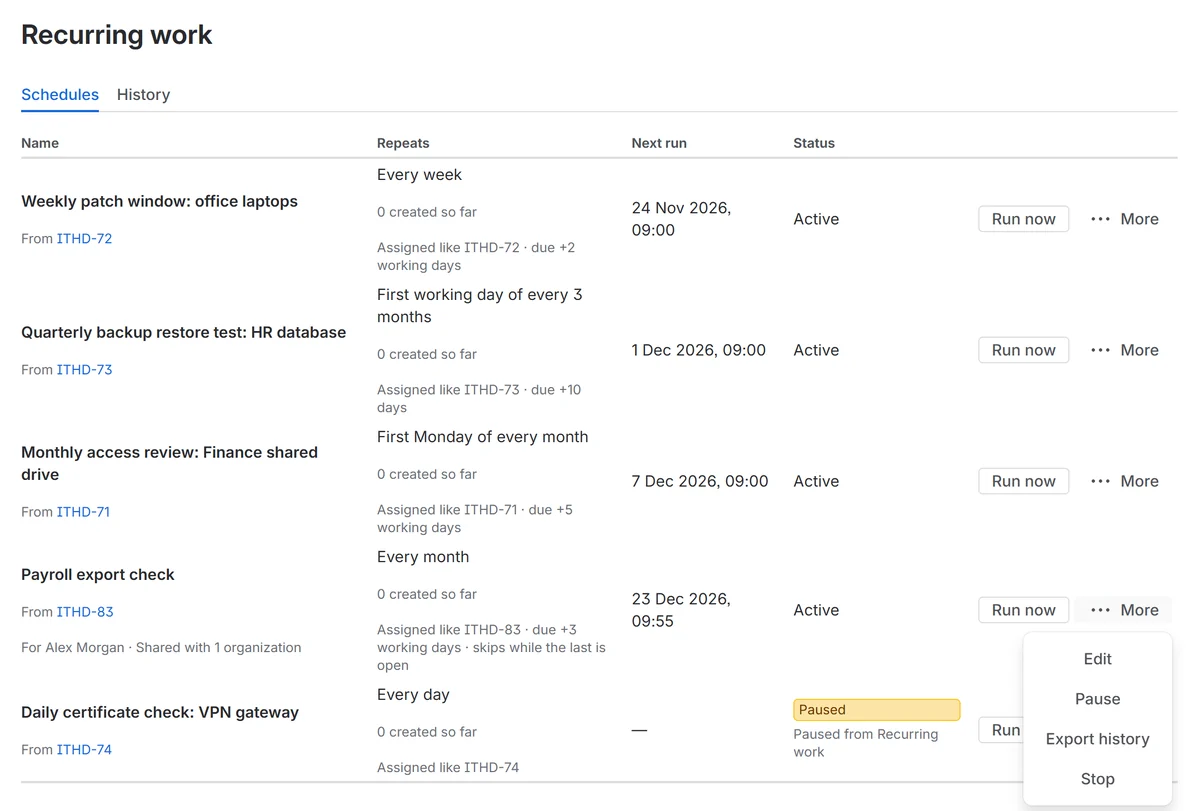
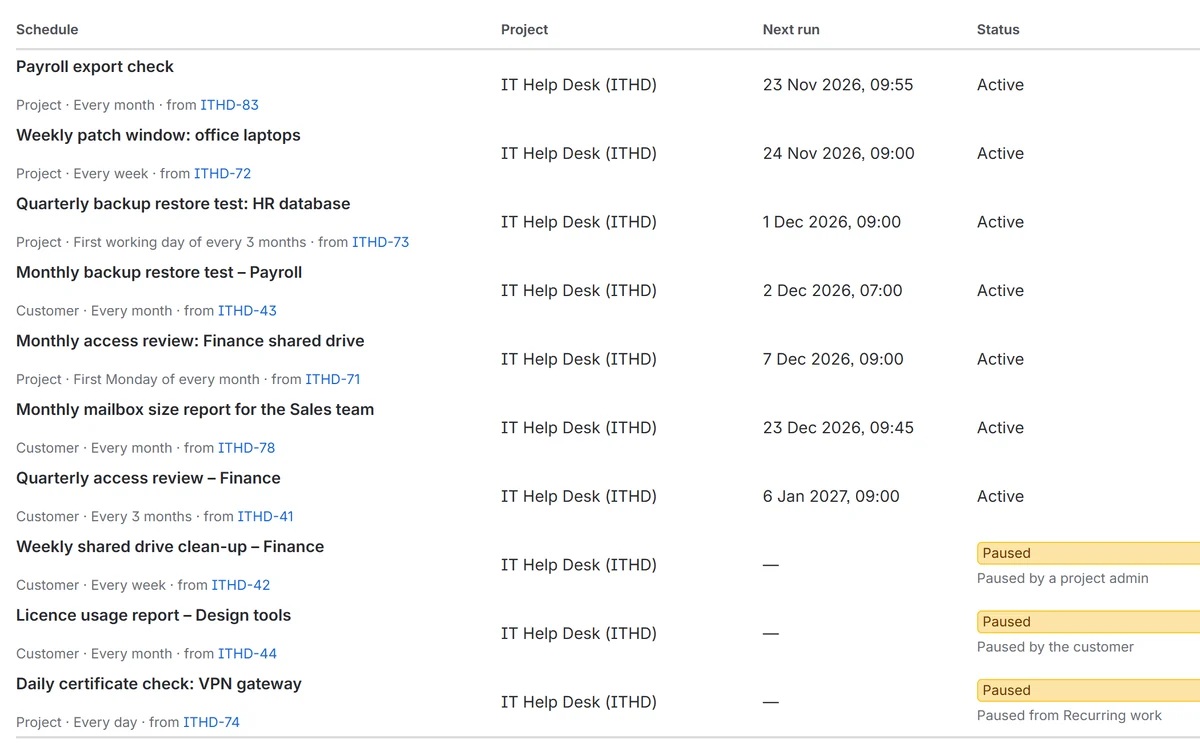
Each project gets a Recurring work page. It lists the project’s schedules with how often each repeats, its next run and its status. Run now creates one issue at once without moving the schedule. The More menu has Edit, Pause or Resume, and Stop. Edit changes the timing or the name and keeps the history; Stop asks first.
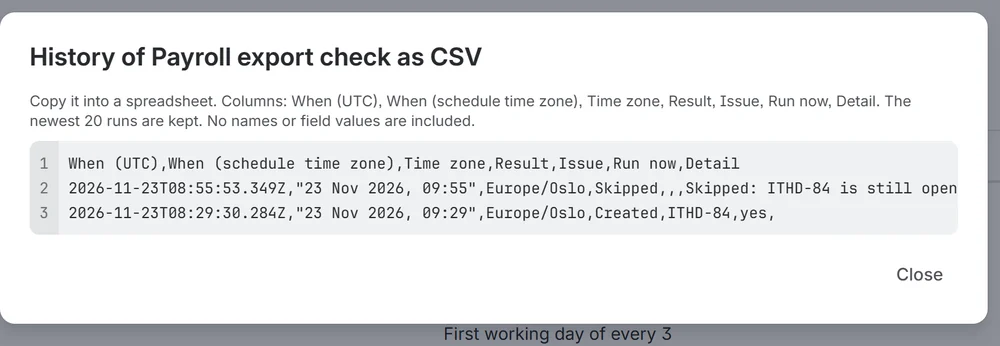
The History tab lists each schedule’s latest runs (its last 20 entries) in plain words: when, which schedule, the issue it created, or why it did not. If Jira refuses a field, the run is made once more without that field, unless it is the summary, a security level or the customer it is raised for, and the history names it. Export history, in the More menu, gives a schedule’s latest runs as CSV to copy, with no names or field values. Three failed runs in a row pause the schedule, and the app leaves a comment on its source issue (an internal one in a service project) that points to the Recurring work page.
Every schedule on the site, for Jira admins
Jira admins get a read-only list of every running or paused schedule on the site, customers’ and projects’, under Jira settings, Apps, Recurring requests. A customer’s schedule shows as “Customer”, never by name. Pausing, editing or stopping one stays with the project.
Approvals and checklists
A request a customer repeats keeps its approval step, with the approvers it had; we checked this on our own site. Checklists made with other apps, such as Checklist for Jira or Smart Checklist, are not among the fields the app copies, so each new issue starts without them.
Off until a project admin switches it on
Repeat this is off in every project until a project admin switches it on: Project settings (Space settings in newer Jira), Apps, Recurring requests, What agents can do. It works in any Jira project, not only service projects; outside a service project the settings page shows only this switch. Until it is on, Repeat this and the Recurring work page are visible, and they say where to switch it on.
Switching it off later stops new schedules and pauses the project’s schedules at their next run. Pause and Stop still work.
A new settings page, and a lighter portal
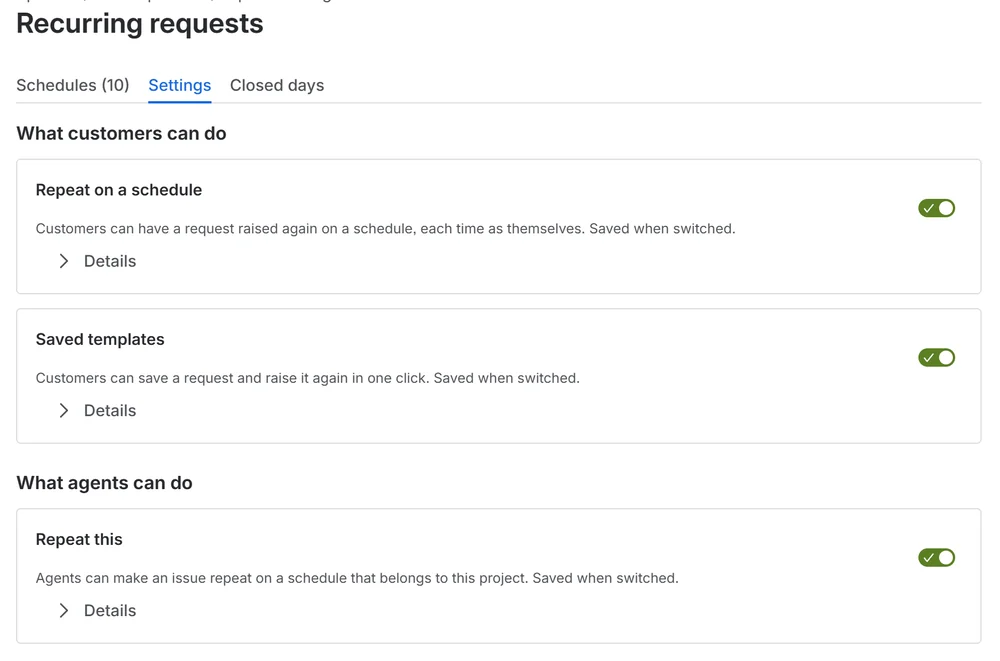
The project settings page now has three tabs: Schedules (customers’ and the project’s schedules in one table), Settings and Closed days. Each setting is one line; the longer explanations are under Details. The switches save as soon as you switch them, and ask before turning off.
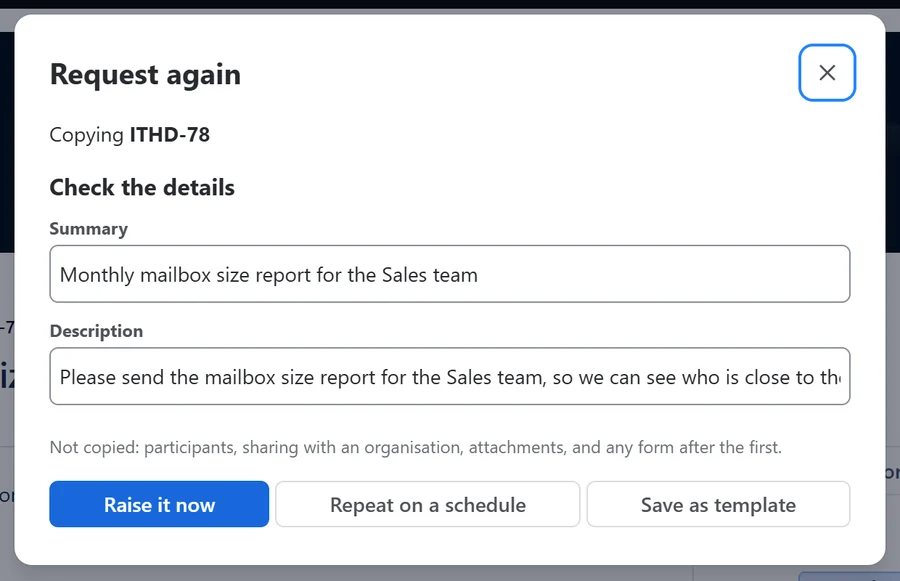
In the portal, Request again and My recurring requests have a cleaner layout. Apart from the new skip option, every word customers see is the same as before.
Before this: the storage release (4.0.0 to 4.3.0)
Versions 4.0.0 to 4.3.0, out on 22 November 2026, prepared for Repeat this:
- The app’s stored data moved to a stricter form within minutes of the update. Nothing changed in how customers create, pause, edit or cancel schedules and templates.
- A failed run names the field Jira refused.
- It asked for one new permission, create and manage issues, which Repeat this needs to create issues as the app. On sites that approved 4.0.0, 4.4.0 arrives as an ordinary update, with no new approval.
Repeat this or an Automation rule
A scheduled Jira Automation rule can also create an issue every month. Rules, scheduled ones included, use your plan’s automation allowance; Recurring Requests runs its schedules inside the app, not as Automation rules. The bigger difference is the work: there is no rule to build or keep working, each project has one list of its schedules, and the history says what happened. Our guide Scheduled Automation rules or Recurring Requests says when a rule is the better choice.
Where it runs
Repeat this is in 4.4.0 for Jira Cloud. Atlassian Isolated Cloud gets the same release under its own version number. In Atlassian Government Cloud, Recurring Requests is submitted for review and not listed yet. The app runs on Atlassian Forge, and nothing leaves Atlassian.
What to expect next
- Fixes first. What you report after this release is fixed before anything new is added.
- The storage change finishes. A later version removes the older form of the stored data in Jira Cloud and Isolated Cloud. It changes nothing you see.
- Government Cloud. Recurring Requests is waiting for Atlassian’s review there.
- What comes after depends on what you tell us. Ideas from comparing similar apps are on a list, not promised.
Tell us what you need at [email protected].
Read more
- Repeat this
- Raising for a customer
- Date words in the summary
- The Recurring work page
- For administrators
- What’s new, version by version
Source: the release notes for each version on the Recurring Requests & Templates for Jira Service Management listing on the Atlassian Marketplace.