Issue Templates & Create Defaults for Jira
When every bug report should answer the same questions, give each issue type a template, and Jira's own Create dialog fills it in. Nobody has to remember the format.
Defaults in the Create dialog
Choose the projects and issue types a template is for, and which of
those types it fills in by itself. When someone opens Create, from
the Create button or by pressing C, with one of those
types, the app fills in what the template sets, as long as the form
is still empty:
- The summary, which can be a prefix such as Bug: that people type after
- The description, as formatted or plain text, whichever the project's description field uses
-
A checklist at the end of the description, as Jira's own tickable
action items (or
[ ]lines where the description is plain text) - Labels
- Priority
It fills nothing else. Assignee, components and custom fields are left to the person. Filling takes a few seconds after the dialog opens.
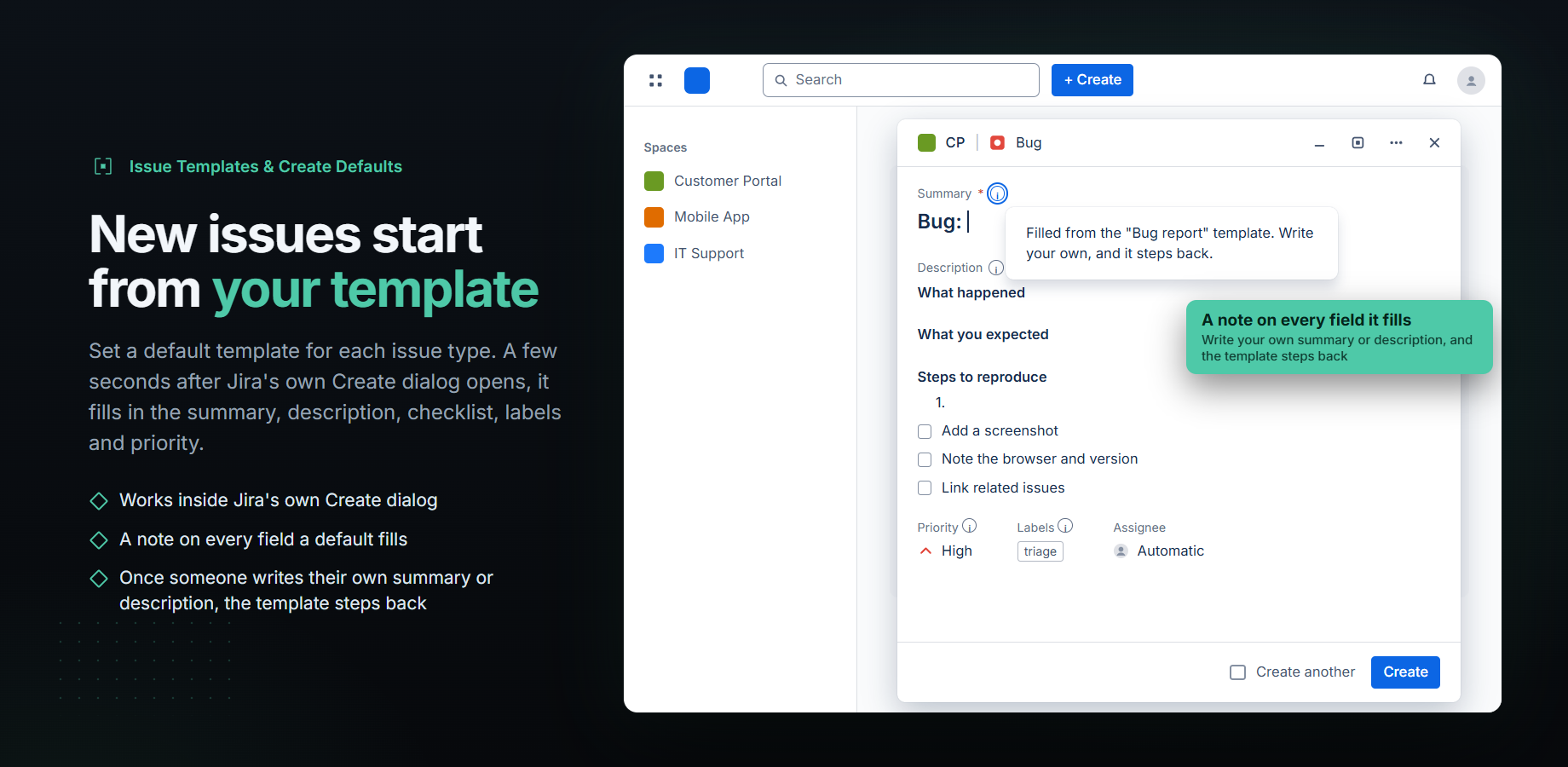
What people see
When a default template fills the form, each field it fills gets a note that says where the value came from. On the summary and the description it reads Filled from the "Bug report" template. Write your own, and it steps back. On labels and priority it reads Filled from the "Bug report" template.
The note goes in the field's help text, after any help text an admin already wrote there, never in place of it. In Jira's compact Create dialog it sits behind the small (i) next to the field's name.
When someone writes their own summary or description, that field's note changes to Edited by you: the template leaves this form alone now. When they set other labels, the note says Edited by you. When they pick another priority, its note is removed. Text fields update their note when the person leaves the field.
The app shows Edited by you only for a change it sees while it runs. Jira starts the app when the dialog opens, and again each time the issue type changes. If someone has already written their own summary or description at that point, the app writes nothing and the form shows no notes.
Once someone writes their own summary or description, the form is theirs. The app writes nothing more to it, even if they then switch issue type. The app goes by the words, and by images and @mentions added to the description: changing only the formatting of the template's text, or emptying a field, does not count as writing their own.
Switching issue type before typing swaps the default. Go from Bug to Story and Bug's default gives way to Story's. If Story has no default, the app clears the description and labels Bug's default wrote. Jira may keep Bug's summary (see below).
Knowing a template still works
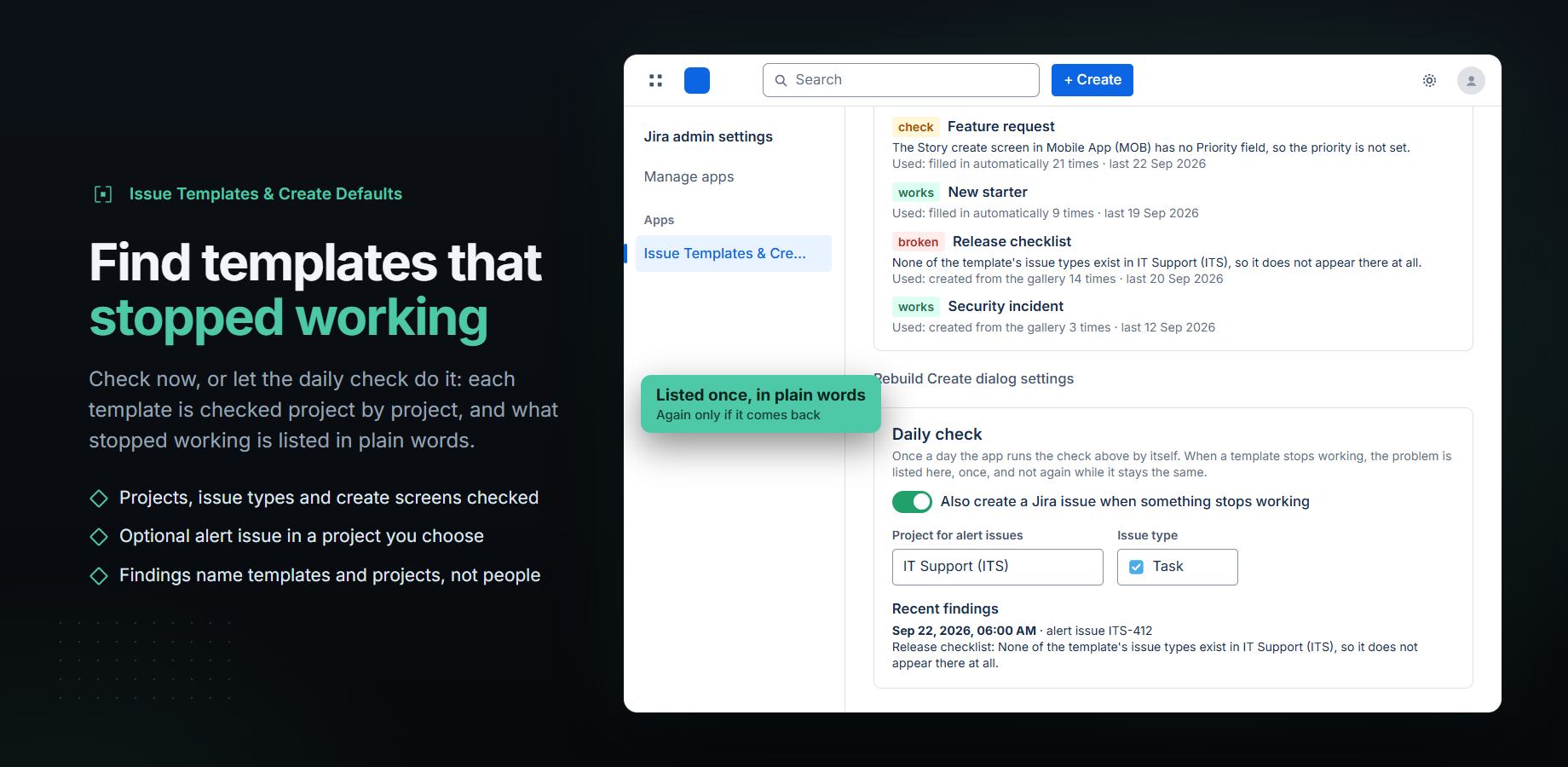
Projects change after a template is set up. An issue type is renamed, a field comes off the create screen, a project is archived. Check now on the admin page tests each template in its projects and marks it works, check or broken, with the reason in words. It looks at:
- Whether the app can still see the project
- Whether the issue types the template names still exist
- Whether the create screen of each issue type it fills in by itself still has the Description, Labels and Priority fields the template fills
- Whether the Create dialog carries the template as last saved
- Whether the project's default priority has changed since the Create dialog settings were last rebuilt
- Whether the site has an active licence
It only reads. Nothing is changed.
The same check runs once a day by itself. Anything new it finds is listed under Recent findings on the admin page, with a notice at the top until someone dismisses it. The first run lists every problem it finds. After that it lists a problem once, and again only if it goes away and comes back.
If a Jira administrator turns it on, the app also creates a Jira issue, in a project and issue type they choose. It is off until then. An issue is created only when a check finds something new that has stopped working: the daily check, or Run the daily check now on the admin page. Send a test alert creates one issue there that only explains what it is, so you can see where alerts land. An alert issue names the templates, projects and issue types involved, and nothing about any person. If Jira will not create it, for example because that issue type needs another field, the error is shown under Recent findings and those problems are not sent again.
Templates people choose
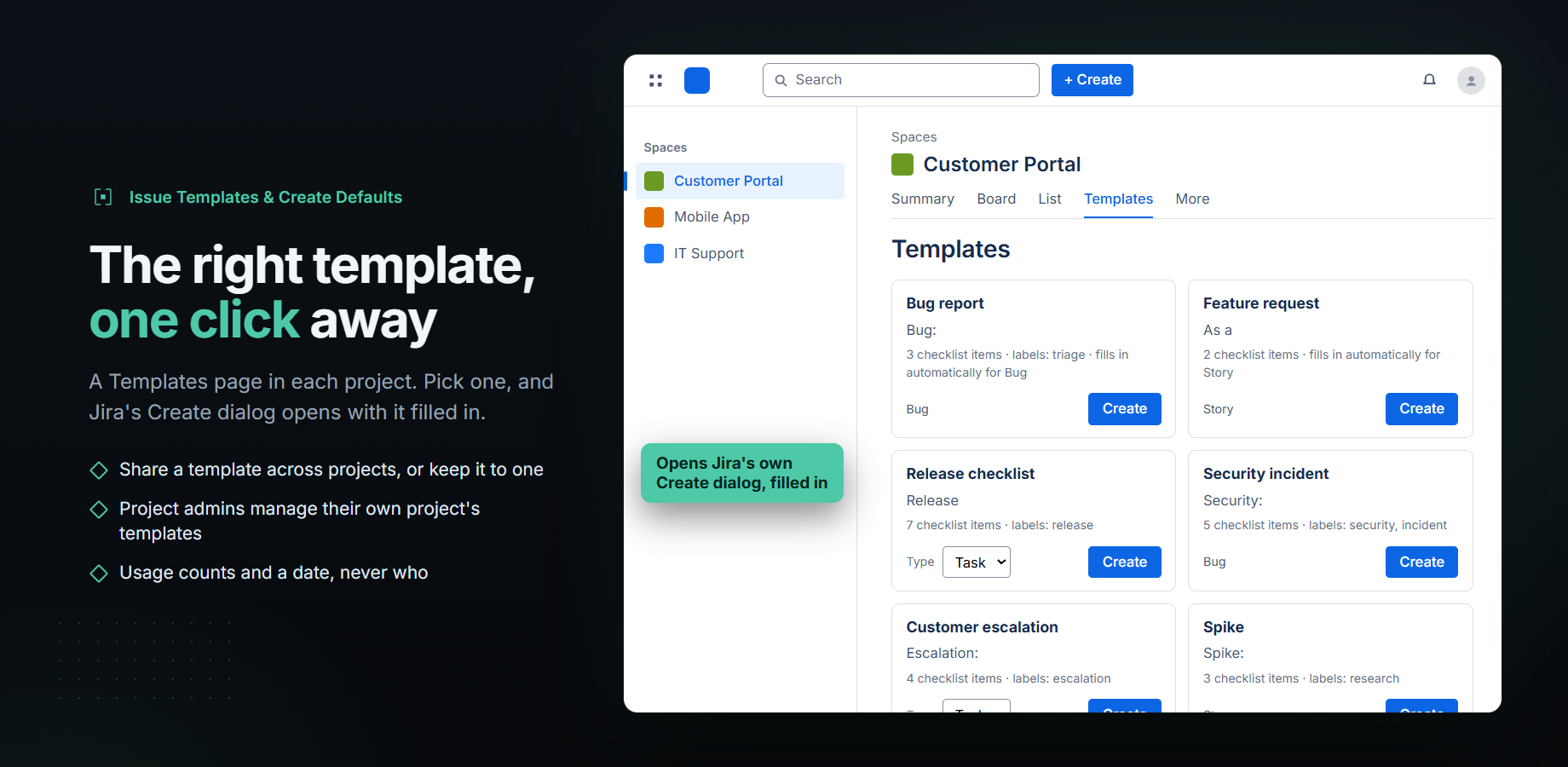
Not every issue needs a default. Each project gets a Templates page that lists the templates for that project, and one page under Apps lists them for every project you can see. Pick a template, choose the issue type if more than one fits, and press Create.
Jira's own Create dialog opens with the template filled in. Jira's required fields, permissions and workflow apply as usual. The app never creates the issue itself.
Save as template
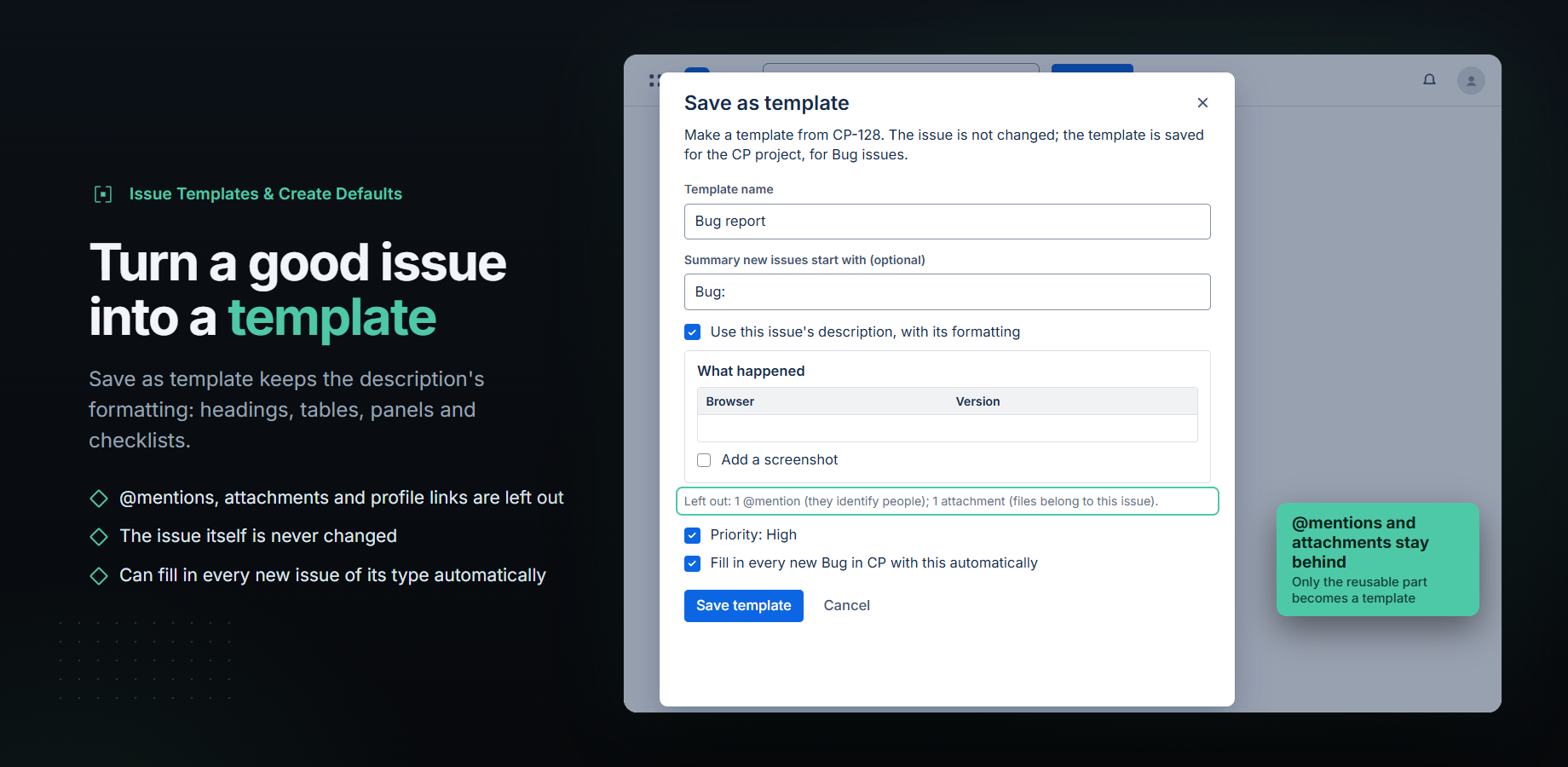
Write one good issue, then, as a project or Jira administrator, choose Save as template from its ••• menu. The description keeps its formatting: headings, lists, tables, panels, code blocks, colours and checklists. Checklist items start unticked. The issue itself is not changed.
Some things are left out, and the app tells you how many: @mentions, attachments and images, content from other apps, links to people's profiles, mailto links, email addresses, and anything else a template cannot carry, such as column layouts. Paragraph alignment and indentation are not kept either. All other text is kept as written, including any names or phone numbers in it, so read the preview before you save.
The new template is for that issue's project and issue type. One tick makes it the automatic default for that issue type in that project's Create dialog. If another template already is, the save is refused and the message names it. The template editor writes plain text, so this is the way to get a formatted template.
Undo
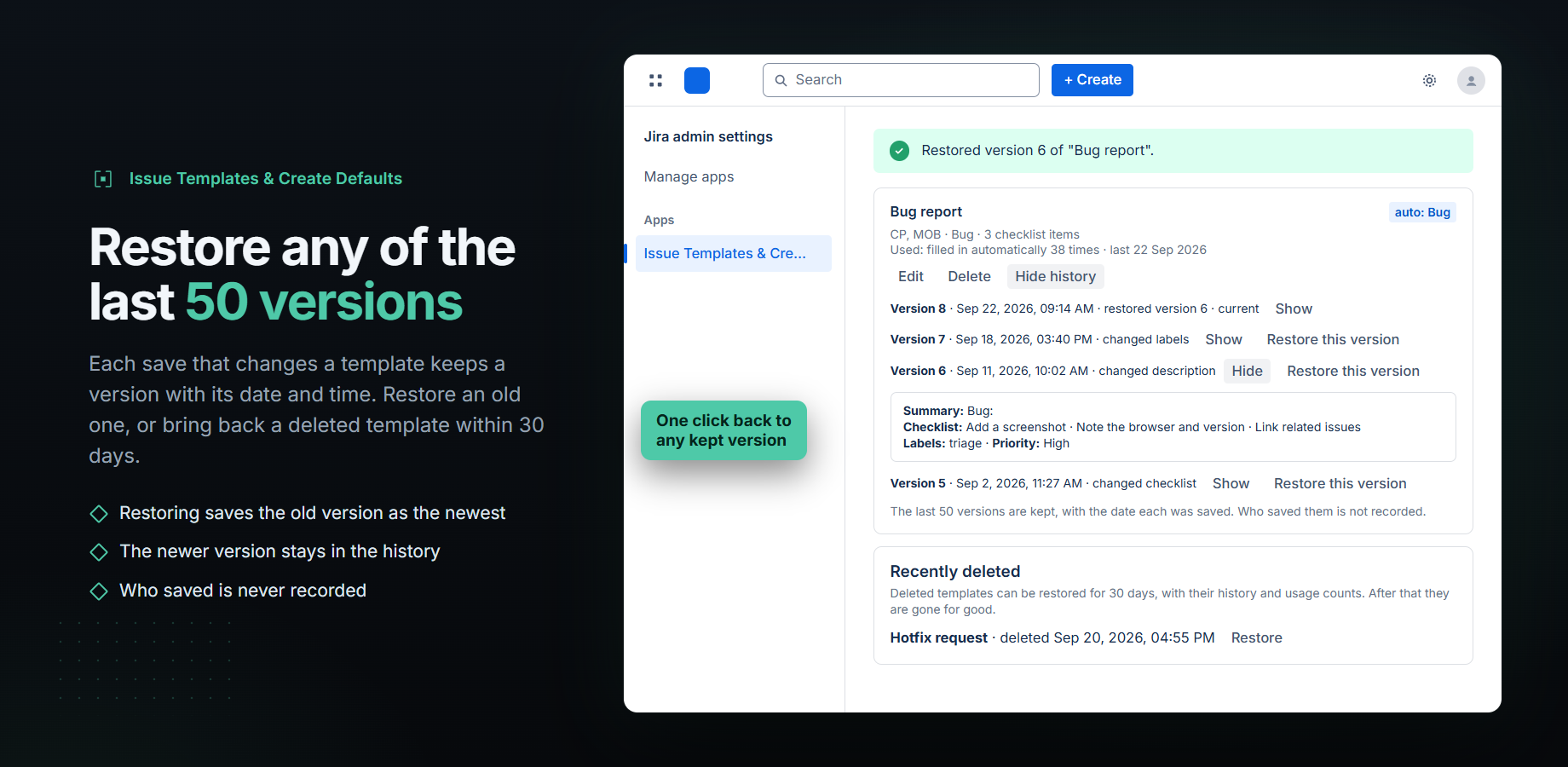
Every change you save keeps a version of the template, with the date and time and which parts changed. The last 50 versions are kept. Open any of them, and restore an older one: its content is saved again as the newest version, so going back loses nothing. Who saved a version is not recorded.
A deleted template can be restored for 30 days, with its history and usage counts. After that it is gone for good.
Who can change what
- Jira administrators manage every template, from the app's page under Settings → Apps
- Project administrators manage their own project's templates from its project settings, without asking a Jira administrator
- A template shared by several projects can be changed only by a Jira administrator. Project administrators see it read-only on their project's page
- Anyone who can see a project can use its templates from the Templates page
- The Create dialog fills in for anyone who can create issues in the project
- The daily check and alert issue settings are for Jira administrators only
Each is checked against Jira's own permissions for the person asking. The app makes its checks on Atlassian's platform, not in the browser.
Details worth knowing
Four fields, no more. Summary, description (with the checklist), labels and priority. The app adds no custom fields and changes no screens.
Jira's Create dialog only. Automatic filling happens in Jira's Create dialog. Quick create on a board or backlog, email, Automation and the REST API do not open that dialog, so nothing is filled there. Jira's mobile apps and cloning are not on Atlassian's list of places it runs either. Sub-tasks are never filled or offered. Atlassian lists company-managed and team-managed software and business projects as supported; service projects are not on that list.
Labels and priority are judged by their value. Until someone writes their own summary or description, the app may change labels that exactly match a default template's labels, and a priority that is the project's default or the priority of the template on the form. If someone picks exactly one of those by hand, the app cannot tell their pick from its own, and switching issue type afterwards can replace it. If the app could not read the project's default priority, any picked priority can be replaced this way.
Jira does not always empty a summary. After a switch to an issue type with no default, the previous default's summary can stay on the form. The description and labels it wrote are cleared.
Issue types are matched by name, so one template means Bug in every project it is used in. Rename an issue type and the template no longer matches that name. The check says so.
The checklist is part of the description. It is Jira's own action items, not a separate field, so there is no per-item assignee or progress bar.
Other apps can change the same dialog. If two apps set the same field, Jira keeps whichever finishes last.
Limits. Up to 200 templates per site, each used in up to 50 projects. Check now looks at the first 60 projects; the daily check looks at up to 1,000.
Security
Permissions
Six scopes. Five are Atlassian's recommended scope group for apps that work in the Create dialog, and an app using that group must declare all five; the sixth is app storage. Each is explained on the security page.
About people
Nothing recorded about who uses it: not who saved a template, and not who used one. Use is counted, never attributed. Templates hold what administrators write or copy from an issue.
Storage
Templates, versions, counts and check findings live in Forge storage, inside Atlassian.
Servers
None. Nothing is sent outside Atlassian's infrastructure.
The app records no account ids, names or email addresses of the people who use it. Templates hold whatever your administrators type, or copy from an issue. When a template is saved from an issue, @mentions, attachments, content from other apps, links to people's profiles, mailto links and email addresses are taken out of the description. Other words in it, such as a name, stay. What someone types in the Create dialog is read in their browser, only to decide whether the app may fill a field and which note to show, and is never stored. Default templates are also copied into Jira's own Create dialog settings for each project that uses them, because that is how Jira hands them to the dialog. The privacy policy lists everything the app keeps and for how long.
Availability
Issue Templates & Create Defaults is not on the Atlassian Marketplace yet. This page will link to its listing once Atlassian has approved it.
Support
Read the documentation or the common questions first, then email [email protected] or raise a request in our support portal.