Mermaid Diagrams & Gantt for Confluence
Write diagrams as text, see them render live. Examples, syntax help and export built in. The app sends nothing outside Atlassian.
Demo
What's new in 2.6
- Draft with AI. Describe a diagram in your own words and copy a prompt for the AI chat you use. Paste its answer into the diagram source, and the chat text around it comes off. Fix with AI does the same for a syntax error. The app itself never contacts an AI. See Draft with AI.
- Save stays in view. Save, Revert changes and Cancel stay at the foot of the editor, even with the syntax reference open.
- Tab indents. Tab and Shift+Tab indent and outdent the diagram source. Press Esc, then Tab, to move on.
- Save checks first. Save checks the diagram as it is when you select it, and refuses a broken one. A diagram too large for a picture keeps the editor open, with a note and Save without picture.
- Sharper pictures in Word and PDF. The saved pictures are about 40% smaller, so large diagrams, such as a 15-table ERD, keep a sharp one.
- A readable background. A diagram whose own text sets a theme or colours now exports, downloads and prints on a background it can be read on. If it was saved before 2.6, open it and select Save once.
Earlier changes are under What's new in the reference.
Writing
Most Mermaid tools hand you an empty box and expect you to know the syntax. This one does not.
- Syntax highlighting for keywords, arrows, brackets and comments
- Live preview that updates as you type
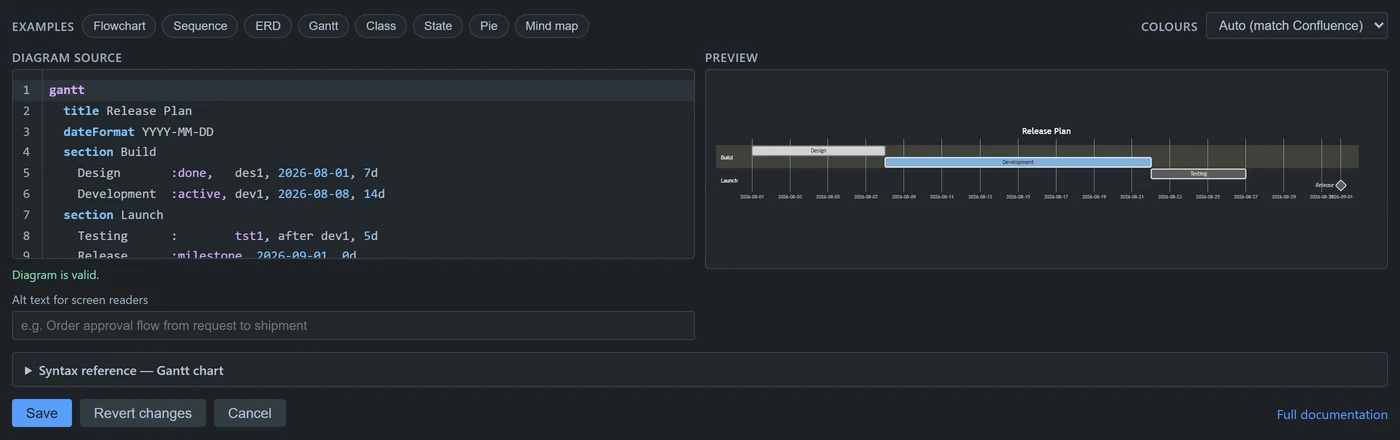
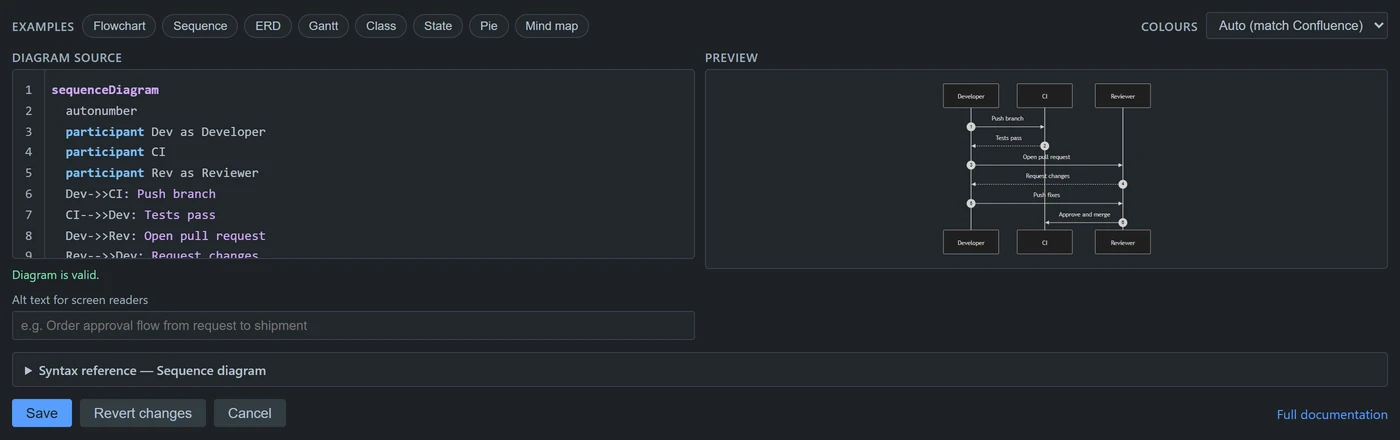
- Eight examples to start from — pick one and edit by example
- A syntax reference for each of the eight example types, which follows the diagram you are writing
- Validation that blocks saving a diagram that will not render
- Revert, plus the last five saved versions of every diagram
- Paste from another Mermaid app, a Markdown file or an AI chat, and the wrapping comes off — Undo gives back exactly what you pasted
- Find and replace with Ctrl+F (Cmd+F on a Mac)
- Draft with AI: describe the diagram, copy a prompt for the AI chat you use, and paste the answer back. Fix with AI does the same for a syntax error. The app itself never contacts an AI.
- Tab and Shift+Tab indent and outdent, for mind maps and other nested diagrams
Reading
- Zoom, fit-to-width and full screen for large diagrams
- Colours that follow Confluence's light or dark mode, or a fixed scheme per diagram. A diagram that does not match the page sits on its own panel.
- Diagrams are included as pictures when a page is exported to PDF or Word. The pictures are compact, so large diagrams stay sharp. Diagrams saved before version 2.4 need one open and save to get their picture, and so do diagrams saved before 2.6 that set their own theme or colours. Until then, Word shows their text as code, and a PDF of a page with many of them can fail. A diagram too large or too tall for a picture is saved without one only when you choose, and Word then shows its text as code.
- Download as SVG or PNG, or copy the image to your clipboard
- Copy the diagram source in one click
- Alt text so diagrams are described to screen readers
Linking
A flowchart node can open a link:
flowchart LR
A[Design] --> B[Build] --> C[Ship]
click A "https://your-site.atlassian.net/wiki/spaces/DOCS/pages/12345"
Nodes become clickable and keyboard accessible, so a diagram points
at the Confluence pages and Jira issues behind each step. Only
ordinary http and https links are
permitted — the renderer stays fully sandboxed, so a diagram cannot
inject scripts into a page.
Use the full address, starting with https://. The
documentation shows how.
Supported diagrams
Flowcharts, sequence diagrams, entity relationship diagrams, Gantt charts, class diagrams, state diagrams, pie charts, mind maps, user journeys, timelines, quadrant charts and git graphs — and the other types in the version of Mermaid the app includes.
Security
Permissions
None requested. Confirm it yourself on the install screen.
Rendering
In your browser. For exports, page history and notification emails, Confluence hands each diagram to the app's own function on Atlassian's platform, which keeps nothing. The app sends nothing outside Atlassian. Draft with AI and Fix with AI only copy a prompt to your clipboard.
Storage
In the Confluence page itself, with the picture used for exports. We hold no copy.
Sanitisation
Always on. Diagram source cannot execute scripts.
Support
[email protected] or our support portal — or read the common questions first. First reply in 1-3 business days, depending on severity (see our service level agreement).