Mermaid Diagrams & Gantt documentation
Add a diagram to a Confluence page in five minutes. You type a few short lines and the app draws the picture. No coding needed.
- New here? Get started in 5 minutes.
- Know what you want to draw? Go to the diagram recipes.
- Already write Mermaid? The reference has the full syntax and every limit.
- Used the app before version 2.6? Read what's new.
On this page
- Get started in 5 minutes
- How Mermaid text works
- What do you want to do?
- Flowcharts: boxes and arrows
- Choose a kind of diagram
- Colours and dark mode
- Link a box to a page or work item
- Zoom, copy and download
- Export the page to PDF or Word
- Undo a mistake
- Describe it for screen readers
- Fix an error
- Paste from GitHub or another app
- Draft with AI
- Questions and answers
- For Confluence admins
- Current limitations
- Still stuck?
Get started in 5 minutes
Mermaid Diagrams & Gantt for Confluence adds a Mermaid Diagram to Confluence's editor. You type a few lines of text. The app draws the diagram and keeps it on the page.
Mermaid is a widely used way of writing diagrams as text; GitHub and GitLab use it too. The app is called Mermaid Diagrams & Gantt. What it adds to Confluence's menus is called Mermaid Diagram.
If Mermaid Diagram is not in the list in step 2, the app is not installed on your site. Ask a Confluence admin to add it (see For Confluence admins).
- Open the page and select Edit at the top. Or create a new page.
-
On an empty line, type
/mermaidand select Mermaid Diagram. You can also select + (Insert elements) in the toolbar, typeMermaidin its search box and select it there.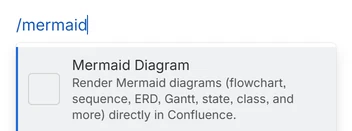
Mermaid Diagram is the first item in the list. -
The diagram editor opens by itself. Under
Examples, select the one closest to what you
want: Flowchart for a process,
Gantt for a project plan, Mind map
for ideas. There are eight: Flowchart, Sequence, ERD, Gantt, Class,
State, Pie and Mind map.
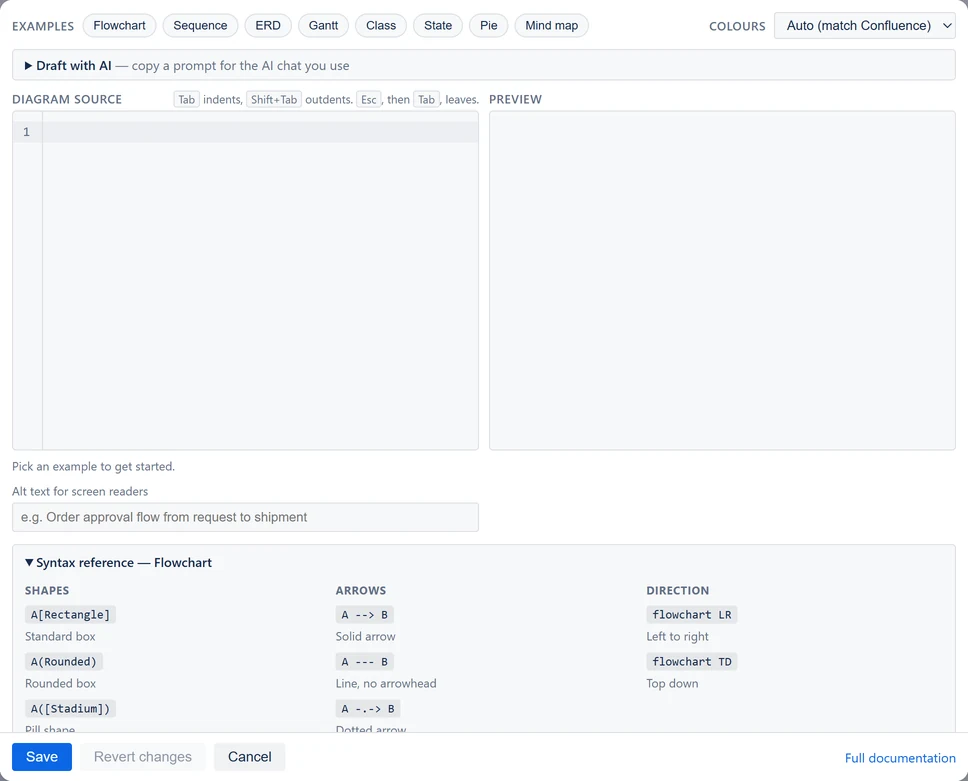
A new diagram. The examples are along the top, and the Syntax reference is open underneath. -
Change the words in Diagram source. In a
flowchart, replace the words in brackets. For example, change
[Ship it]to[Send to customer]. In a Gantt chart, change the task names before the colons. In a mind map, change the words on each line. The Preview redraws as you type, and the line under the text says "Diagram is valid."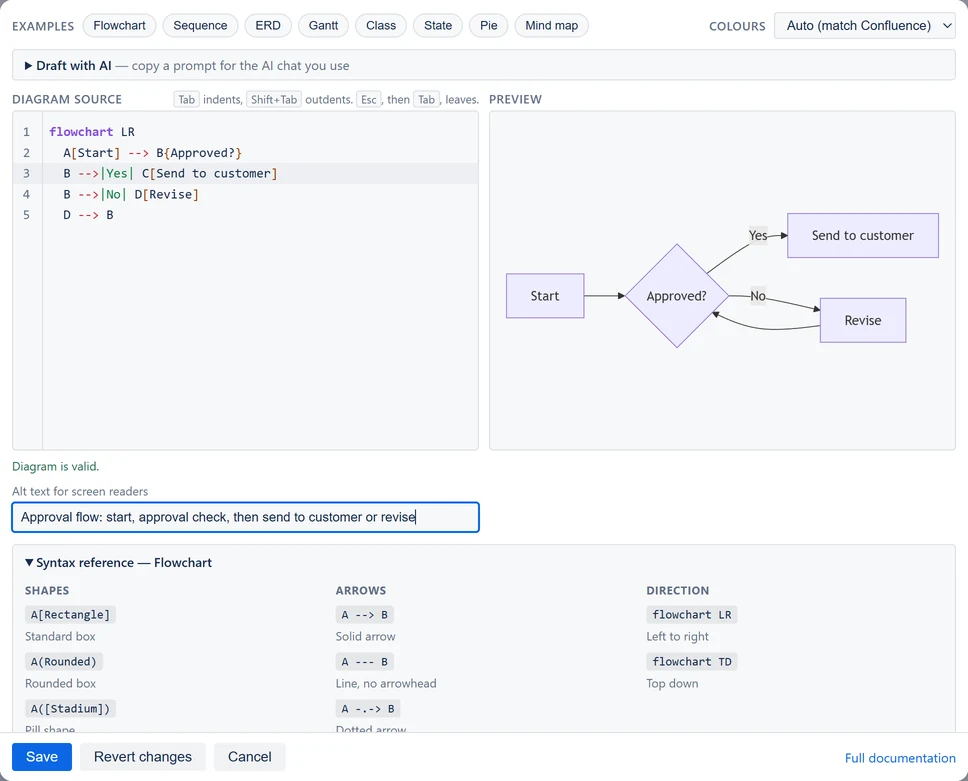
One label changed. The preview on the right has already caught up. - Optional: in Alt text for screen readers, describe the diagram in one sentence.
- Select Save, at the foot of the editor. It stays in view, even with the Syntax reference open. The editor closes, and the diagram is on the page.
- Select Update at the top of the page to publish your change. On a new page, use the button in the same place.
If you pick another example when you already have text, the editor asks first: "Replace your diagram with the Gantt example?" Replace swaps it in, and Keep mine leaves your text alone. On a new diagram, the Syntax reference under the editor opens by itself.
Would you rather describe the diagram in words? Open Draft with AI above the diagram source. See Draft with AI.
Readers hover over the diagram to zoom, go full screen, copy it or download it. See Zoom, copy and download.
Change a diagram later
- Edit the page.
- Select the diagram. Clicking inside it does not select it, and the toolbar that appears when you point at it (zoom, Copy and so on) has no Edit. Instead, point at the diagram's edge. When a grey frame and the label Mermaid Diagram appear, select the label. Or click at the end of the line above the diagram and press the down arrow key.
- Select Edit, the pencil in the small toolbar under the diagram.
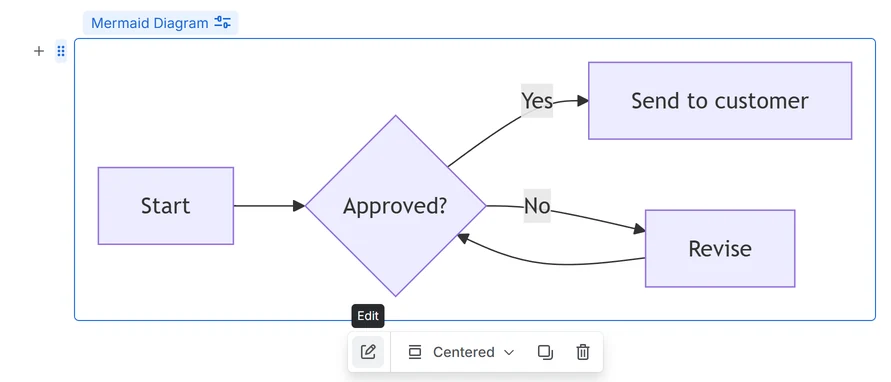
Confluence calls app content like this a macro; you will see the word in some messages.
How Mermaid text works
Every diagram starts as its source: the lines of text the app turns into a picture. The editor labels it Diagram source. The syntax is the rules for writing that text: which words, brackets and arrows mean what.
Four rules cover most diagrams:
-
The first line says what kind of diagram it is, such as
flowchart TD,sequenceDiagram,ganttormindmap. - Each thing gets a line of its own: a box and its arrow, a message, or a task.
-
Give a box a short name and put its words in brackets:
A[Write draft]. Use the name again to connect it:A --> B. The brackets set the shape:[ ]is a box,{ }a diamond for a question, and( )a rounded box. - Spaces at the start of a line are only for tidiness. In a mind map, though, they set the level.
Two tips. A line that starts with %% is a note to
yourself, and it is not drawn. Put words that contain brackets or
other symbols in double quotes: A["Cost (EUR)"].
Boxes and arrows
A flowchart shows steps as boxes joined by arrows.
LR on the first line draws it from left to right.
flowchart LR
  A[Write draft] --> B[Review]
  B --> C[Publish]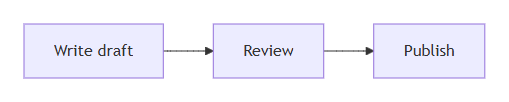
B appears twice in the text but is drawn once. Using its name again is what joins the two arrows.
A question gets curly brackets, and the words on an arrow go between
two bars. TD draws the diagram from top to bottom.
flowchart TD
  A[Leave request] --> B{Manager approves?}
  B -->|Yes| C[Book in HR system]
  B -->|No| D[Tell the employee]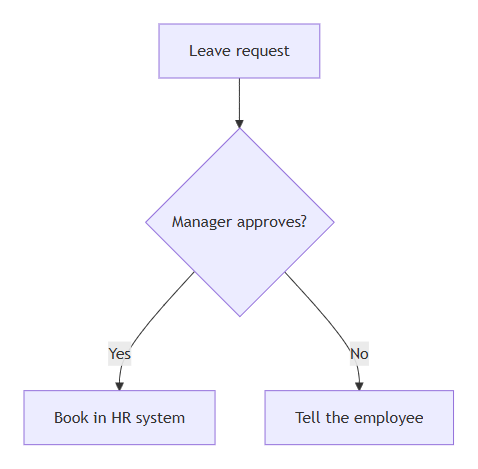
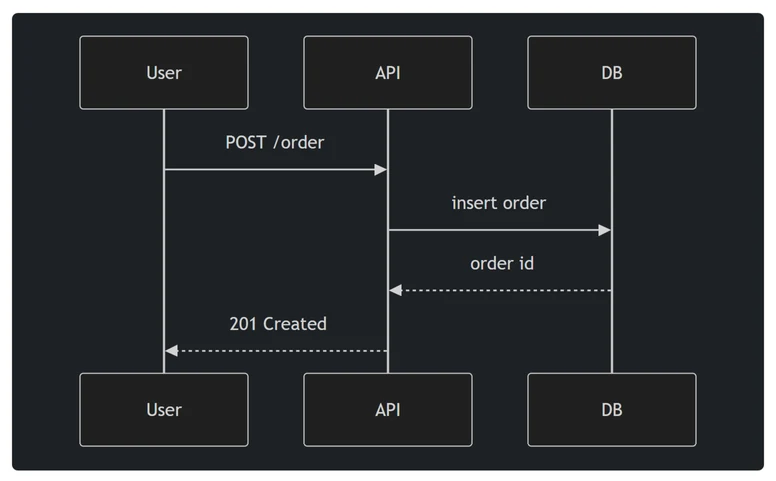
|Yes| and |No| label its two arrows.Messages between people
A sequence diagram shows who sends what to whom, in order.
->> sends a message, and -->>
is a reply, drawn dashed.
sequenceDiagram
  participant Customer
  participant Support
  participant Engineering
  Customer->>Support: Reports a bug
  Support->>Engineering: Passes it on
  Engineering-->>Support: Fix is ready
  Support-->>Customer: Your bug is fixed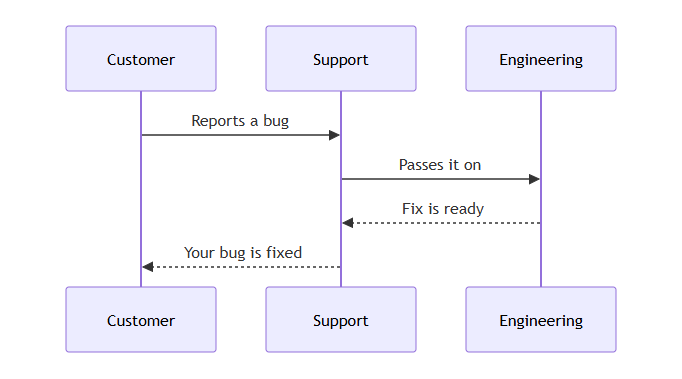
Tasks on a calendar
A Gantt chart is a project plan drawn as bars on a calendar. Each
task is a name, a colon, a short id, a start and a length. The start
is a date, or after and another task's id.
5d means five days. A milestone with a
length of 0d is drawn as a diamond.
gantt
  title Website launch
  dateFormat YYYY-MM-DD
  section Plan
    Write content :write, 2026-10-05, 5d
    Design pages  :design, after write, 7d
  section Launch
    Test          :test, after design, 3d
    Go live       :milestone, after test, 0d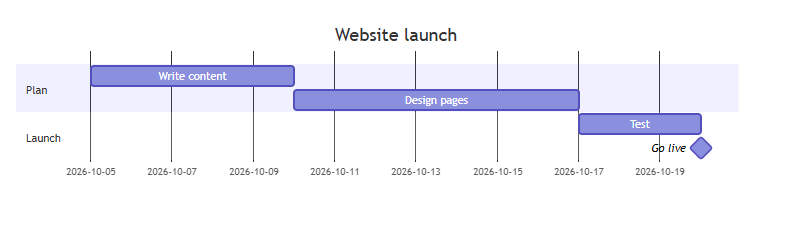
after starts when the task it names ends.An outline
A mind map puts one topic in the middle and ideas around it. The indentation sets the level: indent each level two spaces more than the one above.
Press Tab to indent a line two spaces, and Shift+Tab to take them away. The space bar works too. Enter starts a new line at the same level as the one above. To leave the text with the keyboard, press Esc, then Tab.
mindmap
  root((Team offsite))
    Agenda
      Goals for next year
      Look back at this year
    Travel
      Train tickets
      Hotel
    Budget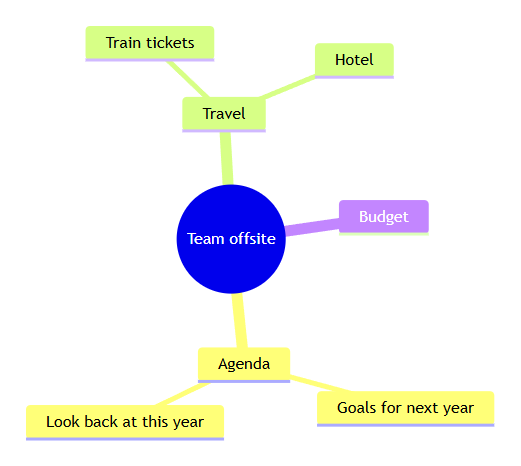
Stuck on a pattern? Open Syntax reference under the editor. It shows the patterns for the kind of diagram you are writing, for the eight kinds in Examples.
The editor's Full documentation link opens Mermaid's own reference at mermaid.js.org. It is written for developers.
What do you want to do?
Draw something
- Draw a process or workflow — approvals, requests, hand-offs
- Plan a project timeline — tasks, dates and milestones
- Show who talks to whom — an escalation, or a hand-off between teams
- Draw an org chart — teams, and who reports to whom
- Map ideas — brainstorms and meeting agendas
- Document tables and how they connect — database tables or spreadsheet tabs
- Show how statuses change — a ticket's or a document's life cycle
- Show shares of a whole — a pie chart
- Map a customer journey — each step, and how it feels
- Show a timeline or roadmap — events by date or quarter
Work with a diagram
Flowcharts: boxes and arrows
A flowchart shows steps and decisions. It is the Flowchart example in the editor.
The first line sets the direction. flowchart LR draws
from left to right, and flowchart TD from top to
bottom. Prefer TD for anything more than about
six steps. Confluence pages are narrow, so tall diagrams
read better than wide ones.
flowchart TD
  A[Leave request] --> B{Manager approves?}
  B -->|Yes| C[Book in HR system]
  B -->|No| D[Tell the employee]
Its picture is under How Mermaid text works.
Shapes
| Write | To draw |
|---|---|
A[Rectangle] | Standard box |
A(Rounded) | Rounded box |
A([Stadium]) | Pill shape |
A{Decision} | Diamond — a yes/no branch |
A((Circle)) | Circle |
A[(Database)] | Cylinder |
A[[Subroutine]] | Box with side bars |

Arrows
| Write | To draw |
|---|---|
A --> B | Solid arrow |
A --- B | Line, no arrowhead |
A -.-> B | Dotted arrow |
A ==> B | Thick arrow |
A -->|label| B | Arrow with a label |
To draw a labelled box around some steps, put them between
subgraph and end. The
process recipe shows how.
Do not name a box end. Mermaid reads
it as the end of a group. Use done or
End instead.
Step by step: Draw a process and Draw an org chart. Every flowchart option is in the reference.
Choose a kind of diagram
Pick the kind that fits what you want to show.
| To show… | Start with | Recipe |
|---|---|---|
| Steps and decisions | The Flowchart example | Draw a process |
| A project plan on a calendar | The Gantt example | Plan a project timeline |
| Who sends what to whom, in order | The Sequence example | Show who talks to whom |
| A team's structure | Type flowchart TD | Draw an org chart |
| Ideas around one topic | The Mind map example | Map ideas |
| Tables and how they connect | The ERD example | Document tables |
| Statuses, and what moves an item between them | The State example | Show how statuses change |
| Parts of a whole | The Pie example | Show shares of a whole |
| A customer's experience, step by step | Type journey | Map a customer journey |
| Events by date or quarter | Type timeline | Show a timeline |
| Classes in code | The Class example | Class diagram reference |
Quadrant charts, git graphs and other kinds Mermaid supports also work. Their syntax is at mermaid.js.org.
The Syntax reference panel covers the eight kinds in Examples. For any other kind, it shows the flowchart reference.
Colours and dark mode
The Colours list in the editor sets the colours for the whole diagram. It offers Auto (match Confluence), Default, Neutral, Forest and Dark.
Auto draws light colours when Confluence is in light mode, and dark colours when it is in dark mode. It follows Confluence's setting, not your computer's. The other four look the same for every reader.
When a diagram's colours do not match the page, it sits on its own panel so its lines stay readable. That happens with Dark on a light page, or a light choice on a dark page.
To colour one box, add a style line. To colour several,
define a style once with classDef, then apply it with
class.
fill is the colour inside the box, and
stroke is its border. Write a colour as #
and six characters, such as #fff3bf. Any online colour
picker gives you one.
flowchart LR
  A[Draft] --> B[In review] --> C[Approved]
  style B fill:#fff3bf,stroke:#f08c00
  classDef done fill:#d3f9d8,stroke:#2b8a3e
  class C done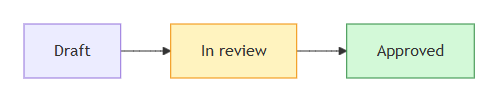
style line colours In review. The classDef and class lines colour Approved.
To colour several boxes the same way, add these two lines at the end
of a flowchart whose boxes are named A and
B:
classDef warn fill:#fee2e2,stroke:#dc2626
class A,B warn
Colours you set on boxes do not change in dark mode. If your team uses dark mode, pick shades that read well on both.
Image, PNG and SVG use the colours on your screen. So an Auto diagram on a dark page downloads dark. An SVG has no background.
Pictures in Word and PDF exports use light colours for Auto. Default, Neutral, Forest and Dark keep their colours.
A colour scheme written into the diagram's own text wins over the Colours setting. Its downloads, prints and pictures for Word and PDF then go on a background it can be read on. The reference shows how.
Link a box to a page or work item
In a flowchart, a box can open a Confluence page or a Jira work item. A Jira work item is what Jira used to call an issue.
- Open the Confluence page or Jira work item in your browser. Copy the address from the address bar.
-
In Diagram source, add a line with
click, the box's name, and the address in double quotes:flowchart LR brief[Project brief] --> design[Design] --> build[Build] click brief "https://your-site.atlassian.net/wiki/spaces/PROJ/pages/123456" click build "https://your-site.atlassian.net/browse/PROJ-42" -
Optional: add hover text in a second pair of quotes after the
address, such as
"Open the build work item". On a short diagram, the hover text can be cut off at the bottom edge. - Select Save, then Update to publish the page.

Readers select the box, and the link opens in a new tab. Keyboard users reach a linked box with Tab and open it with Enter.
Always paste the full address, starting with
https://. A short address such as
/wiki/spaces/… does not open your page. Confluence
warns that it leads to an external page instead.
The editor's Syntax reference shows a short address in one example. Use the full address there too.
Only http and https links work. The app
ignores any other kind of link, so a diagram can't run code on your
page.
Zoom, copy and download
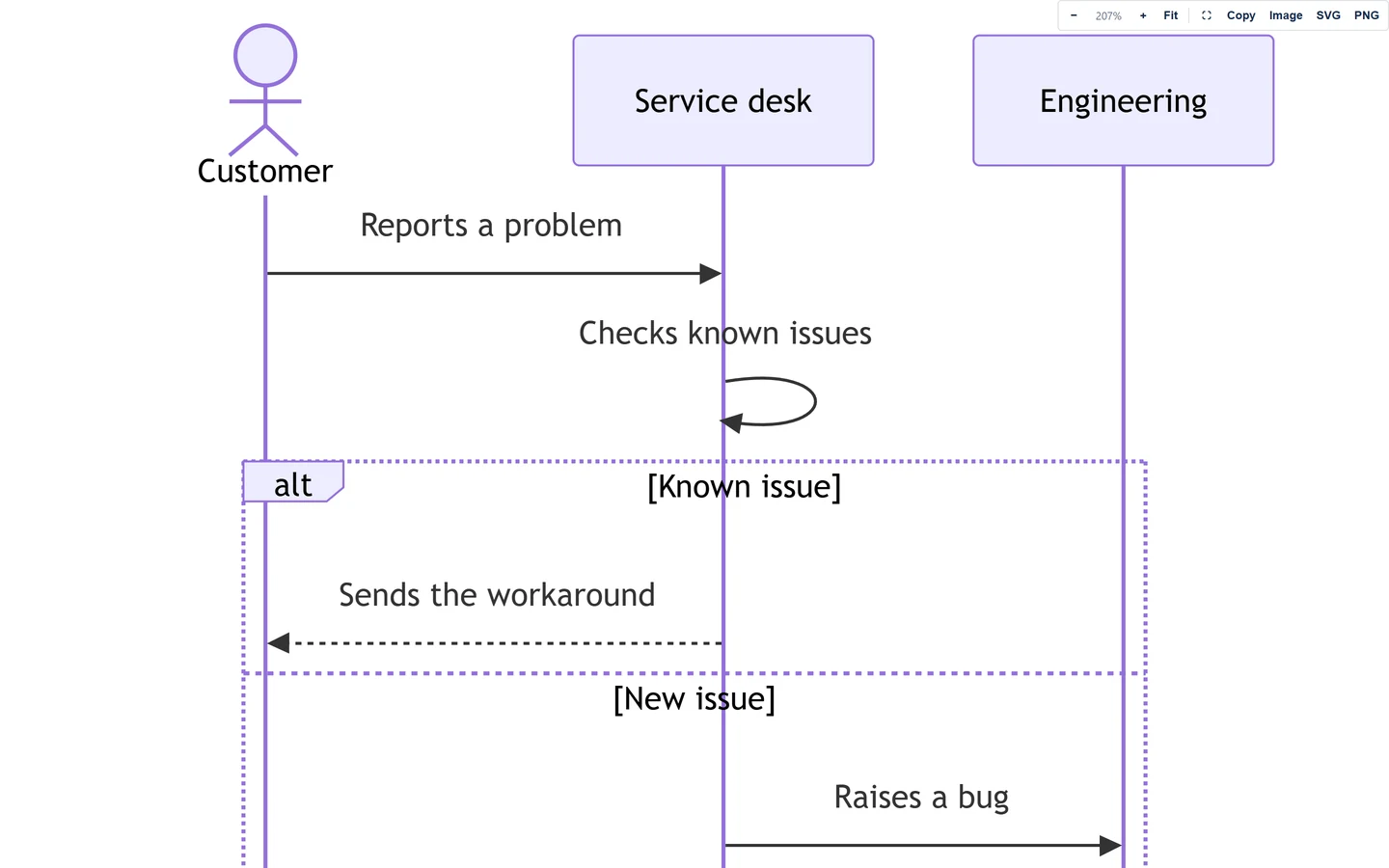
Hover over a diagram on a published page, and a toolbar appears at its top right. Keyboard users reach it with Tab. On a touch screen, it is always shown.
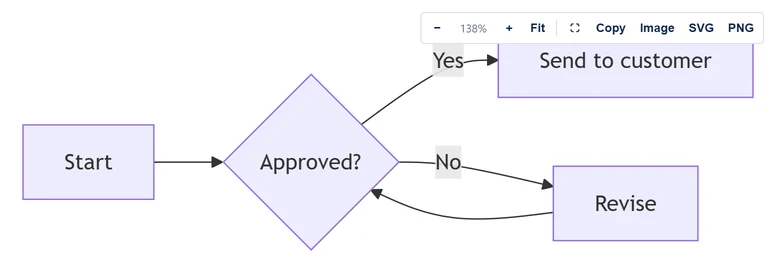
- − and + zoom out and in, from 25% to 400%. The level shows between them.
- Fit fits the diagram to the page width. That is how it starts.
- The full-screen button opens the diagram on the whole screen. Select it again to leave.
- Copy copies the diagram's text.
- Image copies a picture of it, to paste into a chat, an email or a slide.
-
SVG and PNG download it as
diagram.svgordiagram.png.
Ctrl or Cmd with the scroll wheel over the diagram zooms too.
A PNG is drawn at twice the diagram's own size, so it stays sharp on slides. An SVG stays sharp at any size and has no background.
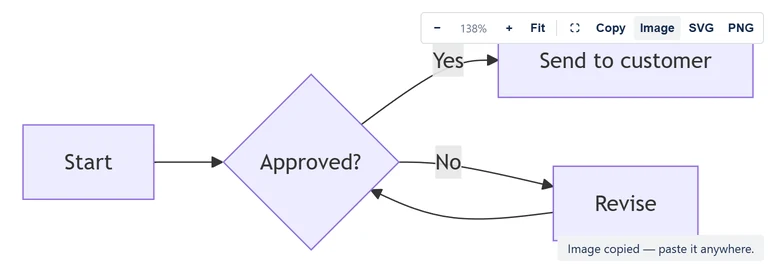
After you select a button, a short message says what happened:
- "Image copied — paste it anywhere." The picture is on your clipboard.
- "Diagram source copied." The text is on your clipboard.
- "PNG downloaded." or "SVG downloaded." The file is in your downloads.
- "This browser cannot copy images." Use PNG instead.
- "Clipboard blocked by the browser." Your browser did not let the page copy.
Writing a big diagram? See Keep a big diagram readable.
Export the page to PDF or Word
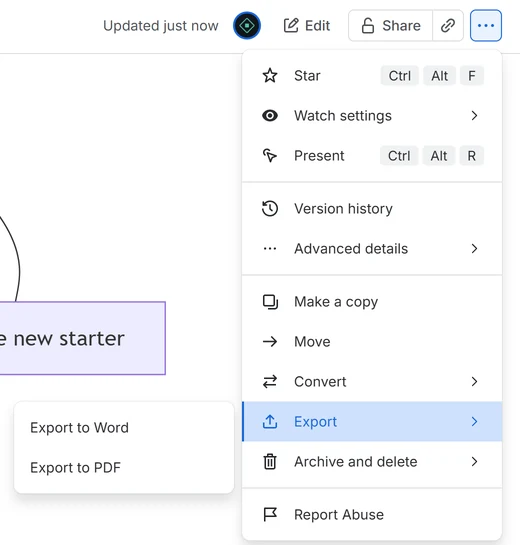
To export a page, select More actions (•••) at the top of the page, then Export. Choose Export to Word or Export to PDF.
Each diagram appears as a picture, without its toolbar. It is the picture the editor saved with the diagram. Auto diagrams come out in light colours, and a fixed colour scheme is kept. A diagram whose own text sets a theme comes out on a background it can be read on.
Diagrams made before version 2.4
These have no picture yet. Until someone opens and saves them once, Word shows their text as code. PDF draws them live, which is slower, and a PDF of a page with many of them can fail.
To give an older diagram its picture:
- Edit the page.
- Select the diagram, then select Edit (see Change a diagram later).
- Select Save. The editor saves a picture with the diagram.
- Do the same for each older diagram, then select Update.
Not sure which diagrams need it? Export the page to Word. Any diagram shown as code needs this, unless it is too large or too tall for a picture.
Diagrams that set their own colours
A diagram can set its own theme or colours in its text, in a line
such as %%{init: {'theme':'dark'}}%% or in front
matter. Diagrams from AI chats often do. From version 2.6, such a
diagram exports on a background it can be read on.
If it was saved before 2.6, open it and select Save once. Until then, Word shows its text as code, and PDF draws it live, which is slower. A PDF of a page with many of them can fail. Older versions of the page keep the code.
Very large diagrams
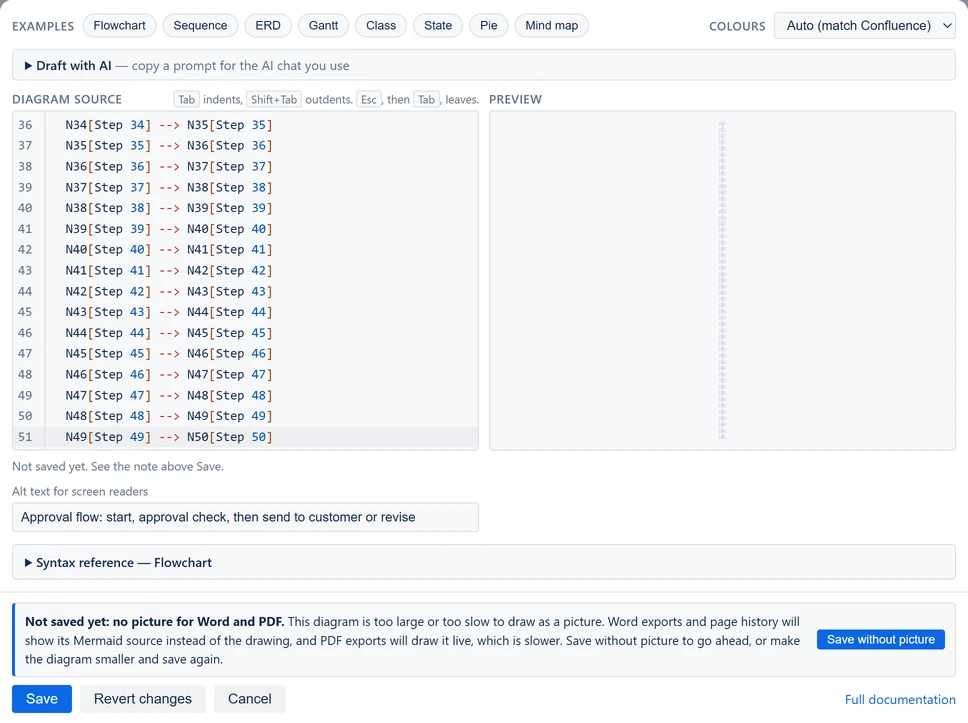
Pictures are stored compactly, so most large diagrams, such as a 15-table ERD, keep a sharp one. A few get none: a diagram that would be taller than about 22 inches in Word, the tallest picture Word holds, and one too large or too slow to draw. Then Save does not close the editor. A note above it says "Not saved yet: no picture for Word and PDF." Select Save without picture to save the diagram anyway. Word then shows its text as code, and PDF draws it live. Or make the diagram smaller and select Save again.
Emails and older versions of a page
Notification emails show each diagram's text as code. An older version of the page, opened from Version history, shows the saved picture, or the text as code.
To place one diagram somewhere by hand, use Image, PNG or SVG in its toolbar.
Undo a mistake
There are four ways back, from the smallest to the largest.
- While you type, Ctrl+Z (Cmd+Z on a Mac) undoes your last change.
- Revert changes puts the text back the way it was when you opened the editor. It is greyed out until you change something.
- Restore a previous version… goes back further. It appears once you have changed a saved diagram and saved it again.
- Cancel closes the editor without saving. On a diagram you have just inserted, it also removes the diagram.
Restore a previous version… lists up to five earlier versions of the text. Each shows its age and first line, such as "2 min ago — flowchart TD".
Choosing one loads that text into the editor. The page does not change until you select Save. Only the text comes back, not the colours or the alt text.
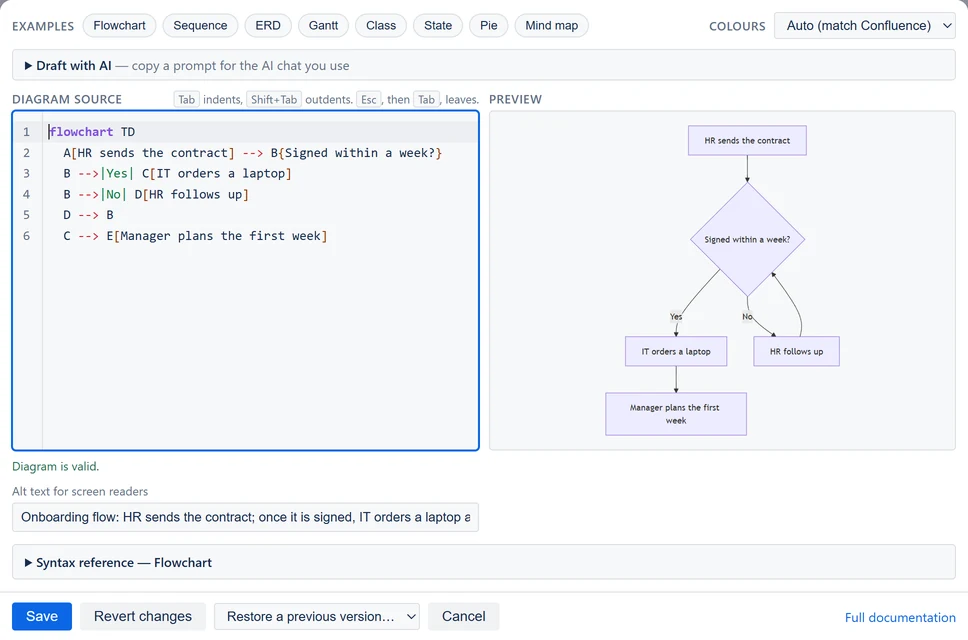
For the whole page, use Confluence's Version history, under More actions (•••).
Describe it for screen readers
Use Alt text for screen readers in the editor to describe the diagram. It holds up to 250 characters. Describe what the diagram shows rather than naming it.
For example, write "Order flow from request through approval to shipment" rather than "Order diagram".
Screen readers on the page read it out. Without it, they say "Mermaid diagram". The same text describes the diagram's picture in Word and PDF exports.
Where an export or an email shows the diagram's text as code, the alt text comes just above it.
Keyboard users reach the toolbar and linked boxes with Tab. If you colour boxes yourself, keep dark text on light fills.
In the editor, Tab indents the diagram source. To move on to the alt text, press Esc, then Tab. Ctrl+M (Shift+Alt+M on a Mac) makes Tab move on until you press it again.
Fix an error
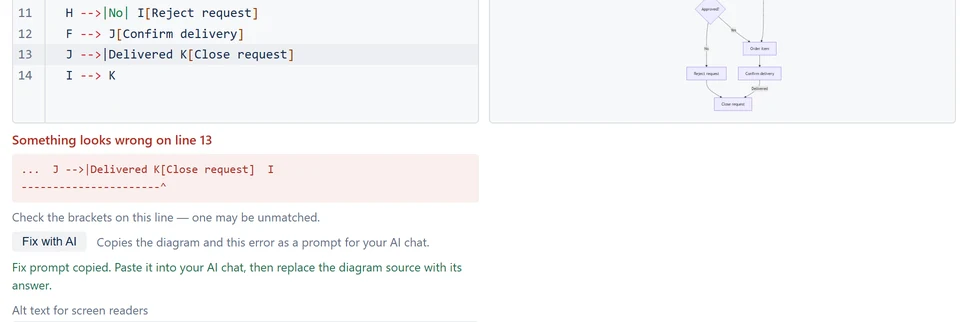
When the editor can't read the text, a message appears under it. It starts "Something looks wrong on line" and a number. When Mermaid can't tell where, it says "This diagram could not be read".
Below that is the text around the problem, with ^ under
the spot. It can run several lines together. Sometimes a hint
follows.
The mistake is usually on the line the message names, or on the line just above it.
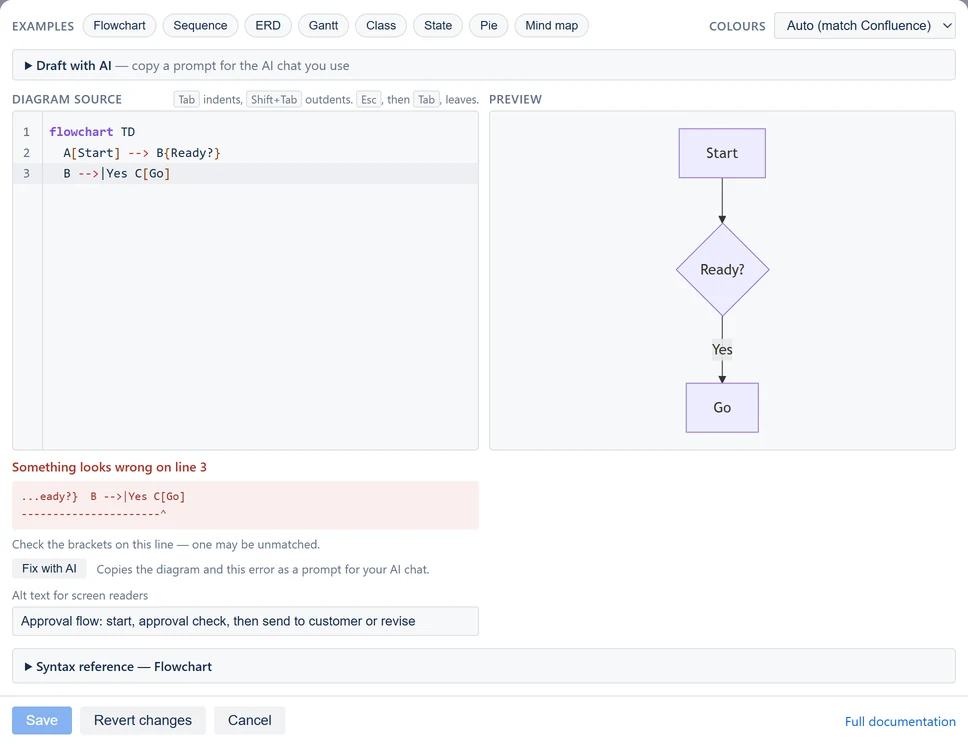
Save stays greyed out while the diagram has an error. It also checks the diagram at the moment you select it, so a mistake typed just before is caught too. Selecting it brings the error into view. The preview keeps the last version that worked.
Under the error, Fix with AI copies your diagram and the error as a prompt for the AI chat you use. See Draft with AI.
The hints
| Hint | What to check |
|---|---|
| "The first line needs to say what kind of diagram this is — for example "flowchart LR" or "sequenceDiagram"." | The first line names a kind of diagram, spelled exactly. |
| "The diagram looks unfinished — the last line may be incomplete." | The last line has its arrow, box and closing bracket. |
| "A line looks incomplete. Check for a missing label, arrow or bracket." | The line the message names, and the one before it. |
| "Check for an unexpected space, or a value missing after a colon." | Spaces inside a box's name, and the text after each colon. |
| "Check the brackets on this line — one may be unmatched." | Every [, {, ( and | has its partner. |
Four mistakes cause most errors:
-
Missing diagram type — the first line must say
what kind of diagram this is, such as
flowchart LR -
Unmatched brackets — every
[,{or(needs its closing partner -
Reserved words as box names —
endin particular; useEndordoneinstead -
Special characters in labels — wrap the label in
quotes:
A["Cost (EUR)"]
Messages on the page
- No diagram yet, with "Select this macro and choose Edit to write your Mermaid diagram." The diagram was saved empty. Edit the page, select it, and select Edit (see Change a diagram later).
- An error, with only Copy in the toolbar. The text can't be drawn. Select Copy and send the text to someone who can edit the page.
- A licence is needed to show this diagram. The site's subscription to the app is not active. The diagram is safe on the page and shows again once it is. Ask a Confluence admin.
- Could not load the macro configuration or Could not load the diagram renderer. Reload the page. If it keeps happening, contact support.

For a stubborn error, edit the diagram and use Fix with AI under the message. See Draft with AI.
Paste from GitHub or another app
Paste the whole thing; the editor tidies it up. Plain Mermaid text goes in exactly as you pasted it.
The editor takes away:
-
A Markdown code fence: the
```mermaidline above a diagram and the```line below it. Diagrams on GitHub, GitLab and in README files have them. Fences written~~~or::: mermaidgo too. - The wrapping that other Mermaid apps for Confluence save around a diagram.
- The HTML around a diagram copied from a web page's source.
-
HTML codes such as
>, turned back into characters, when the whole diagram was written in them.
```mermaid
flowchart LR
  A[Idea] --> B[Plan] --> C[Build]
```
A note under the text says what was cleaned up. It reads "Cleaned up the pasted diagram: … Undo restores it as pasted." It goes after 8 seconds, or when you type.
Press Ctrl+Z (Cmd+Z on a Mac) once to get back exactly what you pasted. Press it again to remove the paste. The clean-up runs in your browser and sends nothing anywhere.
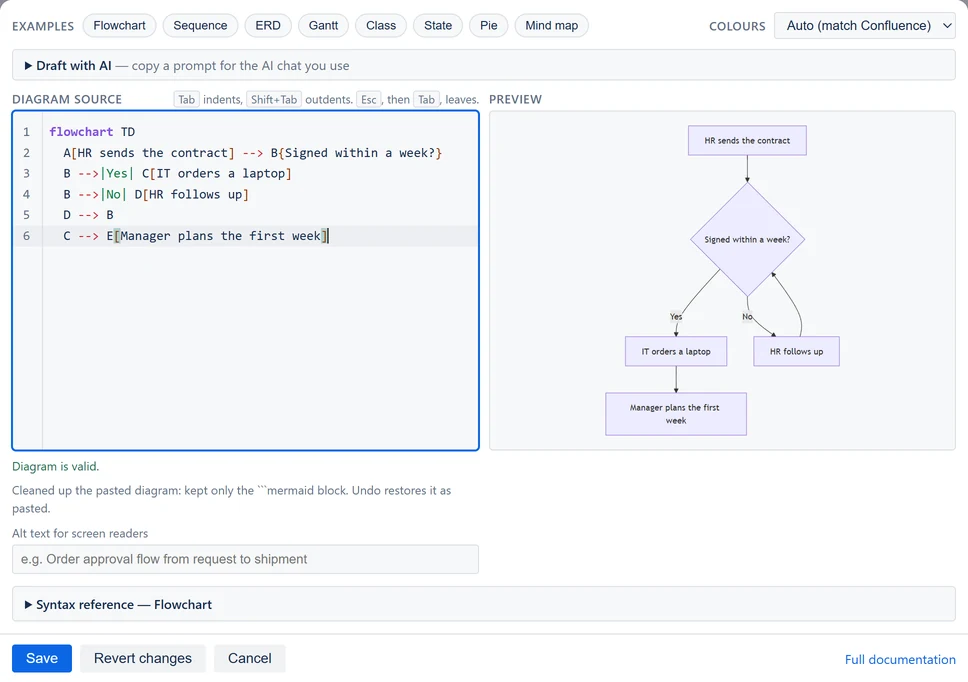
Move a diagram from another Mermaid app
Copy the diagram's text from the old app's editor. Paste it into a new Mermaid Diagram next to the old one, and select Save. When the new diagram looks right, delete the old one and select Update.
If the old app no longer opens, a Confluence admin can copy the diagram from the page's storage format, under More actions (•••) → Advanced details → View Storage Format. Moving a diagram from another Mermaid app has every step.
A diagram of this app can still hold another app's saved format, if it was pasted in before version 2.5. The editor cleans it up when you open it, and the note reads "Cleaned up this diagram: … Save to keep it."
Draft with AI
If your organisation lets you use an AI chat assistant, it can write a first draft of the Mermaid text. The editor writes the request for you.
- Above Diagram source, open Draft with AI.
-
Under "What should the diagram show?", describe the diagram in
your own words. For example:
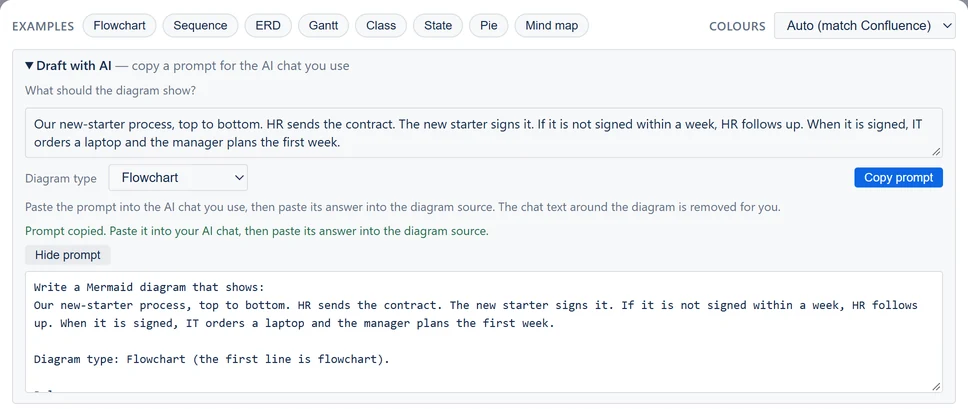
Our new-starter process, top to bottom. HR sends the contract. The new starter signs it. If it is not signed within a week, HR follows up. When it is signed, IT orders a laptop and the manager plans the first week. - Optional: choose a Diagram type, such as Flowchart or Gantt. Otherwise the AI chooses.
-
Select Copy prompt. It turns on once the box has
text.
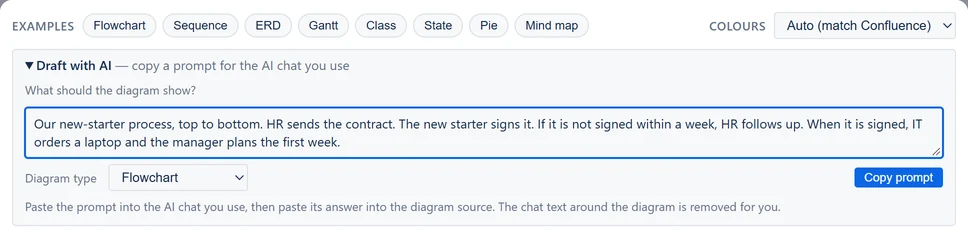
Draft with AI with a request typed and Flowchart chosen. Copy prompt is on. - Paste the prompt into the AI chat you use. Copy its whole answer with the chat's own copy button, or just the diagram with the button on its code block.
- Paste the answer into Diagram source. If the editor already has text, select all of it first (Ctrl+A, or Cmd+A on a Mac). The editor keeps just the diagram and says so.
- Check the preview, and every label, date and arrow.
Change a diagram you have
When the editor holds a diagram, choose Change my diagram or Start a new one. With Change my diagram, the box asks "What should change?", and the prompt carries your diagram. An example you have not changed starts a new one, unless you choose otherwise.
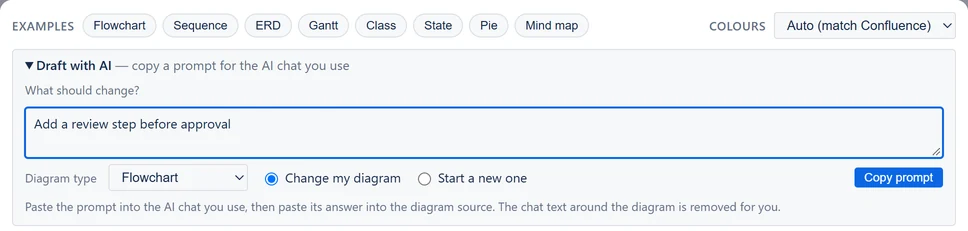
See the prompt, or copy it by hand
After a copy, Show prompt shows the exact text that was copied. If the browser blocks copying, the editor shows the prompt selected. Press Ctrl+C (Cmd+C on a Mac) to copy it.
Fix an error with AI
When the editor shows an error, Fix with AI appears under it. It copies your diagram and the error as one prompt. Paste it into your AI chat, then replace the diagram source with its answer.
AI chats get things wrong. They can leave out a step, invent one, or write Mermaid this app cannot draw. The preview and the error message show you where.
The prompt holds what you typed. To change a diagram, it also holds the diagram's text, and to fix one, the text and the error. Nothing else from the page goes in: not the alt text, and not earlier versions. What you paste into an AI chat goes to the company that runs it, so follow your organisation's rules. Mermaid Diagrams & Gantt itself sends nothing to any AI.
Questions and answers
Do I need to know how to code?
No. Pick an example and change the words, copy a recipe, or let Draft with AI write a first draft.
How do I change a diagram after publishing?
Edit the page, select the diagram, and select Edit. Clicking inside the diagram does not select it; see Change a diagram later. You can't edit it from the published page.
I can't find Mermaid Diagram.
Edit the page and type /mermaid on an empty line. If it
isn't in the list, the app is not installed. Ask a Confluence admin.
Who can change my diagram?
Anyone who can edit the page. Readers can view, zoom, copy and download it. Confluence's page permissions decide who can do which.
Why is Save greyed out?
The diagram has an error. Selecting Save brings it into view, and Fix with AI under it copies a prompt to fix it. See Fix an error.
Save did not close the editor.
Read the line under the diagram source. If the diagram has an error, fix it; Fix with AI can help. If a note above Save says "Not saved yet: no picture for Word and PDF", select Save without picture to save it anyway, or make the diagram smaller. If the line says "Still loading the diagram…", wait a moment and select Save again.
The diagram is tiny, or too wide.
Use Fit, zoom or the full-screen button. For a long
process, use flowchart TD so the diagram grows down, not
across.
Why does it look different in dark mode?
Its colours are set to Auto, which follows Confluence's light or dark mode. To keep it the same for everyone, choose one of the other Colours.
Why does Word show code instead of my diagram?
The diagram was saved before version 2.4, or it sets its own theme or colours and was saved before 2.6. Open it and save it once to add its picture. A diagram too large or too tall for a picture also shows as code. See Export the page to PDF or Word.
Why does the notification email show code?
Emails always show a diagram's text as code. Many email programs do not show pictures sent this way.
My PDF export is slow, or it fails.
The page probably has diagrams saved before version 2.4, or diagrams that set their own theme or colours and were saved before 2.6. Open and save each one, then export again. Pages with about 100 or more diagrams can also hit a limit; see Current limitations.
Can I put a diagram in slides or a chat?
Yes. Select Image in its toolbar and paste it, or download a PNG.
Can I move diagrams from another Mermaid app?
Yes, by copying and pasting. See Moving a diagram from another Mermaid app.
Can an AI write it?
Yes, a first draft for you to check. Open Draft with AI above the diagram source, describe the diagram, and paste the prompt into the AI chat you use. See Draft with AI.
Why does Full documentation open another website?
It opens Mermaid's own reference at mermaid.js.org, which is written for developers. This guide is for the app.
Does the app send my diagrams anywhere?
The app requests no permission scopes and sends nothing outside Atlassian. Diagrams live in the page and are drawn in your browser. Page exports, page history and notification emails use the app's own function on Atlassian's platform, which keeps nothing. Draft with AI and Fix with AI only copy a prompt to your clipboard. You paste it into an AI chat yourself.
More in For Confluence admins.
Does it work on Confluence Data Center?
No. It works on Confluence Cloud only.
What does "A licence is needed to show this diagram" mean?
The site's subscription to the app is not active. The diagram stays on the page. See For Confluence admins.
For Confluence admins
Installing
A site admin installs the app from its Atlassian Marketplace listing. Atlassian's install screen shows what an app asks for, and this app requests no permission scopes.
There is nothing to set up. People who can edit a page can then insert a Mermaid Diagram.
What the app can access
With no permission scopes, the app cannot read your pages, spaces or users. It sees only its own diagrams, which Confluence hands to it.
In each reader's browser, the app gets a diagram so it can draw it. When Confluence exports a page, shows an older version or emails watchers, the app's own function on Atlassian's platform gets it.
That function receives the diagram's saved settings and returns a picture or text. It keeps nothing, makes no network calls and logs only the name of an error.
The app declares no egress, the permission an app needs to reach servers outside Atlassian. It has no cookies, analytics or tracking, and nothing reaches Eriksen Labs.
Draft with AI and Fix with AI in the editor copy a prompt to the clipboard of the person who selects them. The app sends it nowhere. Whether people may paste it into an AI chat is for your organisation's rules.
Where diagrams are stored
Inside the Confluence page, as the diagram's saved settings. These hold its text, its colour setting and its alt text. They also hold up to five earlier versions of its text, and a picture for exports.
Atlassian stores them with the page and in each page version. Page permissions apply, and we hold no copy.
Licensing
The app is bought and billed through the Atlassian Marketplace. See the listing for pricing.
If the licence is not active, diagrams and exports show "A licence is needed to show this diagram". The diagrams stay in the pages, and show again once the licence is active.
Uninstalling
The diagrams' text stays in your pages as page content. The app keeps nothing of its own.
Policies
Read our security and privacy policies, the data processing agreement, the terms and the service level agreement.
Current limitations
Worth knowing before you commit to it:
- Editing from the page — diagrams are edited through the macro editor. Confluence provides no way for an app to open its own configuration from the published page.
- Many older diagrams in one PDF — a PDF of a page with many diagrams saved before version 2.4, or many that set their own theme or colours and were saved before 2.6, can fail. Open and save those diagrams, then export again.
- Very large or very tall diagrams — a diagram taller than about 22 inches in Word, or too large to draw, gets no picture. You can save it without one, and Word then shows its text as code.
- Pages with about 100 or more diagrams — these can hit a platform limit during export, as Atlassian reports in CONFCLOUD-82734. Some diagrams can then be missing from the export.
- Syntax reference — it covers the eight kinds in Examples. For other kinds, use the recipes or mermaid.js.org.
- Links — links on boxes are supported in flowcharts only.
Some of these are platform constraints rather than choices. We will remove them when Atlassian makes it possible.
Still stuck?
Raise a request in our support portal, or email [email protected]. First reply in 1-3 business days, depending on severity (see our service level agreement).
These help us answer faster:
- The diagram's text (select Copy in its toolbar)
- What you expected, and what happened instead
- A screenshot, if it is a visual problem