Issue Templates: get started in two steps, and Templates pages that say what to do
Version 2.14.0 makes the first minutes easier: two short steps after installing, and Templates pages that explain themselves when they are empty.
In short
- Get started opens two steps: add a template, then create a work item from it.
- Each step ticks itself once it has really happened.
- Empty Templates pages send admins to where templates are added, and tell everyone else whom to ask.
- Fixes for the Templates page and for Jira Automation’s time limit.
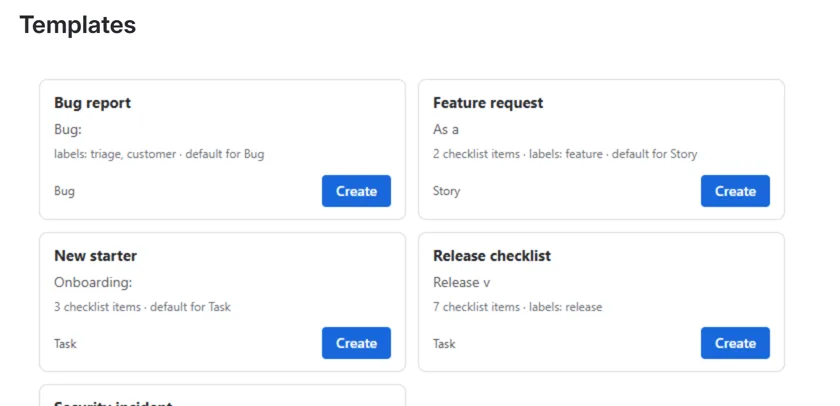
Two steps after installing
The Get started button opens two short steps: add a template (three examples in one click), then create a work item from it on the project’s Templates page. Each step ticks itself once it has really happened. The steps go away after the first use, or sooner if you hide them.
Empty Templates pages
An empty Templates page now sends project administrators straight to where templates are added, and tells everyone else whom to ask. It also names any templates whose work types the project does not have.
Fixes
The Templates page no longer depends on the usage count loading, and the Jira Automation actions keep to their time limit from the moment they start.
Since then
Version 2.15.0, on 4 November 2026, changed one line: under Summary in Jira’s Create dialog, it now says “open this project’s Templates page” rather than pointing at the sidebar, because Templates is a tab in most spaces.
Read more
Source: the release notes for each version on the Issue Templates & Create Defaults for Jira listing on the Atlassian Marketplace.