Learn PlantUML: a beginner's guide to diagrams as text
With PlantUML, you write a few short lines of text and a diagram is drawn for you. You don't drag boxes or line up arrows. This guide starts from nothing. You need no coding, only the patience to read one example at a time.
Short answer
A PlantUML diagram is a few lines of text between @startuml and
@enduml. Each line names a person, a step, a box or an arrow, and PlantUML decides
where everything goes. Start with your first diagram; each
later section covers one kind of diagram, with an example, its picture and the usual
mistakes.
What a diagram's text is
A PlantUML diagram starts as a few lines of text. Each line describes one thing: a person, a step, a box, or an arrow from one box to another. PlantUML reads the lines and draws the picture. It decides where each box goes, so you never have to tidy the layout.
Those lines are called the diagram's source. It is a bit like dictating a drawing to a very fast, very literal assistant: "Anna asks Ben a question. Ben answers." You say what is there, and the assistant does the drawing.
Why bother, when you could draw it by hand?
- Changing it is quick. Rename a step by changing a word. Add a step by adding a line. Everything else moves to make room.
- It always looks tidy. Boxes line up and arrows don't cross more than they must.
- Anyone can change it later. There is no drawing file to find, only the text.
PlantUML is free and widely used, so the same text also works in many other tools. This guide shows it in our Confluence app, but what you learn here works anywhere PlantUML does.
Your first diagram in one minute
In Confluence, edit a page and type /plantuml on an
empty line. Select PlantUML Diagram, and the
diagram editor opens. (If it is not in the list, the app is not
installed yet. Here is
what to ask your admin.)
Type these three lines into Diagram source:
@startuml
Anna -> Ben : Can you check my draft?
@enduml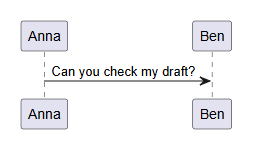
What each line does:
-
@startumlsays "a diagram starts here".@endumlsays "it ends here". Every diagram has a start line and an end line. -
Anna -> Ben : Can you check my draft?is a message.->is an arrow, typed as a dash and a "greater than" sign. The words after the colon are written on the arrow.
Now add Ben's answer, on a new line just before @enduml:
@startuml
Anna -> Ben : Can you check my draft?
Ben --> Anna : Yes, by Friday
@enduml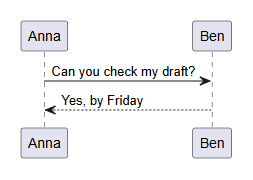
-->, make a dashed arrow. People often use it for an answer.That is a whole diagram. Select Save, then Update at the top of the page, and it is on the page for everyone. Every step, with pictures of the editor, is in the documentation.
Six rules for every diagram
PlantUML has many kinds of diagram, and each has its own words. These six rules are the same in all of them.
-
Start and end lines. Most diagrams start with
@startumland end with@enduml. A few kinds have their own pair, such as@startmindmapand@endmindmapfor a mind map, or@startganttand@endganttfor a project plan. The sections below say which kind needs which. (If you leave them out of a@startumldiagram, it is usually still drawn. Keep them anyway, so other tools read it too.) - One thing on each line. A person, a step or an arrow, each on a line of its own.
-
Names with spaces go in double quotes, with a short
name. PlantUML reads a space as the end of a name. So
write
participant "Sales team" as Sales, then useSaleseverywhere else. The words in quotes are what the picture shows. -
Words on an arrow go after a colon.
Anna -> Ben : Helloputs "Hello" on the arrow. -
Arrows are made of dashes.
->is a solid arrow and-->a dashed one. In most kinds of diagram, more dashes make a longer arrow. Type them with the keyboard's minus key and "greater than" key. -
A line that starts with an apostrophe is a note to
yourself.
' check this with Benis not drawn. Use it to leave reminders in the text.
Spaces at the start of a line don't matter. Use them to make the
text easier to read, as the examples below do. Capital letters do
matter in names: Ben and ben are two
different people.
When something is wrong
Everyone types a mistake now and then. In our app, the editor tells you at once, under the text. The message names the line, such as "Something looks wrong on line 2", and shows that line. Under it is a hint, such as "PlantUML could not read this line: check the spelling, the arrows and the brackets."
Save stays greyed out until the mistake is fixed, so a broken diagram never reaches the page. The preview keeps showing the last version that worked.
How to find the mistake:
- Look at the line the message names, then at the line just above it.
- Check each name with a space in it. It needs double quotes, as in rule 3.
-
Check each arrow. It is typed with dashes and a "greater than"
sign, not a ready-made arrow character such as
→, which some programs put in for you. -
Check each bracket. Every
(,[and{needs its partner.
Sometimes the hint says PlantUML "took the diagram for a sequence
diagram", but you were writing another kind. That means PlantUML
could not tell what kind it is. Look for a misspelled word, or a
missing } near the top.
Here is a mistake almost everyone makes once:
@startuml
Sales team -> Ben : New order
@enduml
The editor says "Something looks wrong on line 2". "Sales team" has a space in it. The fix is rule 3:
@startuml
participant "Sales team" as Sales
Sales -> Ben : New order
@enduml
Mistakes that draw the wrong picture
A few mistakes give no message. The diagram is drawn, but not as you meant. If the picture looks odd, check these:
-
A missing colon.
Anna -> Ben Hellodraws a person called "Ben Hello". Put the colon back:Anna -> Ben : Hello. -
A missing semicolon in a process. In an activity
diagram, each step ends with
;. Leave one out and the next line is joined to that step's box (see The steps of a process). -
A misspelled name.
Anna -> Bneadds a new person called Bne. Look for one too many people or boxes in the picture.
Stuck? In our app, Fix with AI under the message copies your diagram and the error as a prompt for the AI chat you use. See Fix an error.
Who talks to whom: sequence diagrams
A sequence diagram shows messages between people or systems, in the order they happen, from top to bottom. Use it for a hand-over, an approval, or how a website talks to a database. In the editor, start from the Sequence example.
@startuml
actor Customer
participant "Web shop" as Shop
database Stock
Customer -> Shop : Place order
Shop -> Stock : Is it in stock?
Stock --> Shop : Yes, 3 left
Shop --> Customer : Order confirmed
@enduml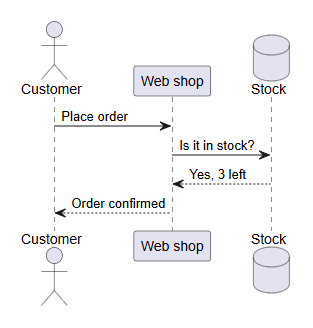
Four things to know
- Anyone you send a message to gets a column, even if you never named them first. Name them first, as here, to choose their order and their shape.
-
The first word sets the shape:
actoris a stick figure,participanta box,databasea database. Without a first line of its own, a name is drawn as a box. -
->is a message and-->is a reply.Anna -> Anna : Thinkis a message to yourself. -
autonumberon a line of its own numbers every message.
Show a choice
Put the different paths between alt and
end, with else between them. The words
after alt and else say when each path
happens.
@startuml
Customer -> Shop : Place order
alt In stock
  Shop --> Customer : Order confirmed
else Sold out
  Shop --> Customer : Sorry, sold out
end
@enduml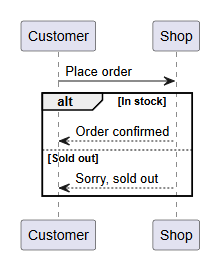
loop for something that repeats and opt for something that may not happen.Usual mistakes
-
"Something looks wrong" on a message line. A name
has a space in it. Use
participant "Web shop" as Shop. - An arrow ends at a new, oddly named column. The colon before the message is missing.
-
The rest of the diagram ends up inside the box.
An
alt,looporoptis missing itsend.
The steps of a process: activity diagrams
An activity diagram is a flowchart: steps, questions with yes and no paths, and where it all starts and stops. Use it for approvals, checklists and "what happens when". Start from the Activity example.
@startuml
start
:Employee asks for leave;
if (Manager approves?) then (yes)
  :Add it to the team calendar;
else (no)
  :Tell the employee why;
endif
:Send a confirmation;
stop
@enduml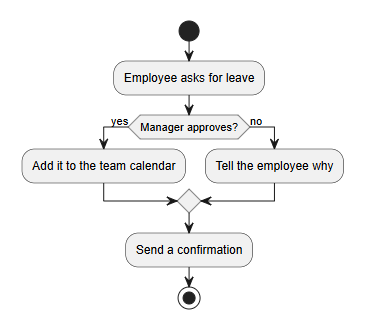
endif, and the process carries on.Four things to know
-
A step is written between a colon and a semicolon:
:Check the form;. The semicolon matters. -
startandstopdraw the beginning and the end. -
A question is
if (…) then (yes), then the yes steps, thenelse (no), the no steps, andendif. The words in the second brackets label the paths. -
Repeat steps with
while (More items?) is (yes), the steps, andendwhile (no).
Show who does each step
Put a team's name between two upright bars, such as
|Manager|, on its own line. The steps after it go in
that team's column, called a swimlane.
@startuml
|Employee|
start
:Fill in the form;
|Manager|
:Approve the request;
|HR|
:Update the records;
stop
@enduml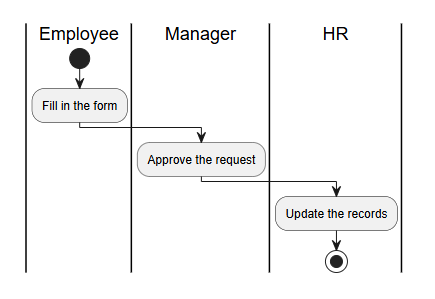
| is usually on the same key as the backslash.Usual mistakes
-
Two steps end up in one box. The first one is
missing its semicolon:
:Fill in the formneeds to be:Fill in the form;. -
The question's paths never meet again. The
endifis missing. Add it after the last "no" step. -
"then" left out.
if (Approved?) (yes)draws strange text. Writeif (Approved?) then (yes).
Things and how they relate: class diagrams
A class diagram shows kinds of things, what each one holds, and how they are connected. Software teams use it to plan their code, but it works for any "a customer has many orders" picture. Start from the Class example.
@startuml
class Customer {
  name
  email
}
class Order {
  number
  date
  total()
}
Customer "1" -- "many" Order : places
@enduml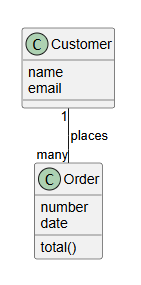
Four things to know
-
The things a class holds go between
{and}, one on each line. A line that ends in()is something it does, and is drawn in its own section. -
--is a plain line.-->adds an arrowhead.<|--means "is a kind of", as inPerson <|-- Customer. -
A
+or-before a name marks it public or private, which matters to programmers. Leave it out if it means nothing to you. -
enuminstead ofclassmakes a list of fixed choices, such as the statuses an order can have. Put each choice on its own line between the braces.
Usual mistakes
-
"Something looks wrong" on the
classline, and the hint says "sequence diagram". The closing}is missing, or the class name has a space. Useclass "Order line" as OrderLine. - A line goes to a new, empty box. A class name is spelled differently in the line than in the class itself.
Statuses and changes: state diagrams
A state diagram shows the statuses something can be in, and what moves it from one to the next: a document, a ticket, an order. Start from the State example.
@startuml
state "In review" as Review
[*] --> Draft
Draft --> Review : Send for review
Review --> Draft : Changes needed
Review --> Published : Approved
Published --> [*]
@enduml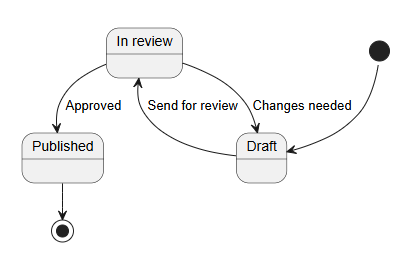
Three things to know
-
[*]is the start when an arrow leaves it, and the end when an arrow goes to it. - The words after the colon say what makes the status change.
-
A status with a space in its name needs a line of its own first:
state "In review" as Review.
Usual mistakes
-
"Something looks wrong" on an arrow line. A
status name has a space in it, as in
Draft --> In review. Give it a short name with astateline. -
Two boxes for one status. The name is spelled two
ways.
Reviewandrevieware different.
Who uses what: use case diagrams
A use case diagram shows the people who use a system and what each of them can do with it. Use it at the start of a project, to agree what is in and what is out. Start from the Use case example.
@startuml
left to right direction
actor Customer
actor "Support agent" as Agent
rectangle "Help centre" {
  usecase "Ask a question" as Ask
  usecase "Track my order" as Track
  usecase "Answer questions" as Answer
}
Customer --> Ask
Customer --> Track
Agent --> Answer
@enduml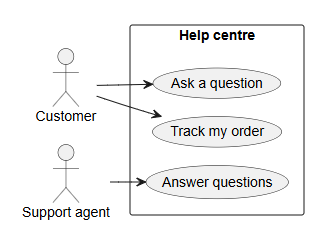
Three things to know
-
actordraws a stick figure;usecasedraws an oval. -
rectangle "Help centre" { … }draws the box around what belongs to the system. -
left to right directionlays the diagram out sideways, which usually reads better.
Usual mistakes
-
"Something looks wrong" on an arrow line.
Customer --> Ask a questionhas spaces. Give the use case a short name withusecase … as …, or put it in round brackets:Customer --> (Ask a question).
Parts of a system: component and deployment diagrams
These two show what a system is made of. A component diagram shows its parts and which part uses which. A deployment diagram shows where the parts run: which machine, which cloud, which database. Start from the Component or Deployment example.
@startuml
[Website] --> [Orders] : sends orders
[Orders] --> [Payments]
database "Order history" as History
[Orders] --> History
@enduml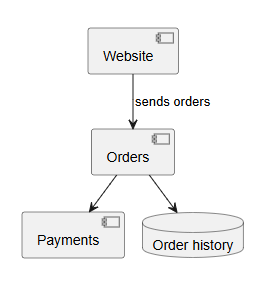
@startuml
node "Your laptop" as Laptop
cloud "Our hosting" {
  node "Web server" as Web
  database "Customer data" as Data
}
Laptop --> Web : over the internet
Web --> Data
@enduml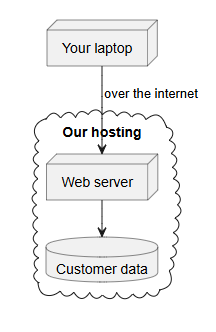
{ and } is drawn inside the shape.Four things to know
-
[Website]is a component. Square brackets work only in these diagrams; elsewhere they mean other things. -
nodeis a machine,databasea database andclouda cloud.package,folderandframeare other kinds of group. -
..>draws a dotted arrow, often used for "uses" or "depends on". -
Use
asto give a long name a short one, as in the other kinds.
Usual mistakes
-
Two boxes for one part.
[Orders]and[Order]are different. Copy the name rather than typing it again. -
A group swallows everything after it. Its
closing
}is missing.
Mind maps
A mind map puts one idea in the middle and branches out from it. Use
it for brainstorming, planning an event, or an outline. Start from
the Mind map example. A mind map has its own start
and end lines, @startmindmap and
@endmindmap.
@startmindmap
* Team offsite
** Before
*** Book the venue
*** Send invitations
** On the day
*** Agenda
*** Lunch
left side
** After
*** Share the notes
@endmindmap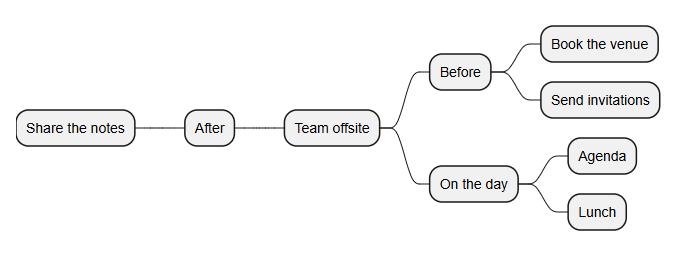
left side goes to the left of the middle.Three things to know
- The number of stars is the level. One star is the middle, two stars a main branch, three a branch of that, and so on.
- A line belongs to the nearest line above it with one star fewer.
-
**[#Orange] Riskscolors a branch. Color names such asOrange,LightBlueandPinkwork.
Usual mistakes
-
The start line is
@startuml. Our app still draws the mind map, but not every PlantUML tool does. Use@startmindmapand@endmindmap. - A branch hangs off the wrong idea. Count its stars. A line with too many stars is attached to the line above it.
- Two maps instead of one. There are two lines with one star. Only the middle has one.
Project plans: Gantt charts
A Gantt chart shows tasks as bars on a calendar, so you can see what
happens when and what waits for what. Start from the
Gantt example. A Gantt chart has its own start and
end lines, @startgantt and @endgantt.
@startgantt
Project starts 2026-12-01
saturday are closed
sunday are closed
[Plan] lasts 5 days
[Build] lasts 10 days
[Build] starts at [Plan]'s end
[Test] lasts 5 days
[Test] starts at [Build]'s end
[Launch] happens at [Test]'s end
@endgantt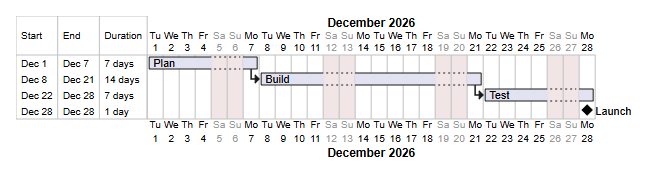
Five things to know
-
Task names go in square brackets:
[Build]. Use the same name, spelled the same way, every time. -
Project starts 2026-12-01sets the first day. Write the date as year, month, day. Without this line the chart counts "Day 1", "Day 2" and so on. -
[Build] starts at [Plan]'s endmakes one task wait for another. Note the apostrophe and the s. -
happens atmakes a milestone: a diamond, not a bar. -
[Build] is 50% completedshows progress, and-- Phase two --on its own line adds a heading between tasks.
Usual mistakes
- "No such task". A task's name is spelled differently in two places. The hint names the spelling it could not find, such as "No such task Desing".
-
"Something looks wrong" on line 2. The chart
starts with
@startuml. A Gantt chart needs@startganttand@endgantt. -
Tasks overlap when they should follow each other.
Each task needs its own
starts atline, or it starts on the first day.
Thirteen more kinds
The editor has an example of every kind below, under More… beside the example buttons. Pick one and change the words, as with the others. Six are shown here.
Database tables: entity relationship diagrams
Tables, their columns and how they link. The Entity
relationship example. The symbols at the ends of a line,
such as ||--o{, say "one" and "many".
@startuml
entity Customer {
  * id
  --
  name
  email
}
entity Order {
  * id
  --
  * customer_id
  created
}
Customer ||--o{ Order : places
@enduml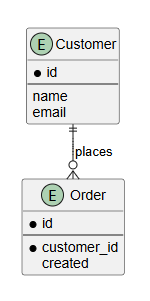
|| at Customer's end means exactly one. o{ at Order's end means none or many. A star marks a column that must be filled in.Breaking work down: work breakdown structures
Like a mind map drawn as a tree from the top down. The
Work breakdown example. It uses
@startwbs and stars for levels.
@startwbs
* Website relaunch
** Content
*** Rewrite the home page
*** New photos
** Design
*** New colours
** Launch
@endwbs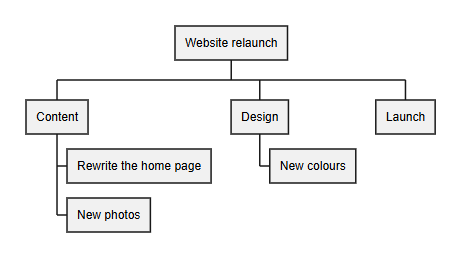
Changes over time: timing diagrams
What each person or system is doing at each moment. The
Timing example. @0 and
@100 are moments in time, and the lines after each say
what changes then.
@startuml
concise "Customer" as C
concise "Support" as S
@0
C is Waiting
S is Busy
@5
S is Answering
@15
C is Happy
S is Free
@enduml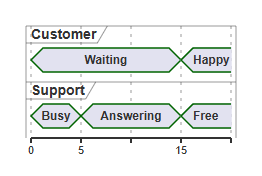
concise draws each status as a band along its row.Data as a picture: JSON and YAML
JSON and YAML are two common ways of writing data as text, often
used by software. Paste JSON between @startjson and
@endjson, and it is drawn as linked tables. YAML works
the same way, with @startyaml. It is a handy way to
show an example to someone who doesn't read code.
@startjson
{
  "order": 1042,
  "paid": true,
  "items": [
    { "product": "Mug", "quantity": 2 },
    { "product": "Poster", "quantity": 1 }
  ]
}
@endjson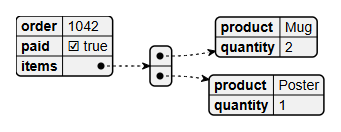
Screen sketches: wireframes
A rough sketch of a form or a screen. The
Wireframe example. It uses
@startsalt. Inside the braces, | starts a
new column, text in quotes is a text box and text in square
brackets is a button.
@startsalt
{
  Name     | "Ada Lovelace   "
  Email    | "[email protected]"
  [X] Send me the newsletter | .
  [Cancel] | [  Sign up  ]
}
@endsalt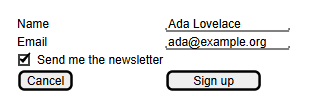
., leaves a cell empty.Networks
Machines and the networks they sit on. The
Network example. It uses
@startnwdiag, and only works with that start line.
@startnwdiag
nwdiag {
  network office {
    laptop;
    printer;
    server;
  }
  network backup {
    server;
    storage;
  }
}
@endnwdiag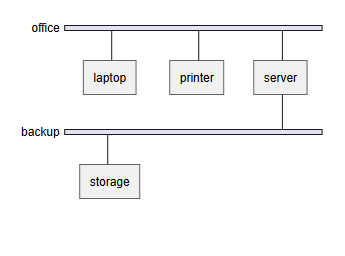
And seven more
Each has an example in the editor. Start from it, and the Syntax reference under the editor shows the lines for that kind.
- Object: real examples of things, with their values, such as one order and its lines.
- Chen ER: database tables in the older Chen style, with relationships as diamonds. It uses
@startchen. - YAML: data drawn as tables, like JSON. It uses
@startyaml. - ArchiMate: business, application and technology layers, for enterprise architects.
- C4: a system's people, containers and links, in the C4 model. Its example starts with
!include <C4/C4_Container>, the C4 library that ships with the app. - EBNF: the rules of a small language or format, drawn as railway tracks. It uses
@startebnf. - Regex: a regular expression, a pattern for matching text, drawn as railway tracks. It uses
@startregex.
Every kind and every line the editor's reference lists is on the PlantUML reference page.
What the app does not draw
PlantUML can do a few things that our app does not. The editor tells you so, by name, rather than drawing something wrong.
-
Four kinds of diagram that some people write in
other PlantUML tools: Graphviz graphs
(
@startdot), ditaa drawings (@startditaa) and formulas (@startmathand@startlatex). The editor says "This kind of diagram is not drawn here". -
Most libraries. A line such as
!include <awslib/AWSCommon>loads a ready-made set of shapes. The app includes three: C4, ArchiMate and the Kubernetes sprites (see Libraries below). For any other, such as AWS, Azure and the icon sets, the editor names the one that is missing. - Files and pictures from elsewhere. The app draws each diagram from its own text alone. It fetches no file, theme or picture from a web address or a folder.
That last point is on purpose: the app draws every diagram in your browser, from its text alone.
Themes
A theme changes the colors and fonts of a whole diagram. Put
!theme and the theme's name on its own line, just
after the start line:
@startuml
!theme cerulean
Anna -> Ben : Can you check my draft?
@enduml
The app has 43 themes, such as plain,
mono, cerulean and
materia. Some themes are made for a dark background,
such as cyborg and hacker: the app puts
those on a dark panel on a light page. Choose
Light or Dark under Colours to
pick the ground yourself. A misspelled theme name gets a message
that names it.
Icons and emoji
Inside any text on a diagram, <&heart>
draws a small icon, and <:smile:> an emoji.
The name goes between the marks.
@startuml
Anna -> Ben : Thanks <&heart>
Ben --> Anna : Any time <:smile:>
@enduml
The icons and emoji ship with the app, so nothing is fetched to draw them.
Libraries
Three ready-made sets of shapes ship with the app. Write the include line with the library's name in angle brackets, just after the start line, not a web address.
- C4, for C4 model diagrams:
!include <C4/C4_Container>. The editor's C4 example uses it. - ArchiMate:
!include <archimate/Archimate>, then the library's own words, such asBusiness_Actor(customer, "Customer"). - Kubernetes sprites:
!include <kubernetes/k8s-sprites-unlabeled-25pct>, then<$pod>or<$svc>in a label.
If you paste a C4 diagram that includes C4 from a web address, the editor tells you to write the line above instead.
Questions
Do I need to know how to code to write PlantUML?
No. PlantUML is a few short lines of ordinary words, arrows made of dashes, and some brackets. If you can write a shopping list, you can write a diagram. Start from an example and change the words.
What is the difference between @startuml and @startmindmap?
They are the first line of the diagram, and they say what kind it is. Most kinds, such as sequence, activity, class, state and use case diagrams, start with @startuml. A few kinds have a start line of their own: @startmindmap, @startgantt, @startwbs, @startjson, @startyaml, @startsalt, @startnwdiag, @startchen, @startebnf and @startregex. The last line matches the first: @enduml, @endmindmap and so on.
Can I paste PlantUML I already have?
Yes. PlantUML is plain text, so you can paste your PlantUML text from a file, a wiki page or an AI chat. Diagrams that load files or pictures from elsewhere, or a library other than C4, ArchiMate and Kubernetes, are not drawn in our app, because it draws each diagram from its own text alone.
Can an AI chat write PlantUML for me?
Yes. Ask an AI chat for a PlantUML diagram and paste the answer into the editor. Our app takes the diagram out of the chat's other text as you paste. Its Draft with AI button copies a ready-made prompt for the AI chat you already use; the app itself never contacts an AI.
Related pages
- PlantUML in Confluence: insert a diagram, the editor, saving, exports and fixing problems, with pictures.
- PlantUML reference: every kind of diagram, every line the editor's reference lists, and the limits.
- How to add Mermaid diagrams to a Confluence Cloud page: the app's other language, Mermaid.
- All guides.
Sources and changes
Eriksen Labs makes Mermaid & PlantUML Diagrams for Confluence, the app this guide shows. Every example on this page was drawn by PlantUML 1.2026.10, the version the app draws with, in the app's own way, so the pictures are what you will see in the editor. The editor's messages are quoted from the app's code. What each kind of diagram can do comes from PlantUML's own guide.
- PlantUML: the language guide for each kind of diagram (17 Nov 2026)
- @plantuml/core on npm: PlantUML 1.2026.10 for the browser, which the app ships (17 Nov 2026)
Changelog
- . First version, for version 2.10.0 of the app, which adds PlantUML.
Corrections
None yet. If something here is wrong or hard to follow, email [email protected].