Moving a diagram from another Mermaid app
If your diagrams are in another Mermaid app for Confluence, even one that is no longer updated, you can move each one across by copying and pasting it. You do not need to tidy up what you copy: the editor cleans it up as you paste.
Move a diagram in four steps
- Copy the diagram. Edit the page, open the old diagram's editor, select all of its text and copy it.
-
Add a Mermaid Diagram and paste. Next to the old
diagram, type
/mermaidand choose Mermaid Diagram. Its editor opens. Click into Diagram source and paste. - Choose colours and save. Pick a colour scheme under Colours. Auto (match Confluence) follows Confluence's light or dark mode. Add alt text for screen readers, then select Save at the foot of the editor.
- Remove the old diagram. Once the new one looks right, delete the old one and select Update to publish the page.
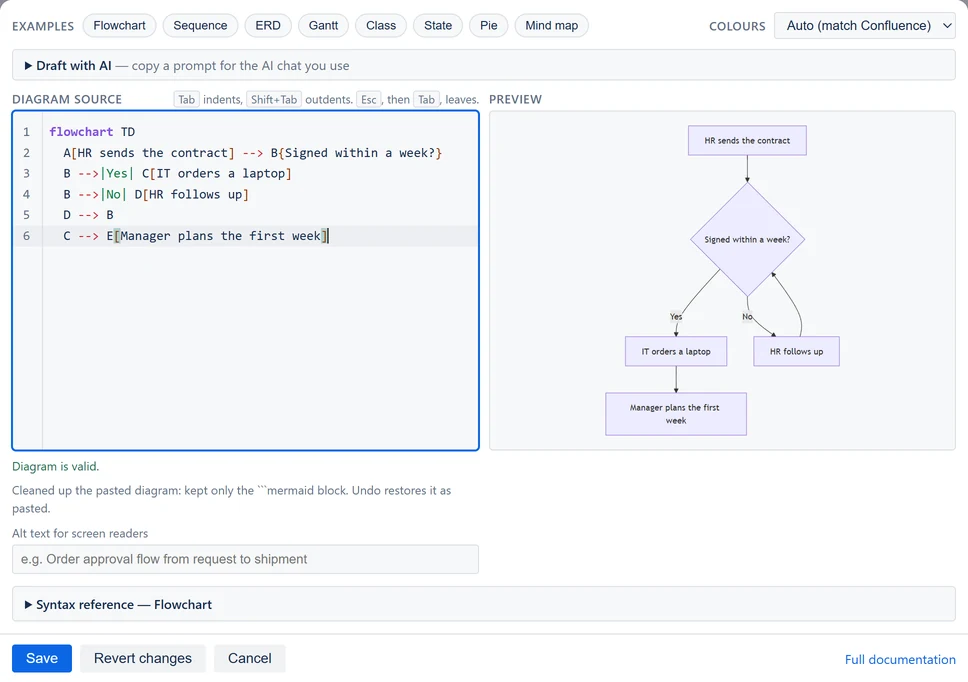
Some apps save a diagram with extra wrapping around it. The editor takes the diagram out and says under the source what it cleaned up. The preview then shows the diagram, or explains any line Mermaid cannot read.
The old app may have used an older version of Mermaid, so a diagram can look a little different. Check the preview before you save.
If the old app will not open
A Confluence admin can copy the diagram from the page's storage format instead. That is the code Confluence keeps behind the page, under More actions (•••) → Advanced details → View Storage Format.
Find the old macro and copy all of it, from
<ac:structured-macro to
</ac:structured-macro>. Paste that into
Diagram source and the editor finds the diagram
inside.
Pasting from Markdown, GitHub or GitLab
Copy the whole code block, fences included:
```mermaid
flowchart LR
  A --> B
```
The editor removes the ```mermaid (or
~~~mermaid) fence and keeps the diagram. It does not
matter whether the fence says mermaid,
Mermaid or nothing at all. Wiki blocks written
::: mermaid work the same way.
Pasting from an AI chat
Copy the whole answer with the chat's own copy button, so the
``` lines around the diagram come with it. If the
answer holds one mermaid code block, the editor keeps
just that block.
Selecting the answer with the mouse usually leaves the
``` lines out, and then the editor can't find the
diagram. Or copy just the diagram, with the copy button on its code
block.
If it holds two or more, the editor leaves the paste as it is, because it cannot know which one you want. Copy one diagram at a time instead.
To ask an AI chat for a new diagram, open Draft with AI above the diagram source. Describe the diagram, select Copy prompt, and paste the prompt into the chat. See Draft with AI in the guide. The editor only copies the prompt, and sends nothing to any AI itself.
What the clean-up does
- It takes the diagram out of another app's saved format, or out of the page's storage format.
- It removes Markdown code fences.
-
It takes the diagram out of a web page's source, where it sits in
a
<pre class="mermaid">tag. -
It turns HTML codes such as
-->and<br>back into-->and<br>. Codes like these appear when a diagram is copied from a web page's source. It changes them only when the whole diagram was written in codes. If the diagram already has its own-->or<br>, a code such as<in a label stays, since you probably meant it. - A diagram with none of this wrapping goes in exactly as you pasted it.
A note under the source says what was cleaned up. It stays for 8 seconds, or until you type again.
The clean-up happens in your browser as you paste. Nothing is sent anywhere. Every rule it follows is under Pasting in the reference.
Undoing the clean-up
If the clean-up is not what you wanted, press Ctrl+Z (Cmd+Z on a Mac). The first time gives you back exactly what you pasted. The second time removes the paste.
Still stuck?
Raise a request in our support portal, or email [email protected]. First reply in 1-3 business days, depending on severity (see our service level agreement).
Tell us what you pasted and the name of the app it came from. For everything else about writing diagrams, see the documentation.