Reference
The full syntax, colours, exports and limits of Mermaid Diagrams & Gantt for Confluence. It is written for people who already write Mermaid.
New to Mermaid? Start with the guide. Syntax not covered here is on mermaid.js.org.
This page uses Mermaid's word node (box) for a shape in a diagram. Every fact here is true of version 2.6.0.
On this page
Kinds of diagram
The first line that is not blank sets the kind. Eight kinds have a button under Examples and a Syntax reference panel of their own.
| First line | Kind | Examples button | Syntax reference panel |
|---|---|---|---|
flowchart or graph | Flowchart | Flowchart | Flowchart |
sequenceDiagram | Sequence diagram | Sequence | Sequence diagram |
erDiagram | Entity relationship diagram | ERD | Entity relationship |
gantt | Gantt chart | Gantt | Gantt chart |
classDiagram | Class diagram | Class | Class diagram |
stateDiagram-v2 | State diagram | State | State diagram |
pie | Pie chart | Pie | Pie chart |
mindmap | Mind map | Mind map | Mind map |
journey | User journey | — | Flowchart |
timeline | Timeline | — | Flowchart |
quadrantChart | Quadrant chart | — | Flowchart |
gitGraph | Git graph | — | Flowchart |
Any first line the panel does not recognise shows the flowchart panel. Other kinds that Mermaid supports also draw; their syntax is on mermaid.js.org.
Flowchart
In the Syntax reference panel
| Write | Meaning |
|---|---|
| Shapes | |
A[Rectangle] | Standard box |
A(Rounded) | Rounded box |
A([Stadium]) | Pill shape |
A{Decision} | Diamond — a yes/no branch |
A((Circle)) | Circle |
A[(Database)] | Cylinder |
A[[Subroutine]] | Box with side bars |
| Arrows | |
A --> B | Solid arrow |
A --- B | Line, no arrowhead |
A -.-> B | Dotted arrow |
A ==> B | Thick arrow |
A -->|label| B | Arrow with a label |
| Direction | |
flowchart LR | Left to right |
flowchart TD | Top down |
| Colour | |
style A fill:#ffd966 | Fill one node |
style A fill:#ffd966,stroke:#b45309,stroke-width:2px | Fill + border |
classDef warn fill:#fee2e2,stroke:#dc2626 | Define a reusable style |
class A,B warn | Apply that style to nodes |
The panel also has a Links group; see Links.
More
| Write | Meaning |
|---|---|
flowchart TB, RL, BT | Top to bottom (the same as TD), right to left, bottom to top |
subgraph id [Title] … end | A labelled group of nodes |
A["Cost (EUR)"] | A label with brackets or other symbols, in double quotes |
A["Line one<br>Line two"] | A line break in a label |
%% note | A comment, not drawn. It needs a line of its own: after other text on a line, it is a parse error. |
end is a reserved word, so a node cannot be called
end. Use End or done.
Mermaid's page: Flowcharts. Recipe: Draw a process.
Sequence diagram
In the Syntax reference panel
| Write | Meaning |
|---|---|
| Basics | |
participant Bob | Declare a participant |
A->>B: Hello | Solid arrow with message |
A-->>B: Hi back | Dashed reply arrow |
A-)B: Async | Open arrowhead |
| Structure | |
Note over A,B: text | Note spanning participants |
loop Every minute | Start a loop block (end with end) |
alt Success | Conditional block (else / end) |
activate A | Show A as busy (deactivate A) |
More
| Write | Meaning |
|---|---|
autonumber | Number every message |
actor Customer | A participant drawn as a person |
participant Desk as Service desk | A short name with a longer label |
Note left of A: text, Note right of A: text | A note beside one participant |
opt … end | An optional block |
par … and … end | Blocks that happen at the same time |
A->>+B: Hi, B-->>-A: Done | Activate B with the first message, deactivate it with the reply |
Mermaid's page: Sequence diagrams. Recipe: Show who talks to whom.
Entity relationship diagram
In the Syntax reference panel
| Write | Meaning |
|---|---|
| Relationships | |
A ||--|| B : label | Exactly one to exactly one |
A ||--o{ B : label | One to zero-or-many |
A ||--|{ B : label | One to one-or-many |
A }o--o{ B : label | Many to many |
| Reading the symbols | |
|| | Exactly one |
o| | Zero or one |
}| | One or many |
}o | Zero or many |
| Attributes | |
CUSTOMER { string name }, one field per line | Fields go in braces |
string name PK | Mark a primary key |
More
| Write | Meaning |
|---|---|
A ||--o{ B : "appears on" | A relationship label with spaces, in double quotes |
A ||..o{ B : label | A dashed line: a non-identifying relationship |
int customer_id FK | Mark a foreign key; UK marks a unique key |
Mermaid's page: Entity relationship diagrams. Recipe: Document tables.
Gantt chart
In the Syntax reference panel
| Write | Meaning |
|---|---|
| Structure | |
title My Plan | Chart title |
dateFormat YYYY-MM-DD | How dates are written |
section Build | Group tasks under a heading |
| Tasks | |
Design :des1, 2026-08-01, 7d | id, start date, duration |
Dev :active, dev1, after des1, 14d | Starts when des1 ends |
Test :done, tst1, 2026-08-20, 5d | Completed task |
Launch :milestone, 2026-09-01, 0d | Milestone marker |
More
| Write | Meaning |
|---|---|
axisFormat %d %b | How the axis writes dates, here 05 Oct |
tickInterval 1week | One axis mark per week; also day, month and shorter units |
excludes weekends | Skip Saturdays and Sundays; also takes weekday names and dates, separated by commas |
weekend friday | With excludes weekends, skip Friday and Saturday instead; also weekend saturday |
includes 2026-12-27 | Keep a date that excludes would skip |
todayMarker off | Hide the line that marks today |
todayMarker stroke-width:3px,stroke:#1f9e7d | Style that line |
inclusiveEndDates | An end date counts as a day of the task |
done, active, crit, milestone | Tags before the id. They can be combined, as in crit, active |
after id, after id1 id2 | Start when the task ends; with several ids, when the last of them ends |
until id | End when that task starts |
A task's start is a date or after. Its end is a length,
a date, or until.
A length is a number and a unit: ms, s,
m, h, d, w,
M or y. Lowercase m is
minutes, and capital M is months.
A # or ; after a task's colon causes an
error. Write dates the way dateFormat says.
Mermaid's page also lists topAxis. In the Mermaid this
app includes, it causes an error, so leave it out.
Mermaid's page: Gantt diagrams. Recipe: Plan a project timeline.
Class diagram
In the Syntax reference panel
| Write | Meaning |
|---|---|
| Members | |
+name | Public |
-secret | Private |
#internal | Protected |
+total() float | Method with return type |
| Relationships | |
A <|-- B | B inherits from A |
A *-- B | Composition |
A o-- B | Aggregation |
A --> B : label | Association |
A "1" --> "*" B | With multiplicity |
More
| Write | Meaning |
|---|---|
class Order { … } | A class and its members, one per line |
A ..> B | Dependency |
A ..|> B | Realisation |
<<interface>> Shape | An annotation on a class |
Mermaid's page: Class diagrams. There is no recipe for class diagrams; start from the Class example.
State diagram
In the Syntax reference panel
| Write | Meaning |
|---|---|
| Basics | |
[*] --> Draft | Start state |
Draft --> [*] | End state |
A --> B : trigger | Transition with label |
| Grouping | |
state "Long name" as s1 | Alias a state |
state Fork <<fork>> | Fork / join node |
note right of A : text | Attach a note |
More
| Write | Meaning |
|---|---|
state Review { … } | A state with states inside it |
state Check <<choice>> | A choice between paths |
direction LR | Draw from left to right |
Mermaid's page: State diagrams. Recipe: Show how statuses change.
Pie chart
In the Syntax reference panel
| Write | Meaning |
|---|---|
| Basics | |
pie title My Chart | Chart heading |
"Label" : 45 | One slice and its value |
showData | Show numbers on the chart |
showData goes on the first line, after
pie. It adds each value to the key, in square brackets.
A title can also go on a line of its own, as
title Tickets by channel.
Mermaid's page: Pie charts. Recipe: Show shares of a whole.
Mind map
In the Syntax reference panel
| Write | Meaning |
|---|---|
| Basics | |
root((Centre)) | Central node |
Child | Indent two spaces per level |
id[Square] | Square node |
id(Rounded) | Rounded node |
More
| Write | Meaning |
|---|---|
id((Circle)) | Circle |
id))Bang(( | Bang |
id)Cloud( | Cloud |
id{{Hexagon}} | Hexagon |
A node's level comes from its indentation, compared with the lines above it.
Links
| Write | Meaning |
|---|---|
click A "https://…" | Node A opens the address |
click A "https://…" "Tooltip" | The same, with hover text |
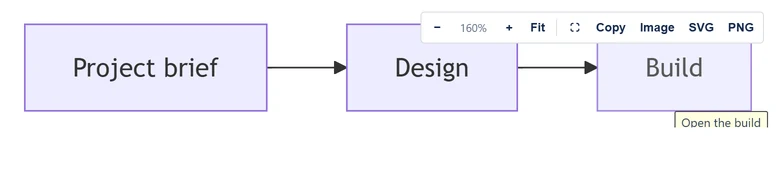
- Links are supported in flowcharts.
-
Only
http:andhttps:addresses are kept. Any other scheme, such asjavascript:, is dropped. - Links open through Confluence, not inside the diagram's frame. A full address to a page or work item on your site opened in a new tab, with no prompt, when tested on 2.5.0.
-
A relative address is resolved against the frame's own address, on
Atlassian's app host. So the panel's example
click A "/wiki/spaces/DOCS"does not open your page. Confluence warns about an external page instead, so use full addresses. - Hover text shows, but on a short diagram it can be cut off at the frame's bottom edge.
-
A linked node gets
role="link"andtabindex="0", with the name "Open linked page". It opens with Enter or Space.
Colours
| Colours setting | Saved as | Drawn with |
|---|---|---|
| Auto (match Confluence) | auto | Mermaid's default theme on a light page, dark on a dark page |
| Default | default | default |
| Neutral | neutral | neutral |
| Forest | forest | forest |
| Dark | dark | dark |
A new diagram starts on Auto. Auto uses Confluence's light or dark mode, which Confluence passes to the app's frame. The computer's setting stands in only until Confluence answers, at most 1.5 seconds, or if that fails.
A theme set in the source wins over the Colours setting. It can be set in frontmatter, or in an init directive.
---
config:
  theme: forest
---
flowchart LR
  A[Draft] --> B[Published]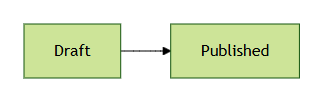
forest, whatever the Colours setting says.Panels
A diagram drawn darker or lighter than the page sits on a panel of
the background it needs. The app reads this from the colours Mermaid
drew the text and lines in, not from the theme's name. So Mermaid's
other dark themes, and a base theme given dark colours,
get a dark panel on a light page too. A light drawing on a dark page
gets a light panel.
When the source sets no theme or colours of its own, Auto matches the page and needs no panel. In print, every dark diagram sits on its panel, since paper is light.
Styling nodes
style, classDef and class
colour nodes, and linkStyle colours lines. These
colours stay the same in every theme and mode.
Downloads and exports
- Image, PNG and SVG use the theme on screen. An Auto diagram on a dark page downloads dark.
- A PNG has a white background, or a dark grey one when the diagram is drawn dark, by the Colours setting or by a theme in its source. An SVG has no background.
-
The picture saved for exports draws Auto as
default. A fixed setting is kept. It goes on the background its colours need, as a PNG does.
The editor
The editor opens by itself when you insert a Mermaid Diagram. Later, it opens from Edit on the selected diagram. A click inside the diagram does not select it; see Change a diagram later.
- Layout. Source and preview sit side by side when the editor is at least 900 px wide, and stack below that.
- Preview. It redraws 250 ms after you stop typing.
- Source. Syntax highlighting, line numbers and wrapped lines. Ctrl+Z undoes and Ctrl+F opens find and replace; on a Mac, use Cmd. Tab and Shift+Tab indent and outdent the lines the selection touches, by two spaces. Esc, then Tab within two seconds, moves focus on. Ctrl+M (Shift+Alt+M on a Mac) switches Tab between indenting and moving focus until pressed again. The hint beside Diagram source shows the first two.
- Examples. They stay available the whole time. If the source has text, a bar asks "Replace your diagram with the … example?" with Replace and Keep mine.
- Syntax reference. It follows the first line of the source. It opens by itself when the diagram is empty.
- Alt text for screen readers. Up to 250 characters.
- Action row. Save, Revert changes, Restore a previous version…, Cancel and Full documentation stay at the foot of the editor, however far it scrolls.
Draft with AI and Fix with AI
- Draft with AI is a closed section between Examples and the source. It holds a request box, "What should the diagram show?", of up to 2,000 characters; Diagram type (Let the AI choose, or one of the eight example kinds); and Copy prompt.
- While the editor holds a diagram, it offers Change my diagram, which puts the source in the prompt and asks "What should change?", and Start a new one, which leaves it out. An untouched example starts a new one until you choose.
- Copy prompt is off until the box has text, with a line saying why. After a copy, Show prompt shows the exact text copied. If the browser refuses to copy, the prompt is shown selected for Ctrl+C.
- Fix with AI appears under a parse or drawing error. It copies the source and Mermaid's error as one prompt.
-
Both prompts ask for exactly one
```mermaidblock in the Mermaid version the app draws with, with no init directive, theme or front matter, and nothing the strict security level refuses. The paste clean-up keeps just that block. - A prompt holds the request, the source and the error. It holds nothing else from the page: not the alt text, the page or the versions. The app sends nothing to any AI.
Status line
| Message | When |
|---|---|
| "Pick an example to get started." | The source is empty |
| "Diagram is valid." | The source parses and draws |
| "Something looks wrong on line N", or "This diagram could not be read" | A parse or drawing error, with the text around it, a caret, sometimes a hint, and Fix with AI under it |
| "Saving…" | While Save runs |
| "Still loading the diagram…" | Save was selected before the diagram had loaded. Nothing is saved. |
| "Not saved yet. See the note above Save." | The diagram gets no picture for exports. See Saving without a picture. |
Save is off while there is a parse or drawing error. It stays on while the source is empty, and an empty diagram shows "No diagram yet" on the page.
Save checks the text as it is at the click. It waits for a preview still running, and checks the text itself when the preview has not caught up. Text that does not draw is not saved: the error shows under the source, with Fix with AI, and scrolls into view. While Save is off it stays in the tab order, described by the status line.
Saving without a picture
When a diagram gets no picture for exports, Save does not close the editor. A note above Save reads "Not saved yet: no picture for Word and PDF.", then why: "This diagram is too large or too slow to draw as a picture." or "Confluence did not accept this diagram with its picture." Focus moves to the note.
Save without picture saves the diagram with no picture, for the text and Colours the note was about. An edit or a new Colours choice takes the note away, and Save tries the picture again.
Versions
- A save records the previous text as a version when the text changed and was not empty. Up to five are kept, newest first.
- Each version holds the text and the time, nothing else.
- Restore a previous version… appears once there is one. Each entry reads "age — first line", with the first line cut at 32 characters.
- Ages read "just now", "N min ago", "N h ago" or "N d ago".
- Choosing an entry loads its text into the editor. Nothing changes on the page until Save.
Other controls
- Revert changes restores the text the editor opened with. It is off while the text is unchanged.
- Cancel closes without saving. On a diagram that was just inserted, it removes the diagram.
- Full documentation opens mermaid.js.org/intro/syntax-reference.html through Confluence. Before version 2.5.0, the link did not open.
Pasting
A paste is cleaned up when it holds wrapping that is never valid Mermaid. Everything runs in the browser.
| Pasted | Kept | The note says |
|---|---|---|
JSON with a diagramDefinition string, as some other Mermaid apps save it |
That string | "unwrapped the diagram from another app's saved format" |
| One macro copied from the storage format | Its diagramCode parameter if it has one, or else its CDATA body. A data: body is never taken. |
"took the diagram out of the page's storage format" |
One <pre class="mermaid"> or <div class="mermaid"> from a web page's HTML |
Its content, decoded and dedented | "took the diagram out of its HTML <pre> tag", or <div> |
One fence around the whole paste: ``` or ~~~, untagged or tagged mermaid in any case, {mermaid}, {.mermaid}, or ::: mermaid |
The fenced text | "removed the ```mermaid fence", naming the fence it found |
Other text with exactly one mermaid block |
That block | "kept only the ```mermaid block" |
HTML codes, when there is an escaped arrow or tag and no raw < or > |
The text, decoded | "turned HTML codes such as > back into characters", naming the first code |
-
Two or more
mermaidblocks are left as pasted. A fence without its closing line counts only when it is taggedmermaid. - Plain Mermaid goes in unchanged. So does a paste into several selections, or during text composition in an input method.
- The note reads "Cleaned up the pasted diagram: … Undo restores it as pasted." It shows for 8 seconds, or until the next edit.
- The clean-up is its own undo step. The first Ctrl+Z gives back the raw paste, and the second removes the paste.
- A diagram that opens as that JSON is unwrapped the same way. The note reads "Cleaned up this diagram: … Save to keep it." Undo or Revert changes brings back what was saved.
Guide: Paste from GitHub or another app and Moving a diagram from another Mermaid app.
The diagram on the page
| Button | Accessible name | Does |
|---|---|---|
| − | Zoom out | Zooms out one step of 25% |
| + | Zoom in | Zooms in one step of 25% |
| Fit | Reset zoom | Fits the diagram to the width again |
| ⛶ | Full screen | Full screen on or off. If the browser refuses, the diagram expands in place. |
| Copy | Copy diagram source text | Copies the source |
| Image | Copy image to clipboard | Copies a PNG |
| SVG | Download as SVG | Downloads diagram.svg |
| PNG | Download as PNG | Downloads diagram.png |
- The toolbar shows on hover or keyboard focus. On touch screens it always shows. The zoom level sits between − and +.
- Zoom runs from 25% to 400%. Ctrl or Cmd with the wheel zooms too.
- The diagram starts fitted to the width. It fits again when the width changes, until the reader zooms.
- PNG and Image are drawn at twice the diagram's natural size. Downloads are drawn again without HTML labels, so text can wrap a little differently.
-
The diagram has
role="img", named by its alt text, or "Mermaid diagram" without one. Print hides the toolbar.
Messages
| Message | When |
|---|---|
| "Loading diagram…" | Before the diagram is drawn |
| "Image copied — paste it anywhere." | After Image |
| "Diagram source copied." | After Copy |
| "PNG downloaded." / "SVG downloaded." | After PNG or SVG |
| "This browser cannot copy images." | The browser has no image clipboard |
| "Clipboard blocked by the browser." | Copy was refused |
| "No diagram yet", "Select this macro and choose Edit to write your Mermaid diagram." | The saved source is empty. No toolbar. |
| "Something looks wrong on line N", or "This diagram could not be read", or "Could not render this diagram" | The source cannot be drawn. Only Copy shows. |
| "A licence is needed to show this diagram" | The licence is not active. No toolbar, and the source cannot be copied. |
| "Could not load the macro configuration" | Confluence did not hand over the diagram. No toolbar. |
| "Could not load the diagram renderer" | Mermaid failed to load |
Under the licence message, the page says: "Your diagram is safe — it is stored on this page and will render again as soon as Mermaid Diagrams & Gantt for Confluence has an active licence."
Exports
| Where | Each diagram becomes |
|---|---|
| The saved picture. Without one, the live diagram without its toolbar, which is slower, and a page with many of them can fail. | |
| Word | The saved picture. Without one, the alt text as a paragraph, then the source as a code block labelled mermaid. |
Page history and REST export_view | The saved picture, or the alt text and code block |
| Notification email | Always the alt text and code block |
| Include Page | The live diagram |
| Any other export | The alt text and code block |
| Any export, licence not active | "A licence is needed to show this diagram." |
The alt text paragraph appears only when the diagram has alt text. The picture's own alt text is the diagram's alt text, or "Mermaid diagram". An empty diagram exports as "Mermaid diagram (empty)", except in PDF.
The saved picture
- It is drawn when you select Save. Auto is drawn as
default, on the background its colours need (see Colours). - It is shown at its natural size, up to 680 px wide, centred.
- It is drawn at 2 pixels per CSS pixel. It steps down to 1.5, 1 and 0.75 until it fits about 73 kB. It is an indexed-colour PNG of up to 256 colours, with the diagram's main colours kept exact. That makes it about 40% smaller than before 2.6, so most large diagrams keep 2 or 1.5. A browser that cannot make one saves an ordinary PNG.
- It is skipped when the source is over 50,000 characters, or the preview took over 1.5 seconds. It is also skipped when it would be taller than 2,112 CSS px where it is shown (22 inches, the tallest picture Word holds), takes over 5 seconds, or does not fit. Then Save asks first; see Saving without a picture.
- A save that changes neither source nor Colours reuses it, unless it was saved before 2.6 in full colour. That one is drawn again, and kept if the new drawing fails. Exports use a picture only while it still matches both. For a source that sets its own theme or colours, a picture saved before 2.6 no longer matches: it exports as code until the diagram is saved again, and page versions from before that save keep the code.
- If Confluence refuses the save with the picture, the editor asks first, as for a diagram with no picture.
- Diagrams saved before version 2.4 have none until they are opened and saved.
The export function
Confluence calls the app's own function on Atlassian's platform for every diagram in an export. It receives the diagram's saved settings and returns a picture or text.
It keeps nothing, makes no network calls and logs only an error's name. Each diagram is one call per export.
CONFCLOUD-82734 reports that pages with about 100 or more such macros can reach Atlassian's call limit. Some diagrams are then missing from the export.
What is stored
Each diagram's saved settings are the macro's configuration. They live in the page body and in each page version.
| Key | Holds |
|---|---|
source | The diagram's text |
theme | The Colours setting |
alt | The alt text |
history | Up to five earlier versions, each its text and time |
png, pngW, pngH | The export picture and its size in CSS pixels |
pngKey | A key made from the Colours setting and the source, so a picture is never used for text it was not drawn from. For a source that sets its own theme or colours, 2.6 changed the key, so a picture saved before no longer matches. |
Each picture is up to about 73 kB, so 30 diagrams at the cap add about 3 MB to a page. The app uses no Forge storage, and Eriksen Labs holds no copy.
Security
- The app requests no permission scopes and declares no egress.
-
Mermaid runs at
securityLevel: 'strict', which the app never relaxes. Labels are sanitised. -
Links are
httpandhttpsonly, and open through Confluence. - Paste clean-up runs in the browser.
- The export function keeps nothing, makes no network calls and logs only an error's name; see Exports.
- Draft with AI and Fix with AI copy a prompt to the clipboard. The app sends nothing to any AI.
Read our security policy and privacy policy.
What's new
2.6.0
- Draft with AI, above the source, copies a prompt for the AI chat you use. Fix with AI, under a parse or drawing error, copies the diagram and the error. The app sends nothing to any AI.
- Save, Revert changes and Cancel stay at the foot of the editor.
- Tab and Shift+Tab indent and outdent the source. Esc, then Tab, moves on.
- Save checks the text as it is at the click, and refuses text that does not draw.
- A diagram with no picture for exports is saved only after Save without picture.
- A Save selected before the diagram has loaded saves nothing. Before, it could store an empty diagram.
- The saved picture is indexed colour, about 40% smaller, so large diagrams keep a sharp one.
- Panels, downloads, prints and saved pictures go on the background the drawing's own colours need. A diagram saved before 2.6 whose source sets a theme or colours needs one more save. Until then, Word shows its source as code, and PDF draws it live.
2.5.0
- A dark diagram on a light page, or a light one on a dark page, sits on its own panel.
- Auto follows Confluence's light or dark mode, not the computer's.
- Paste clean-up removes Markdown fences, AI chat wrapping and other Mermaid apps' wrapping. Undo restores the raw paste, and a note says what was removed.
- The editor's Full documentation link opens.
2.4.0
- PDF export without the diagram toolbar.
- A wider editor, with source and preview side by side.
- Saving a diagram stores a picture of it for Word and PDF exports.
- Diagrams saved before 2.4 need one open and save. Until then, Word shows their source as code. PDF draws them live, which is slower, and a page with many of them can fail.
- A very large diagram may be saved without a picture. Word then shows its source as code.
- The export function, which runs on Atlassian's platform when Confluence exports a page, shows page history or emails watchers. See Exports.
Still stuck?
Raise a request in our support portal, or email [email protected]. First reply in 1-3 business days, depending on severity (see our service level agreement).
Include the diagram's source (select Copy in its toolbar), what you expected and what happened.