Move a diagram from another Mermaid app
If your diagrams are in another Mermaid app for Confluence, even one that is no longer updated, you can move each one across by copying and pasting it. You do not need to tidy up what you copy: the editor cleans it up as you paste.
On this page
Move a diagram in four steps
- Copy the diagram. Edit the page, open the old diagram's editor, select all of its text and copy it.
-
Add a Mermaid Diagram and paste. Next to the old
diagram, type
/mermaidand choose Mermaid Diagram. Its editor opens. Click into Diagram source and paste. - Choose colors and save. Pick a color scheme under Colours. Auto (match Confluence) follows Confluence's light or dark mode. Add alt text for screen readers, then select Save at the foot of the editor.
- Remove the old diagram. Once the new one looks right, delete the old one and select Update to publish the page.
Some apps save a diagram with extra wrapping around it. The editor takes the diagram out and says under the source what it cleaned up. The preview then shows the diagram, or explains any line Mermaid cannot read.
The old app may have used an older version of Mermaid, so a diagram can look a little different. Check the preview before you save.
If the old app will not open
A Confluence admin can copy the diagram from the page's storage format instead. That is the code Confluence keeps behind the page, under More actions (•••) → Advanced details → View Storage Format.
Find the old macro and copy all of it, from
<ac:structured-macro to
</ac:structured-macro>. Paste that into
Diagram source and the editor finds the diagram
inside.
Pasting from Markdown, GitHub or GitLab
Copy the whole code block, fences included:
```mermaid
flowchart LR
  A --> B
```
The editor removes the ```mermaid (or
~~~mermaid) fence and keeps the diagram. It does not
matter whether the fence says mermaid,
Mermaid or nothing at all. Wiki blocks written
::: mermaid work the same way.
Pasting from an AI chat
Copy the whole answer with the chat's own copy button, so the
``` lines around the diagram come with it. If the
answer holds one mermaid code block, the editor keeps
just that block.
Selecting the answer with the mouse usually leaves the
``` lines out, and then the editor can't find the
diagram. Or copy just the diagram, with the copy button on its code
block.
If it holds two or more, the editor leaves the paste as it is, because it cannot know which one you want. Copy one diagram at a time instead.
To ask an AI chat for a new diagram, open Draft with AI above the diagram source. Describe the diagram, select Copy prompt, and paste the prompt into the chat. See Draft with AI in the guide. The editor only copies the prompt, and sends nothing to any AI itself.
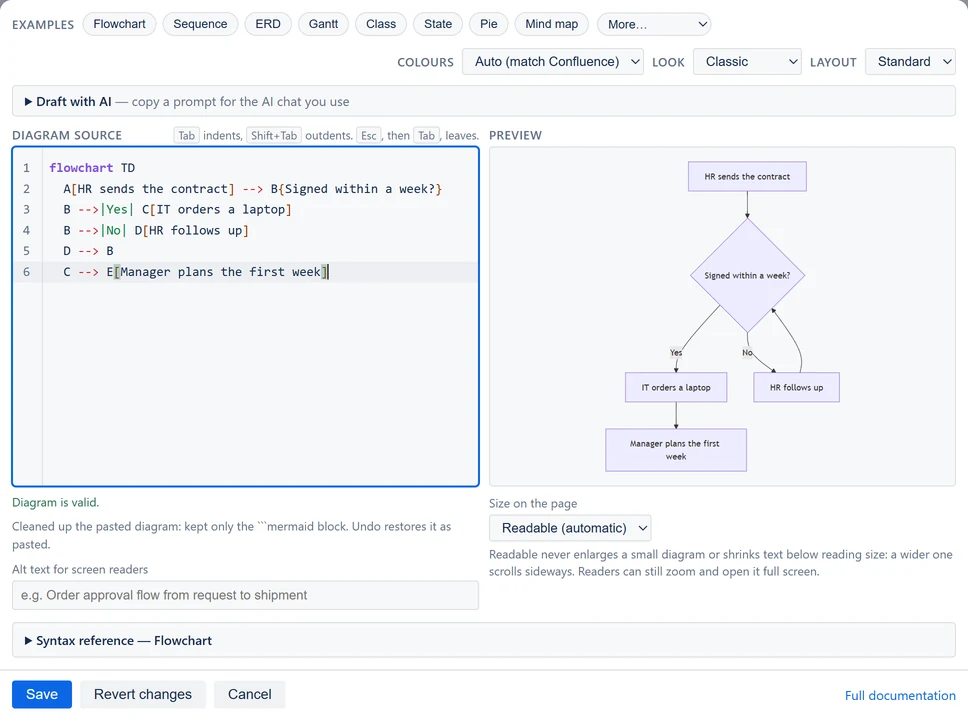
Pasting a link from mermaid.live
A link copied from mermaid.live, Mermaid's own online editor,
carries the whole diagram inside the link. Paste the link into
Diagram source and the editor puts the diagram
there in its place. This works for the links the editor and its
viewer give you (mermaid.live/edit#pako:…,
mermaid.live/view#pako:…), for older links, for
picture links to mermaid.ink, for what
Copy Markdown gives, and for Kroki links to a
Mermaid diagram.
The editor reads the diagram out of the text you pasted. It does not open the link, and nothing is sent anywhere. Only the diagram's text is taken: the colors and settings stored in the link are left out, so choose Colours and Look in the editor.
If the link was cut short when it was copied, is too long, or holds no diagram (a link that loads its diagram from a file or a gist, for example), nothing is pasted and a line under the source says why. Copy the whole link again, or copy the diagram text itself.
Paste the link by itself. A link in the middle of other text is pasted as text, as before.
What the clean-up does
- It takes the diagram out of a link from mermaid.live, when the link is all you paste.
- It takes the diagram out of another app's saved format, or out of the page's storage format.
- It removes Markdown code fences.
-
It takes the diagram out of a web page's source, where it sits in
a
<pre class="mermaid">tag. -
It turns HTML codes such as
-->and<br>back into-->and<br>. Codes like these appear when a diagram is copied from a web page's source. It changes them only when the whole diagram was written in codes. If the diagram already has its own-->or<br>, a code such as<in a label stays, since you probably meant it. - A diagram with none of this wrapping goes in exactly as you pasted it.
A note under the source says what was cleaned up. It stays for 8 seconds, or until you type again.
The clean-up happens in your browser as you paste. Nothing is sent anywhere. Every rule it follows is under Pasting in the reference.
Undoing the clean-up
If the clean-up is not what you wanted, press Ctrl+Z (Cmd+Z on a Mac). The first time gives you back exactly what you pasted. The second time removes the paste.
A flowchart whose subgraphs lost their direction
A subgraph can set its own direction with a
direction line inside it: a column of steps, say, in
a diagram that runs left to right. Mermaid 12, which the app draws
with since 2.9, follows that line only while no arrow joins a node
inside the subgraph to a node outside it. With such an arrow the
subgraph is drawn in the direction of the diagram around it, and a
diagram of several columns can come out as one long row. Before
2.9 the app drew the direction regardless.
Open the diagram. Under the source, a note names the subgraphs and says what to write for each arrow: the subgraph's name in place of the node's.
flowchart LR
  subgraph One
    direction TB
    A1[Plan] --> A2[Build]
  end
  subgraph Two
    direction TB
    B1[Test] --> B2[Ship]
  end
  A2 --> B1
Here the note says to write One for A2
and Two for B1, so the last line becomes
One --> Two. The arrow then runs from one
subgraph's box to the other's, and each subgraph is drawn top to
bottom again. With the standard layout, that is the drawing the
app made before 2.9.
-
A subgraph written without an id, such as
subgraph Team A, has no name to write in an arrow. The note gives the line that adds one:subgraph TeamA [Team A]. - With the ELK layout the note asks for both ends of the arrow to be subgraphs, because ELK needs the two ends side by side.
- If a node disappears after the change, it was only named on the line you changed: give it a line of its own inside its subgraph.
-
If the drawing is right as it is, remove the
directionline and the note goes.
What's new in 2.9
- Mermaid 12. Diagrams are drawn with Mermaid 12.3. Your diagrams keep the look they had: the app tells Mermaid 12 to draw them the classic way. A few kinds of diagram are drawn a little differently by Mermaid 12 itself, such as C4 and block diagrams, mind maps, and flowcharts whose subgraphs each set their own direction. For those flowcharts the editor says which arrows to change (see above). If the Word or PDF picture of a diagram no longer matches the page, open the diagram and select Save.
- Look and Layout. Next to Colours: Hand-drawn draws a diagram as a sketch, Neo is Mermaid 12's own look, and ELK arranges flowcharts and class, state, ER and requirement diagrams with another layout engine, which often suits large diagrams.
- An example of every diagram type. Eight are buttons, as before, and 24 more are under More…: timelines, user journeys, quadrant charts, Git graphs, C4, requirement, Sankey, XY charts, block, packet, kanban, architecture, radar, treemap, tree view, fishbone, Venn, use case, swimlanes, Wardley maps, Cynefin, railroad, event models and agent flows. The syntax reference and Draft with AI know them too.
- Paste a mermaid.live link and get its diagram (see above).
- Labels on curved lines. A label on a line that curves out to it (an arrow, a transition or a relation) now sits where the layout keeps room for it. That can be another point of the same line than before 2.9, and a diagram with such a label at its edge can change size by a few dozen pixels.
-
XY charts name their lines and bars. A line or
bar written with a name, as in
line "avg" [48, 41, 45], is now listed in a legend beside the chart, and the plot is a little narrower for it. To leave the legend out of one chart, begin the diagram with these five lines:--- config: xyChart: showLegend: false ---
Earlier changes are under What's new in the reference.
Still stuck?
Raise a request in our support portal, or email [email protected]. First reply in 1-3 business days, depending on severity (see our service level agreement).
Tell us what you pasted and the name of the app it came from. For everything else about writing diagrams, see the documentation.