Export the page to PDF or Word
On this page
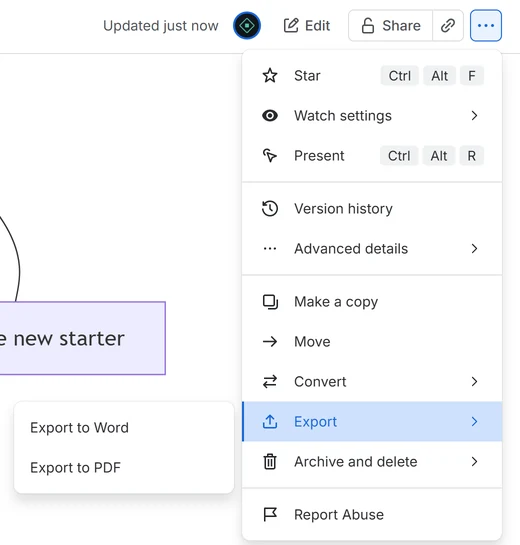
To export a page, select More actions (•••) at the top of the page, then Export. Choose Export to Word or Export to PDF.
Each diagram appears as a picture, without its toolbar. It is the picture the editor saved with the diagram. Auto diagrams come out in light colors, and a fixed color scheme is kept. A diagram whose own text sets a theme comes out on a background it can be read on.
Diagrams made before version 2.4
These have no picture yet. Until someone opens and saves them once, Word shows their text as code. PDF draws them live, which is slower, and a PDF of a page with many of them can fail.
To give an older diagram its picture:
- Edit the page.
- Select the diagram, then select Edit (see Change a diagram later).
- Select Save. The editor saves a picture with the diagram.
- Do the same for each older diagram, then select Update.
Not sure which diagrams need it? Export the page to Word. Any diagram shown as code needs this, unless it is too large or too tall for a picture.
Diagrams that set their own colors
A diagram can set its own theme or colors in its text, in a line
such as %%{init: {'theme':'dark'}}%% or in front
matter. Diagrams from AI chats often do. From version 2.6, such a
diagram exports on a background it can be read on.
If it was saved before 2.6, open it and select Save once. Until then, Word shows its text as code, and PDF draws it live, which is slower. A PDF of a page with many of them can fail. Older versions of the page keep the code.
Pictures saved before version 2.9
Since version 2.9 the app draws with Mermaid 12, which draws a few kinds of diagram a little differently, such as C4 and block diagrams, mind maps and some flowcharts. A picture saved before 2.9 shows the earlier drawing, so Word and PDF can differ from the page. Open the diagram and select Save once, and the picture is drawn again.
Very large diagrams
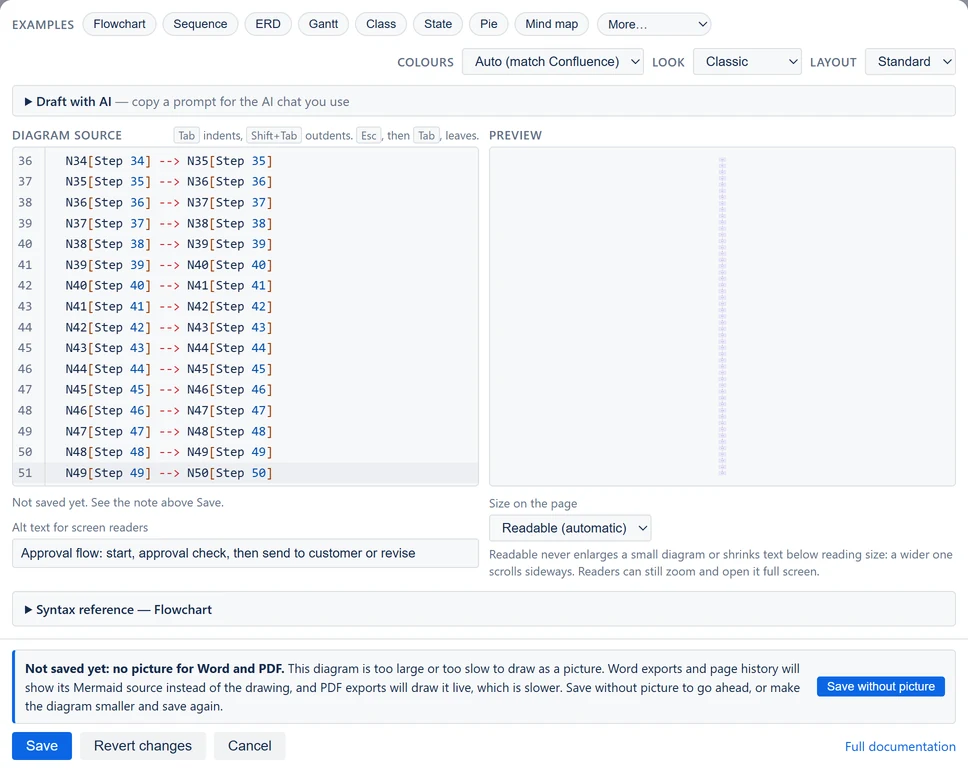
Pictures are stored compactly, so most large diagrams, such as a 15-table ERD, keep a sharp one. A few get none: a diagram that would be taller than about 22 inches in Word, the tallest picture Word holds, and one too large or too slow to draw. Then Save does not close the editor. A note above it says "Not saved yet: no picture for Word and PDF." Select Save without picture to save the diagram anyway. Word then shows its text as code, and PDF draws it live. Or make the diagram smaller and select Save again.
Emails and older versions of a page
Notification emails show each diagram's text as code. An older version of the page, opened from Version history, shows the saved picture, or the text as code.
To place one diagram somewhere by hand, use Image, PNG or SVG in its toolbar.