Get started in 5 minutes
Mermaid & PlantUML Diagrams for Confluence adds a Mermaid Diagram to Confluence's editor. You type a few lines of text. The app draws the diagram and keeps it on the page.
Mermaid is a widely used way of writing diagrams as text; GitHub and GitLab use it too. The app is called Mermaid & PlantUML Diagrams. What it adds to Confluence's menus is called Mermaid Diagram.
If Mermaid Diagram is not in the list in step 2, the app is not installed on your site. Ask a Confluence admin to add it (see For Confluence admins).
- Open the page and select Edit at the top. Or create a new page.
-
On an empty line, type
/mermaidand select Mermaid Diagram. You can also select + (Insert elements) in the toolbar, typeMermaidin its search box and select it there.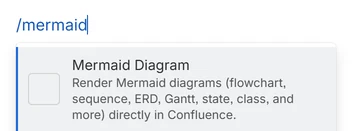
Mermaid Diagram is the first item in the list. -
The diagram editor opens by itself. Under
Examples, select the one closest to what you
want: Flowchart for a process,
Gantt for a project plan, Mind map
for ideas. Eight are buttons: Flowchart, Sequence, ERD, Gantt,
Class, State, Pie and Mind map. More…, beside
them, lists 24 other kinds, such as Timeline, User journey and
Kanban.
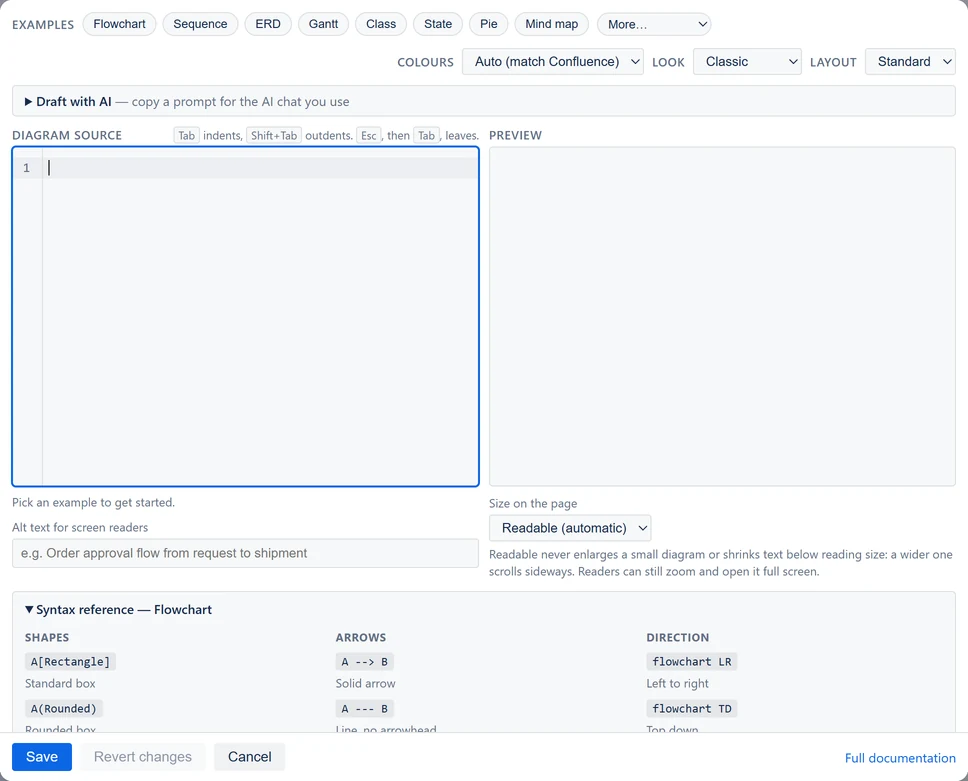
A new diagram. The examples are along the top, with More… at their end, and the Syntax reference is open underneath. -
Change the words in Diagram source. In a
flowchart, replace the words in brackets. For example, change
[Ship it]to[Send to customer]. In a Gantt chart, change the task names before the colons. In a mind map, change the words on each line. The Preview redraws as you type, and the line under the text says "Diagram is valid."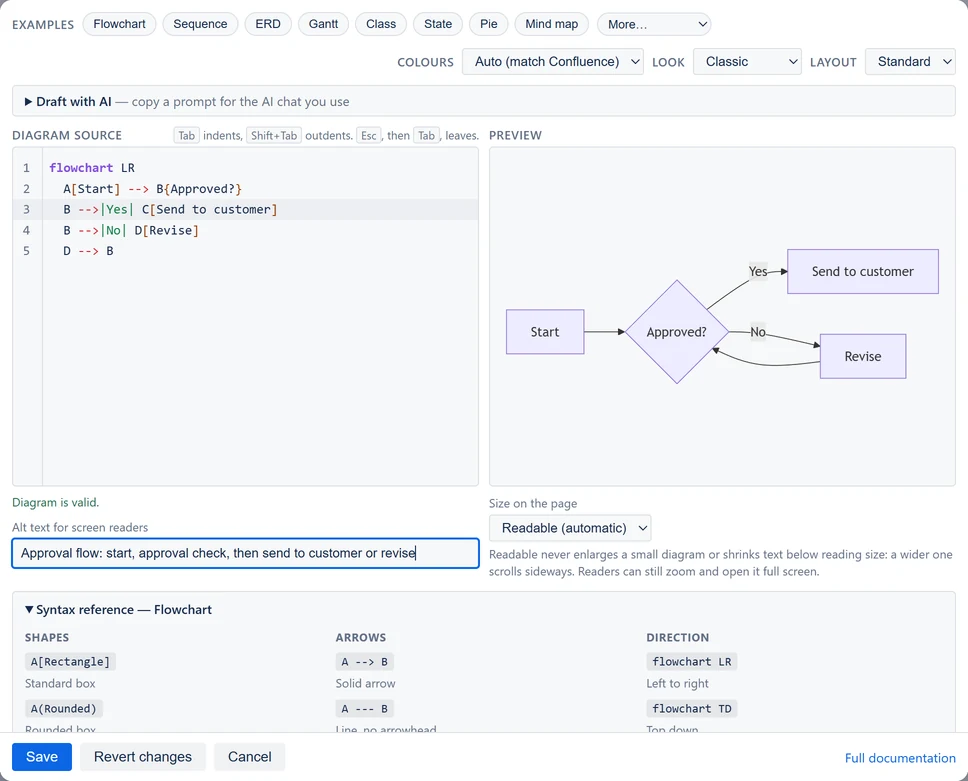
One label changed. The preview on the right has already caught up. - Optional: in Alt text for screen readers, describe the diagram in one sentence.
- Optional: under the preview, Size on the page sets how big the diagram is drawn. Readable (automatic) suits most diagrams. Fill the width stretches or shrinks it to the page width, as before version 2.8. Actual size shows it exactly as Mermaid draws it.
- Select Save, at the foot of the editor. It stays in view, even with the Syntax reference open. The editor closes, and the diagram is on the page.
- Select Update at the top of the page to publish your change. On a new page, use the button in the same place.
If you pick another example when you already have text, the editor asks first: "Replace your diagram with the Gantt example?" Replace swaps it in, and Keep mine leaves your text alone. On a new diagram, the Syntax reference under the editor opens by itself.
Would you rather describe the diagram in words? Open Draft with AI above the diagram source. See Draft with AI.
Readers hover over the diagram to zoom, go full screen, copy it or download it. See Zoom, copy and download.
Change a diagram later
- Edit the page.
- Select the diagram. Clicking inside it does not select it, and the toolbar that appears when you point at it (zoom, Copy and so on) has no Edit. Instead, point at the diagram's edge. When a gray frame and the label Mermaid Diagram appear, select the label. Or click at the end of the line above the diagram and press the down arrow key.
- Select Edit, the pencil in the small toolbar under the diagram.
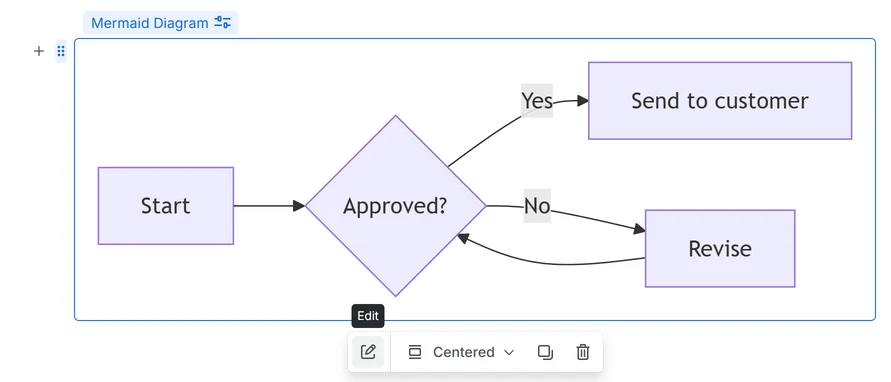
Confluence calls app content like this a macro; you will see the word in some messages.