Draft with AI
If your organization lets you use an AI chat assistant, it can write a first draft of the Mermaid text. The editor writes the request for you.
- Above Diagram source, open Draft with AI.
-
Under "What should the diagram show?", describe the diagram in
your own words. For example:
Our new-starter process, top to bottom. HR sends the contract. The new starter signs it. If it is not signed within a week, HR follows up. When it is signed, IT orders a laptop and the manager plans the first week. - Optional: choose a Diagram type, such as Flowchart or Gantt. The list has all 32 kinds. Otherwise the AI chooses.
-
Select Copy prompt. It turns on once the box has
text.
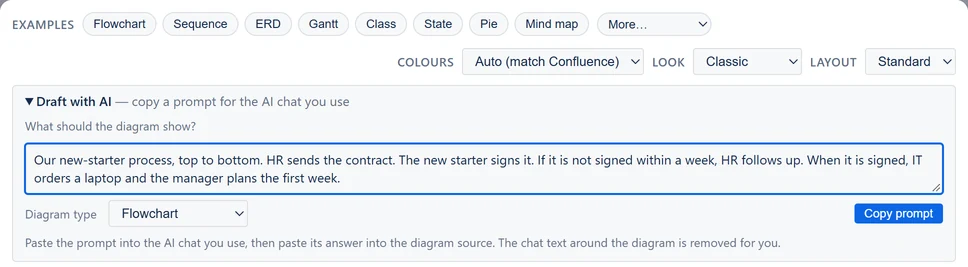
Draft with AI with a request typed and Flowchart chosen. Copy prompt is on. - Paste the prompt into the AI chat you use. Copy its whole answer with the chat's own copy button, or just the diagram with the button on its code block.
- Paste the answer into Diagram source. If the editor already has text, select all of it first (Ctrl+A, or Cmd+A on a Mac). The editor keeps just the diagram and says so.
- Check the preview, and every label, date and arrow.
Change a diagram you have
When the editor holds a diagram, choose Change my diagram or Start a new one. With Change my diagram, the box asks "What should change?", and the prompt carries your diagram. An example you have not changed starts a new one, unless you choose otherwise.
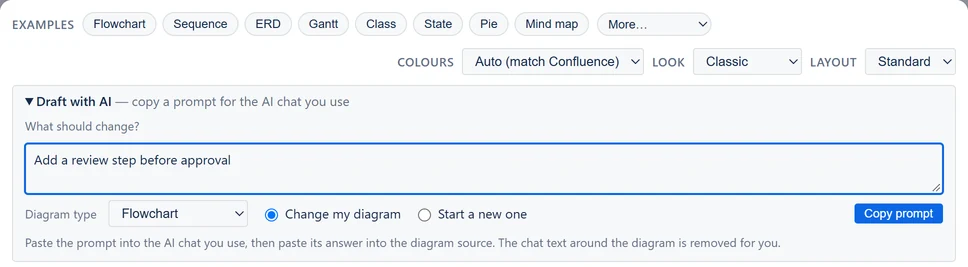
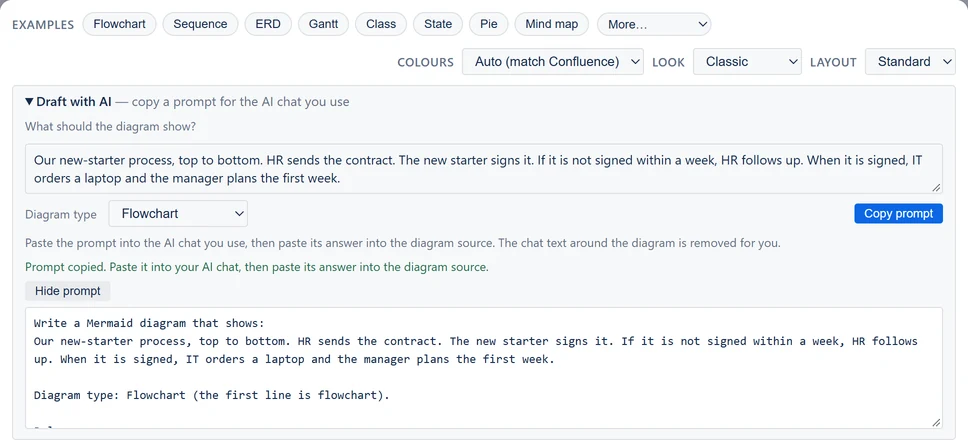
See the prompt, or copy it by hand
After a copy, Show prompt shows the exact text that was copied. If the browser blocks copying, the editor shows the prompt selected. Press Ctrl+C (Cmd+C on a Mac) to copy it.
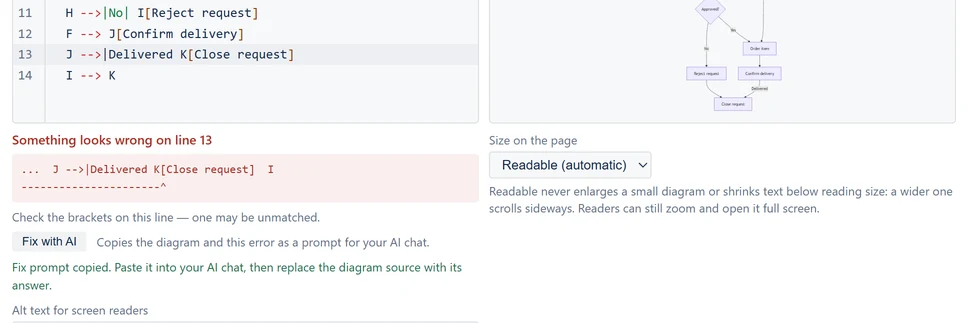
Fix an error with AI
When the editor shows an error, Fix with AI appears under it. It copies your diagram and the error as one prompt. Paste it into your AI chat, then replace the diagram source with its answer.
AI chats get things wrong. They can leave out a step, invent one, or write Mermaid this app cannot draw. The preview and the error message show you where.
The prompt holds what you typed. To change a diagram, it also holds the diagram's text, and to fix one, the text and the error. Nothing else from the page goes in: not the alt text, and not earlier versions. What you paste into an AI chat goes to the company that runs it, so follow your organization's rules. Mermaid & PlantUML Diagrams itself sends nothing to any AI.