Colors, look and layout
On this page
Colours and dark mode
The Colours list in the editor sets the colors for the whole diagram. It offers Auto (match Confluence), Default, Neutral, Forest and Dark.
Auto draws light colors when Confluence is in light mode, and dark colors when it is in dark mode. It follows Confluence's setting, not your computer's. The other four look the same for every reader.
When a diagram's colors do not match the page, it sits on its own panel so its lines stay readable. That happens with Dark on a light page, or a light choice on a dark page.
To color one box, add a style line. To color several,
define a style once with classDef, then apply it with
class.
fill is the color inside the box, and
stroke is its border. Write a color as #
and six characters, such as #fff3bf. Any online color
picker gives you one.
flowchart LR
  A[Draft] --> B[In review] --> C[Approved]
  style B fill:#fff3bf,stroke:#f08c00
  classDef done fill:#d3f9d8,stroke:#2b8a3e
  class C done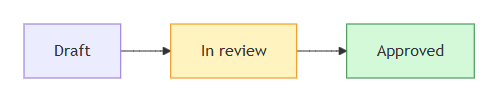
style line colors In review. The classDef and class lines color Approved.
To color several boxes the same way, add these two lines at the end
of a flowchart whose boxes are named A and
B:
classDef warn fill:#fee2e2,stroke:#dc2626
class A,B warn
Colours you set on boxes do not change in dark mode. If your team uses dark mode, pick shades that read well on both.
Image, PNG and SVG use the colors on your screen. So an Auto diagram on a dark page downloads dark. An SVG has no background.
Pictures in Word and PDF exports use light colors for Auto. Default, Neutral, Forest and Dark keep their colors.
A color scheme written into the diagram's own text wins over the Colours setting. Its downloads, prints and pictures for Word and PDF then go on a background it can be read on. The reference shows how.
Look and layout
Beside Colours, two lists change how a diagram is drawn. Both are new in version 2.9. A diagram saved before 2.9 is Classic and Standard, and looks as it did.
- Look sets how the shapes are drawn. Classic is the default. Hand-drawn draws the diagram as a sketch. Neo is the look Mermaid 12 introduced. A kind of diagram that has only one look keeps it: a sequence diagram, for example, is never hand-drawn.
- Layout sets how the boxes are arranged. Standard is the default. ELK arranges them another way, which often suits large diagrams. It applies to flowcharts and to class, state, ER and requirement diagrams. Other kinds keep their own layout.
With Neo, Auto draws Neo's own colors, light or dark with Confluence. Any other Colours choice stays as it is under every look.
The page, downloads and the pictures in Word and PDF exports all use the look and layout you chose. A hand-drawn picture is heavier than a classic one, so a large hand-drawn diagram can come out less sharp in Word and PDF. If it gets no picture at all, the editor says so when you select Save; see Very large diagrams.
A look or layout written into the diagram's own text wins over these lists, as a color scheme does. The reference has the details.