Zoom, copy and download
Hover over a diagram on a published page, and a toolbar appears at its top right. Keyboard users reach it with Tab. On a touch screen, it is always shown.
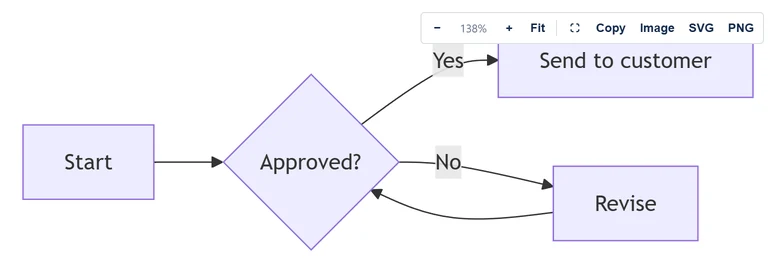
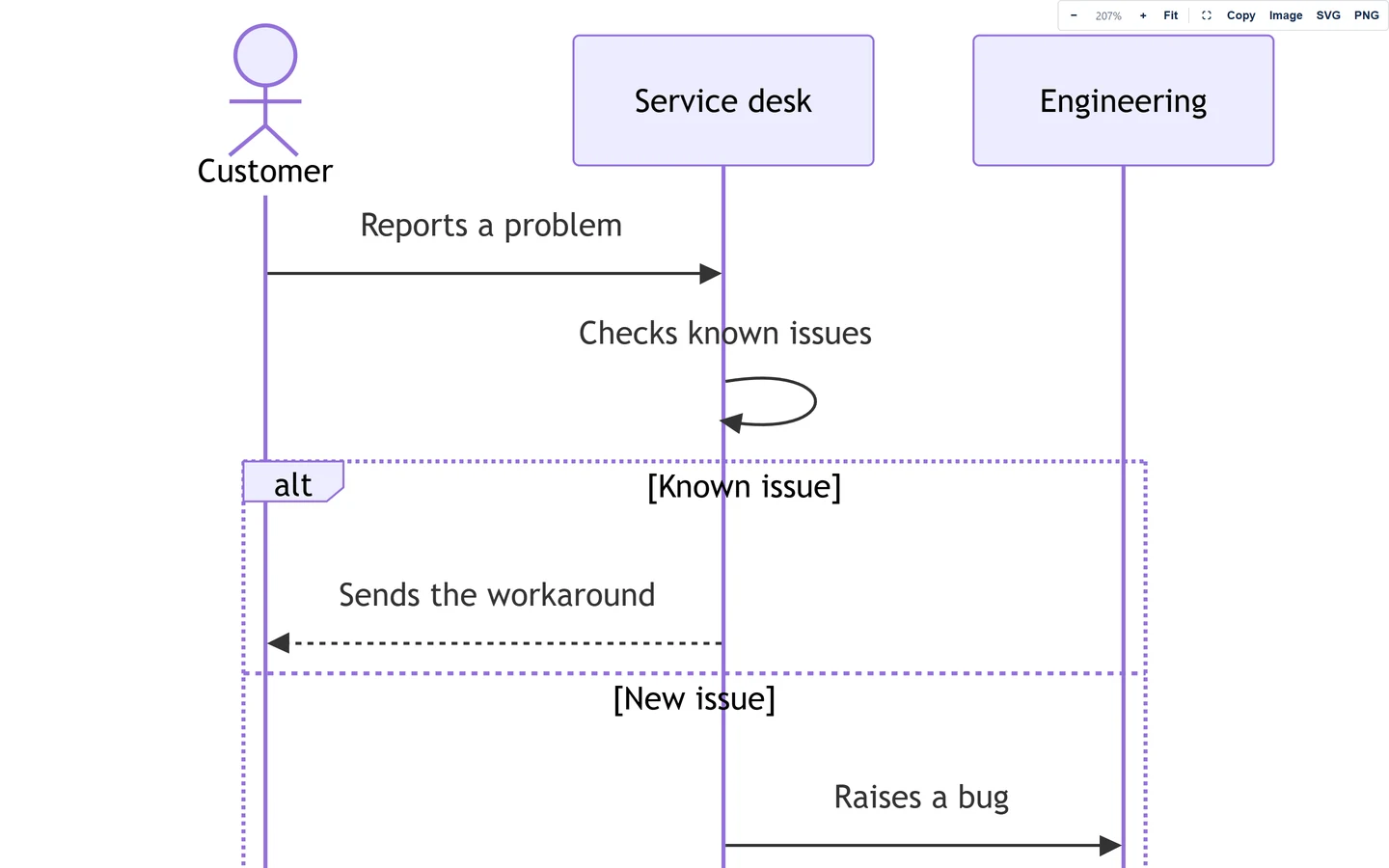
A diagram starts at a size people can read: never larger than Mermaid draws it, and never so small that its text is hard to read. A diagram wider than the page keeps its text readable and scrolls sideways, fading at the edge it continues past. The person who edits it can change that under Size on the page.
- − and + zoom out and in, from 25% to 400%. The level shows between them.
- Fit shows the whole diagram: a wide one shrinks to the page width, and a small one stays at its own size.
- The full-screen button, or a double-click on the diagram, opens it on the whole screen, as large as the screen allows. Select the button again, or press Esc, to leave.
- Copy copies the diagram's text.
- Image copies a picture of it, to paste into a chat, an email or a slide.
-
SVG and PNG download it as
diagram.svgordiagram.png.
Ctrl or Cmd with the scroll wheel over the diagram zooms too.
A PNG is drawn at twice the diagram's own size, so it stays sharp on slides. An SVG stays sharp at any size and has no background.
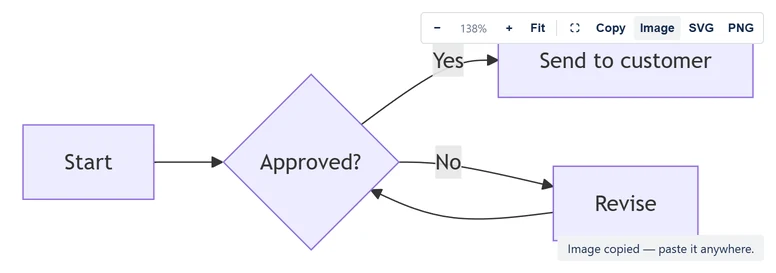
After you select a button, a short message says what happened:
- "Image copied — paste it anywhere." The picture is on your clipboard.
- "Diagram source copied." The text is on your clipboard.
- "PNG downloaded." or "SVG downloaded." The file is in your downloads.
- "This browser cannot copy images." Use PNG instead.
- "Clipboard blocked by the browser." Your browser did not let the page copy.
Writing a big diagram? See Keep a big diagram readable.